OneNote access problems
Outcome: You will know what your OneNote access message means, who needs to act, and exactly what to click. Your pages are kept on this computer while they wait.
Which message do you see?
Section titled “Which message do you see?”Find the message ReMarkSync shows, then open its section.
| Message in ReMarkSync | What it means | Who acts |
|---|---|---|
| Allow OneNote access | This notebook needs one more OneNote permission. You approve it once. | You |
| Admin approval needed | You allowed access, but Microsoft still needs your admin to approve ReMarkSync. | Your admin, then you |
| OneNote library is too large | A OneDrive or SharePoint library holds more than 5,000 OneNote items. | Your admin, or you |
| Microsoft blocked access to this notebook | Microsoft refuses access to this place. Allowing access again won’t help. | You choose another place |
| Check OneNote access | An older saved access error that ReMarkSync needs to check again. | Nothing to do, or Check again |
| OneNote can’t use this notebook | Your personal Microsoft account can’t use this notebook. This can happen with a notebook someone else shared with you. | You choose another notebook |
Where you see it
Section titled “Where you see it”- Dashboard: a panel names the problem, explains it, and shows its buttons.
- Tray: the tooltip reads ReMarkSync: followed by the same title, for example “ReMarkSync: Admin approval needed”.
- Activity: lists each waiting page. Activity opens on History, so switch to Open now to see the pages and their buttons.
How much stops depends on when the problem happened:
- While a page was uploading: the whole sync pauses. The Dashboard headline reads Sync is paused.
- While ReMarkSync was reading a section: only that section’s pages wait. Other pages keep syncing. The Dashboard headline reads Sync needs your attention.
In both cases the Dashboard says “Your pages are kept. The next step is shown below.” Nothing is deleted or sent twice while pages wait.
Allow OneNote access
Section titled “Allow OneNote access”Some work and school notebooks need one more OneNote permission than ReMarkSync asks for at sign-in. ReMarkSync asks for it only when a notebook needs it. You approve it once for your account and organization, not before every sync.
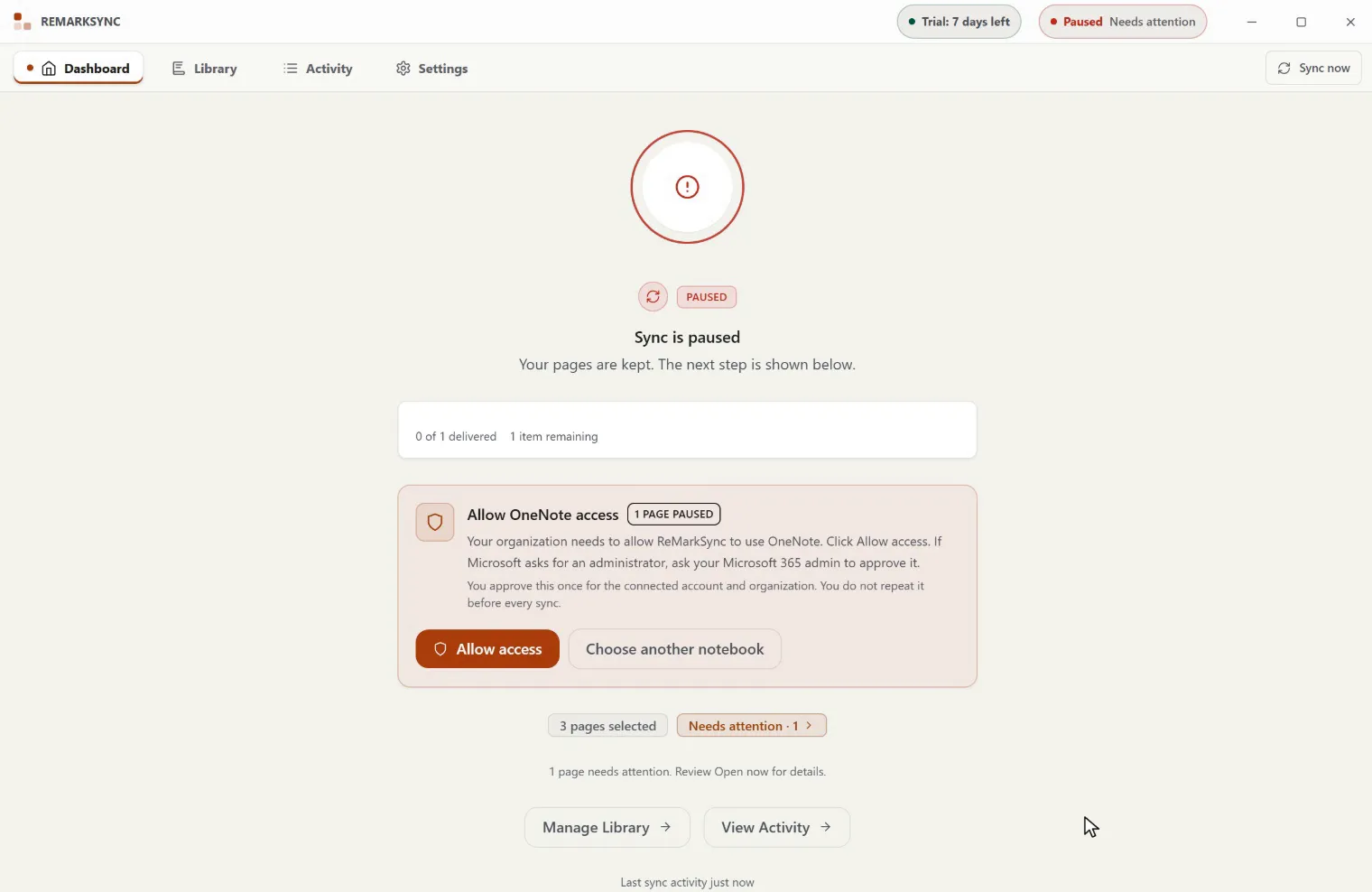
- Open the Dashboard. The panel reads Allow OneNote access.
- Click Allow access. A secure Microsoft window opens, and the button reads Waiting for Microsoft… while it is open.
- In Microsoft’s window, sign in if asked, then accept the permission.
- Return to ReMarkSync. You should see: “OneNote access granted. ReMarkSync is resuming 1 page.” The waiting pages continue.
Activity offers the same action: Allow access in the toolbar, and Allow OneNote access on each waiting page in Open now.
If you prefer not to grant the permission, click Choose another notebook and pick a notebook that does not need it.
What happens next
Section titled “What happens next”| ReMarkSync shows | What it means | What to do |
|---|---|---|
| OneNote access granted. “ReMarkSync is resuming 1 page.” | Done. The pages continue. | Nothing. |
| “OneNote access granted. Sync remains paused until billing access is restored.” | Access works, but your plan does not allow syncing right now. | Check your plan in Settings. |
| OneNote access granted; recovery needs attention. | Some pages continued. Others have a separate problem. | Open Activity, then Open now. |
| “No pages were resumed. Review retained work in Activity; do not grant access again for the same saved error.” | Access was granted, but no waiting page could continue yet. | Open Activity, then Open now. Don’t click Allow access again. |
What Microsoft may answer
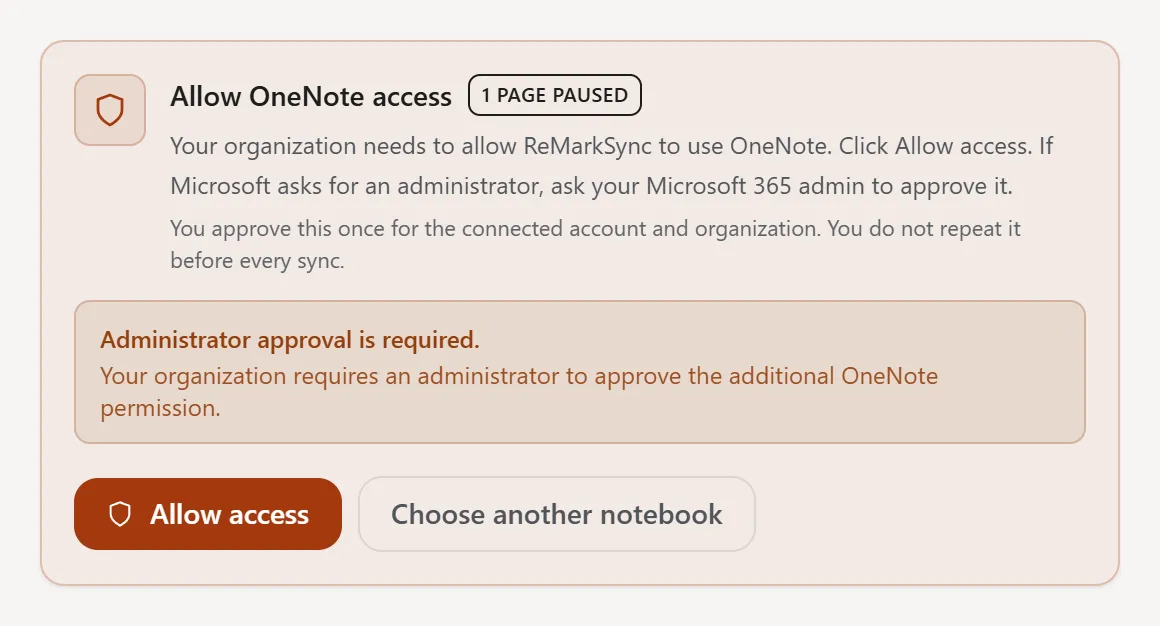
Section titled “What Microsoft may answer”Microsoft’s window belongs to your organization, so it can look different from one company to another. If Microsoft does not approve the permission, ReMarkSync shows one of these notices. Nothing changes and your pages stay kept.
| Notice | What it means | What to do |
|---|---|---|
| OneNote access was not changed. | You closed Microsoft’s window or did not accept. Microsoft also shows this after you send an approval request to your admin. | Click Allow access again when you are ready. If you sent a request, wait until your admin approves it. |
| Administrator approval is required. | Your organization lets only an admin approve apps like ReMarkSync. | Send your admin the request below, then click Allow access again. |
| Your organization blocked this permission. | Your organization does not allow this OneNote permission right now. | Choose another notebook, or ask your admin. |
| ReMarkSync needs an authorization update. | Microsoft refused ReMarkSync’s request. Microsoft can also show this when your admin has not approved ReMarkSync yet. | Use Get help on the page, and tell your admin. |
| OneNote access needs attention. | Something else went wrong in Microsoft’s window. | Try Allow access again. If it repeats, use Get help. |
Admin approval needed
Section titled “Admin approval needed”You already clicked Allow access, but Microsoft still refuses until your Microsoft 365 admin approves ReMarkSync for your organization. That is why ReMarkSync does not offer Allow access a second time: doing it again would not change Microsoft’s answer.
Approval is remembered for your account and organization, not for one notebook. So a new notebook in the same organization shows this message too.
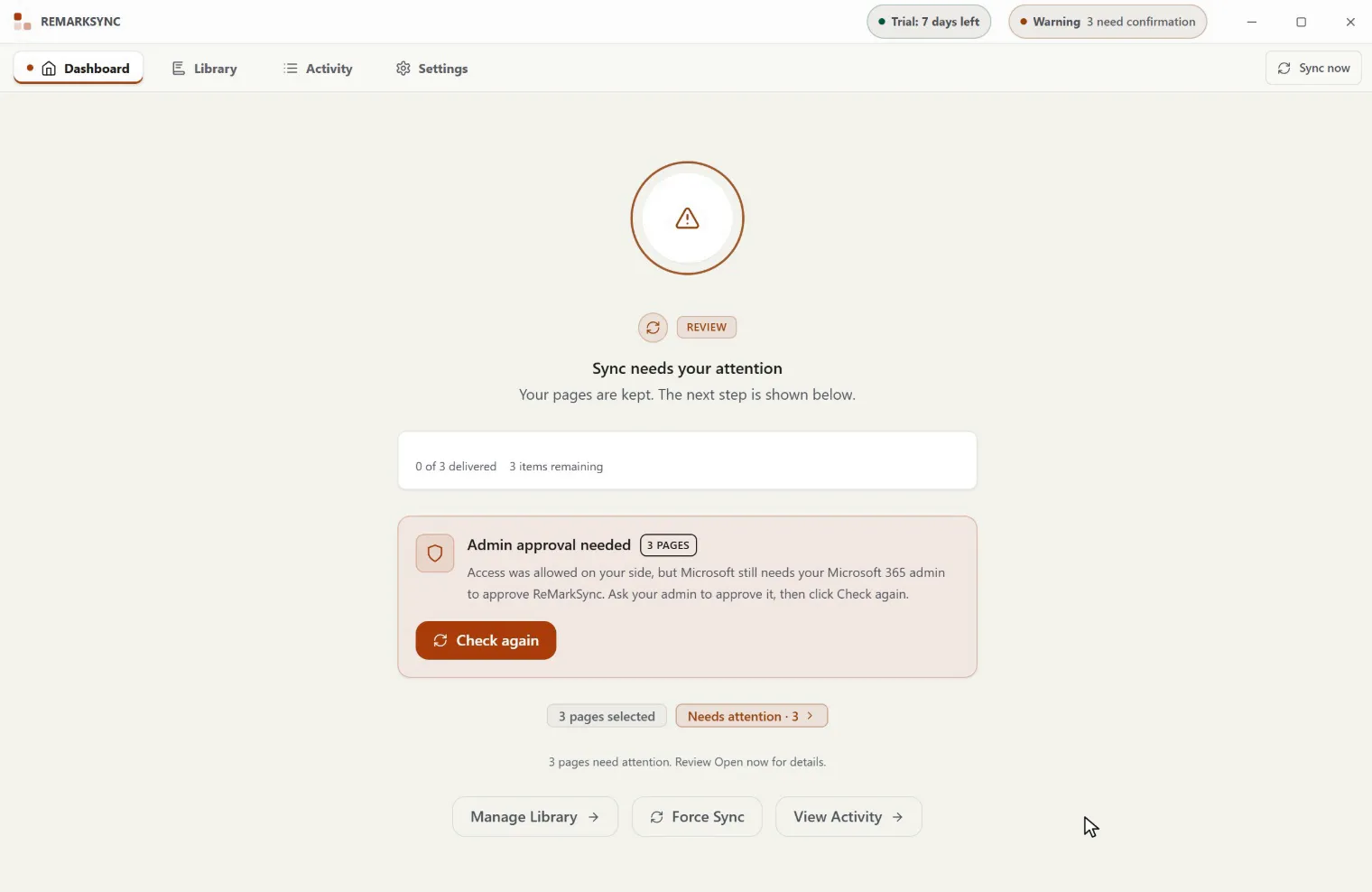
- Copy the request below and send it to your IT admin.
- Wait until your admin tells you ReMarkSync is approved.
- Open the Dashboard and click Check again in the Admin approval needed panel. You should see: “Checking again. ReMarkSync is resuming 3 pages.” The waiting pages continue.
Use the Check again button on the Dashboard. When the whole sync is paused, it is the one that also resumes sync. The Check again button on a page in Activity puts that page back in line, but sync stays paused.
If Microsoft still refuses, the same message comes back and your pages keep waiting. Other possible answers:
- Nothing to check: “No pages are waiting for admin approval.” Nothing is waiting anymore.
- Check again did not finish. “Your pages are kept. Try again, or open Activity for details.”
What to send your admin
Section titled “What to send your admin”Copy this text into an email or chat to your IT admin:
Hi, I use ReMarkSync to save my reMarkable notes in OneNote. Microsoft says anadministrator must approve it for our organization. Could you review and grantadmin consent to the app "ReMarkSync" for these Microsoft Graph delegatedpermissions?
- Sign in and read user profile (User.Read)- Read and write user OneNote notebooks (Notes.ReadWrite)- Read and write all OneNote notebooks that user can access (Notes.ReadWrite.All)- Maintain access to data you have given it access to (offline_access)
Microsoft's guide: https://learn.microsoft.com/en-us/entra/identity/enterprise-apps/grant-admin-consent
Thank you.
Your admin decides what your organization allows. Microsoft explains the options in Grant tenant-wide admin consent to an application. Some organizations let you send an approval request from Microsoft’s window instead; your admin then reviews it, as described in Review admin consent requests.
OneNote library is too large
Section titled “OneNote library is too large”Microsoft can’t look up OneNote notebooks in a OneDrive or SharePoint library that holds more than 5,000 OneNote items. Notebooks, sections and section groups all count. This is a Microsoft limit, not a ReMarkSync setting, so allowing access again won’t help.
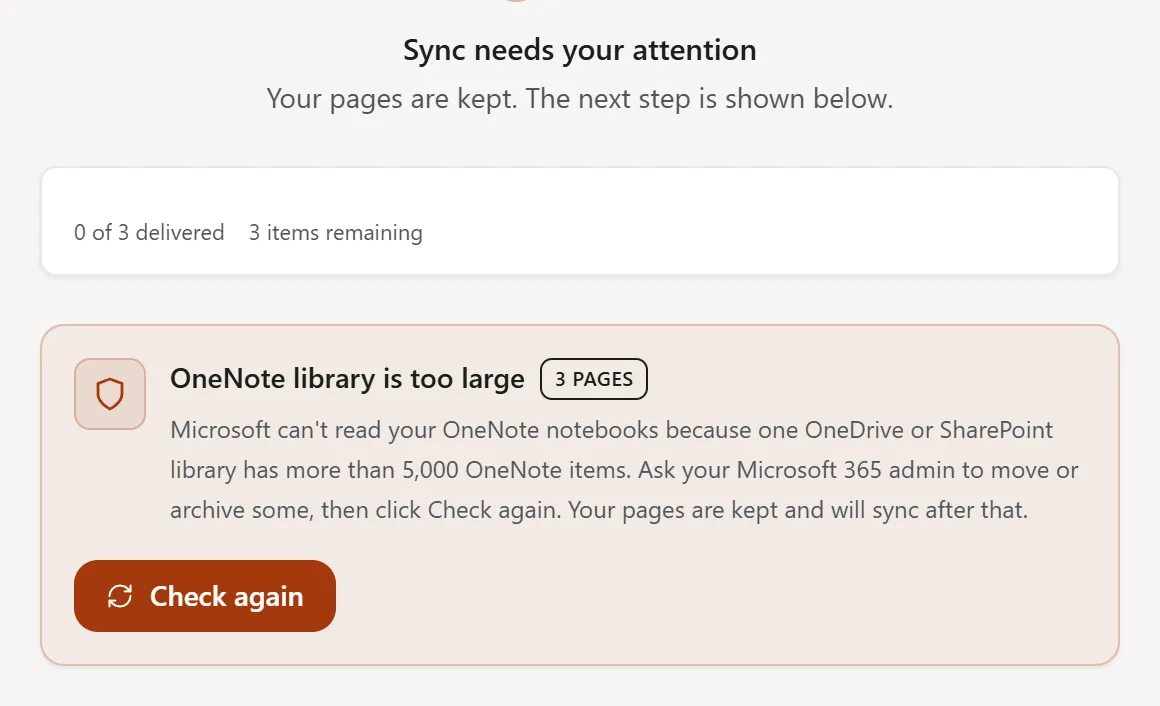
- Find out who manages the library. For your own OneDrive, that is you. For a team or SharePoint library, it is usually your Microsoft 365 admin.
- Move some notebooks to another library, or delete notebooks nobody needs anymore, until the library holds fewer than 5,000 OneNote items. Your admin can read Microsoft’s description of error 10008.
- Open the Dashboard and click Check again. You should see the waiting pages continue.
Your pages wait safely in ReMarkSync until then. ReMarkSync does not retry this by itself, because nothing changes until the library gets smaller.
Microsoft blocked access to this notebook
Section titled “Microsoft blocked access to this notebook”Microsoft says your account can’t use this notebook or section. This often happens with a notebook shared with you as view-only, or when your organization’s settings block access. Allowing access again won’t help, so pick another place for your pages.
When a section is blocked
Section titled “When a section is blocked”Only the pages for that section wait. Each one offers another section.
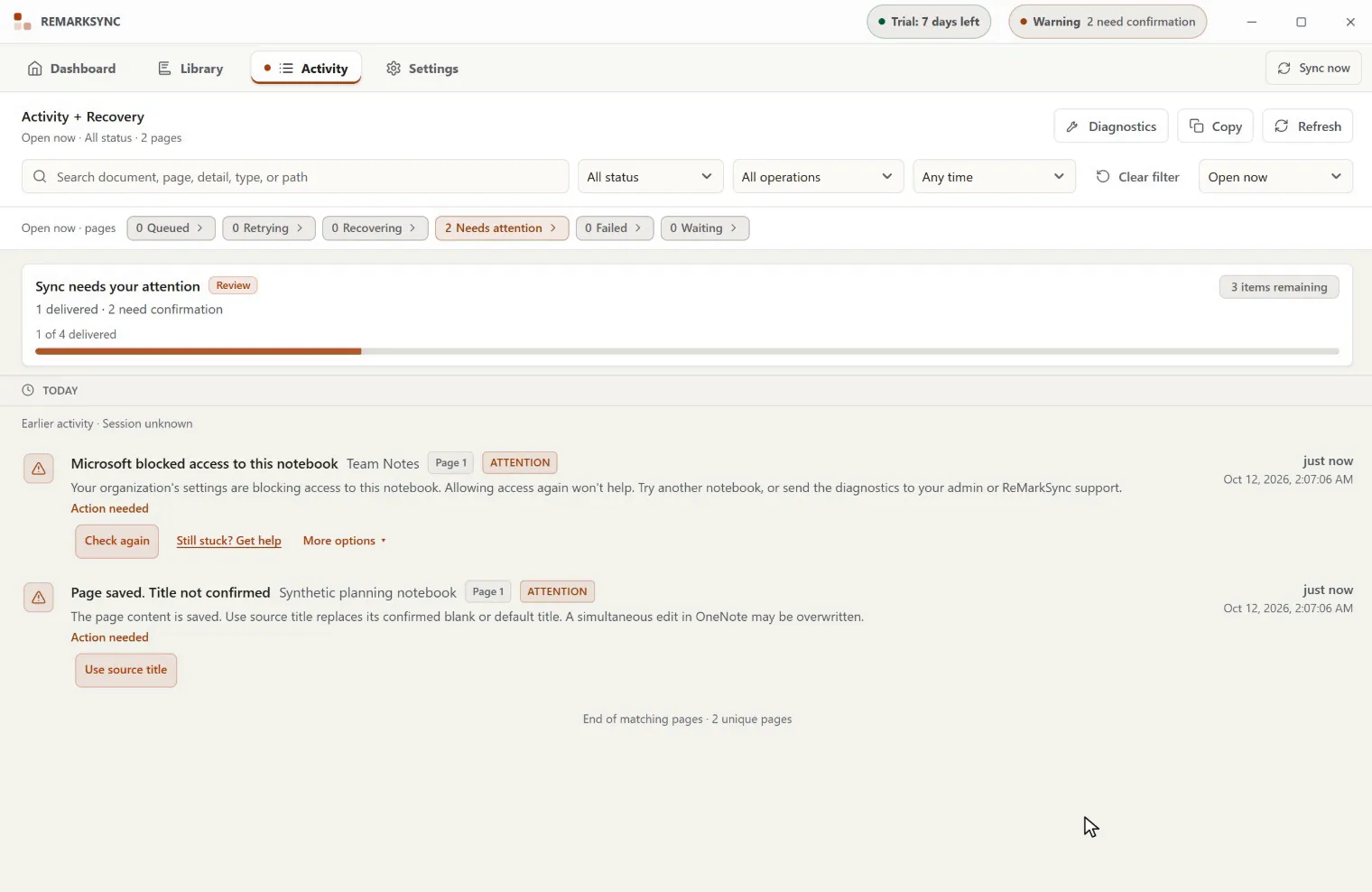
- Open Activity and switch to Open now.
- On the waiting page, click More options, then Choose another section.
- In Choose a destination for this page, pick a section, then click Use this section for this page. You should see: “This page is queued for the chosen section.” The page syncs to the new section.
If you think access was fixed, click Check again on the page instead.
When the Dashboard shows the panel
Section titled “When the Dashboard shows the panel”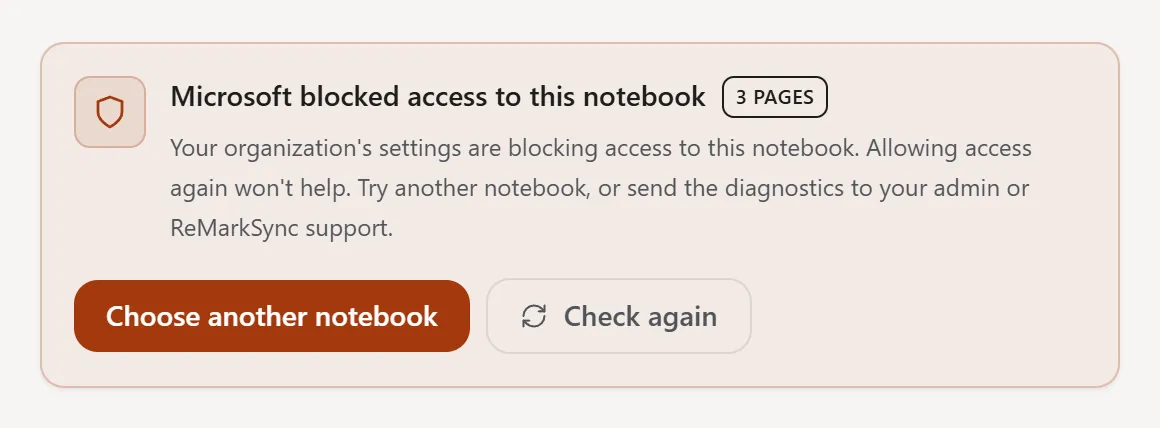
The panel offers Choose another notebook first, then Check again. Choose another notebook to send your pages somewhere you can write. Use Check again after the notebook’s owner or your admin has changed your access.
When a single page is blocked
Section titled “When a single page is blocked”A page can show this message with no fix button. Then Get help is the main button, because only ReMarkSync support can look into it. See Get help for a page.
Check OneNote access
Section titled “Check OneNote access”You may see this after updating ReMarkSync, on pages that stopped on an access error before the update. The older error did not save enough detail, so ReMarkSync needs to check the notebook again.
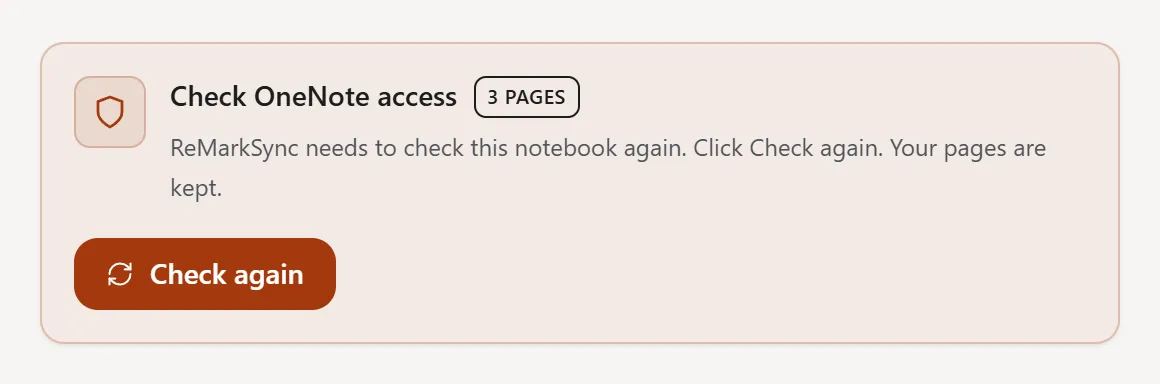
You don’t need to do anything. About 30 seconds after sync resumes, ReMarkSync checks these pages by itself, one page at a time, up to 4 pages each time it starts. It only reads OneNote. Each page then either syncs, or shows one of the messages above with its own fix.
To check now, click Check again on the Dashboard or on the page in Open now.
OneNote can’t use this notebook
Section titled “OneNote can’t use this notebook”This message appears only for a personal Microsoft account, such as an outlook.com or hotmail.com address. Personal accounts don’t have an admin, and ReMarkSync never asks them for extra OneNote access. So the fix is a notebook your account can write to, for example one in your own OneDrive.
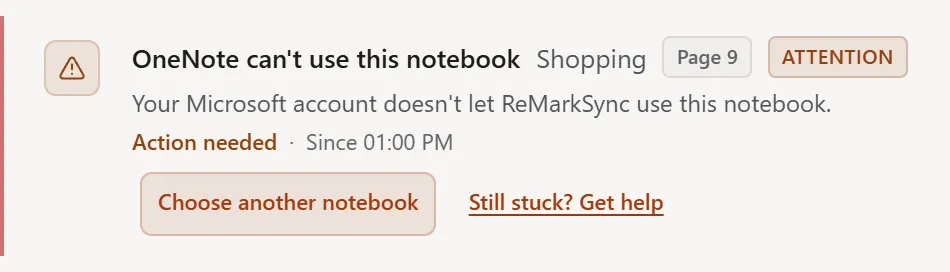
- Open Activity and switch to Open now. The page reads OneNote can’t use this notebook.
- Click Choose another notebook. Settings opens.
- Expand Switch OneNote notebook, choose a notebook in your own OneDrive, then click Switch notebook. You should see the waiting pages sync to the new notebook.
On the Dashboard and in the tray, the same problem reads OneNote needs attention. Your pages wait safely until you switch.
On a personal account, Microsoft blocked access to this notebook and OneNote library is too large don’t mention an admin: you choose another notebook, or move or archive some notebooks in your OneDrive.
If your organization says no
Section titled “If your organization says no”You still have three ways to sync your pages:
- Another notebook: switch the OneNote notebook to one in your personal OneNote or another notebook you can write to. ReMarkSync tells you how many pages it will send again before you confirm.
- Another section: when a section is blocked, use Choose another section on each page, as shown above.
- Get help: click Get help on the page. See Get help for a page.