Understand the Dashboard
Outcome: You will know what the latest sync completed, which pages still need follow-up, and where to inspect them.
Before you begin
Section titled “Before you begin”- Complete guided setup.
- Select at least one page in Library.
Check the latest sync
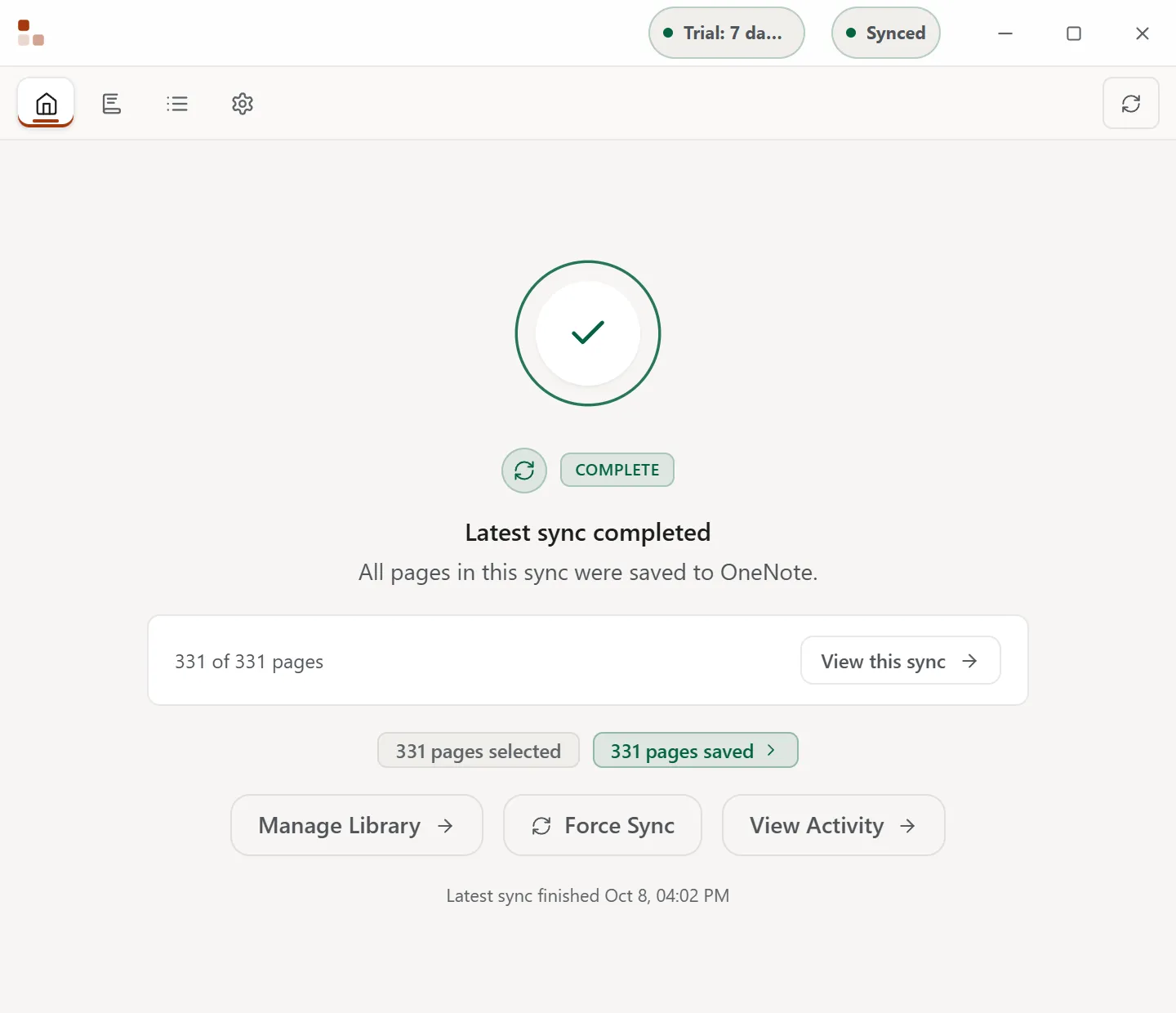
Section titled “Check the latest sync”Open Dashboard. The numbers in the clip match the steps below.
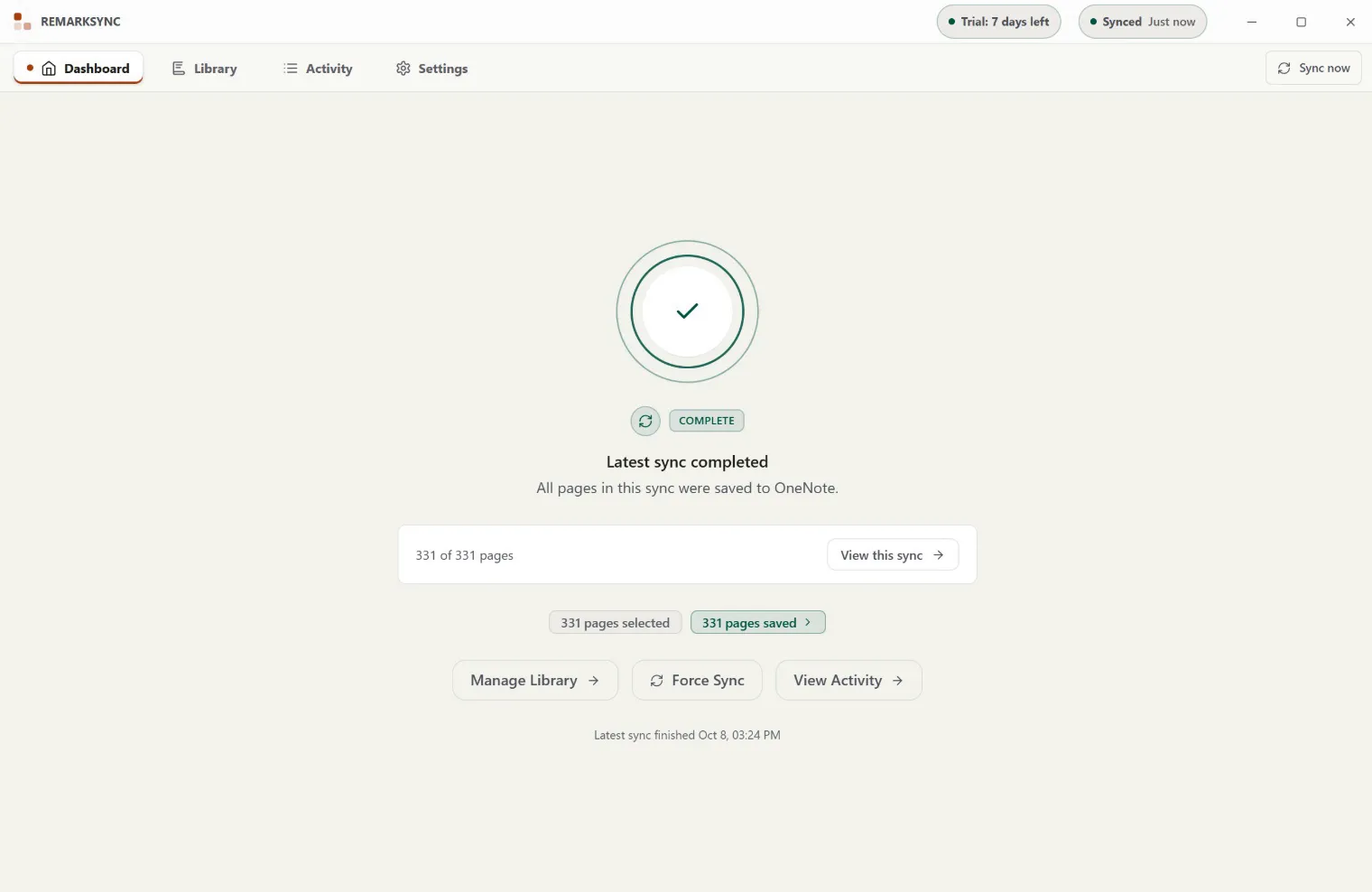
- The result. Latest sync completed means every page included in that sync reached a saved result.
- The page total. 331 of 331 pages is the result for the latest sync only. Select View this sync to open Activity with Latest sync selected and see the pages recorded for that sync.
- The page counts. 331 pages selected is how many pages you currently selected in Library. 331 pages saved is how many pages the latest sync saved. Select it to list those pages in Activity.
- The actions. Manage Library changes what syncs, Force Sync checks for new changes now, and View Activity opens the page history.
Check pages that need follow-up
Section titled “Check pages that need follow-up”The smaller status counts at the bottom of Dashboard describe pages in their current state. They are separate from the latest-sync result.
- Select a count such as Needs attention · 2.
- ReMarkSync opens Activity, selects Open now, and applies the matching status.
- Confirm the scope and status above the results, then open a page to read its detail and available action.
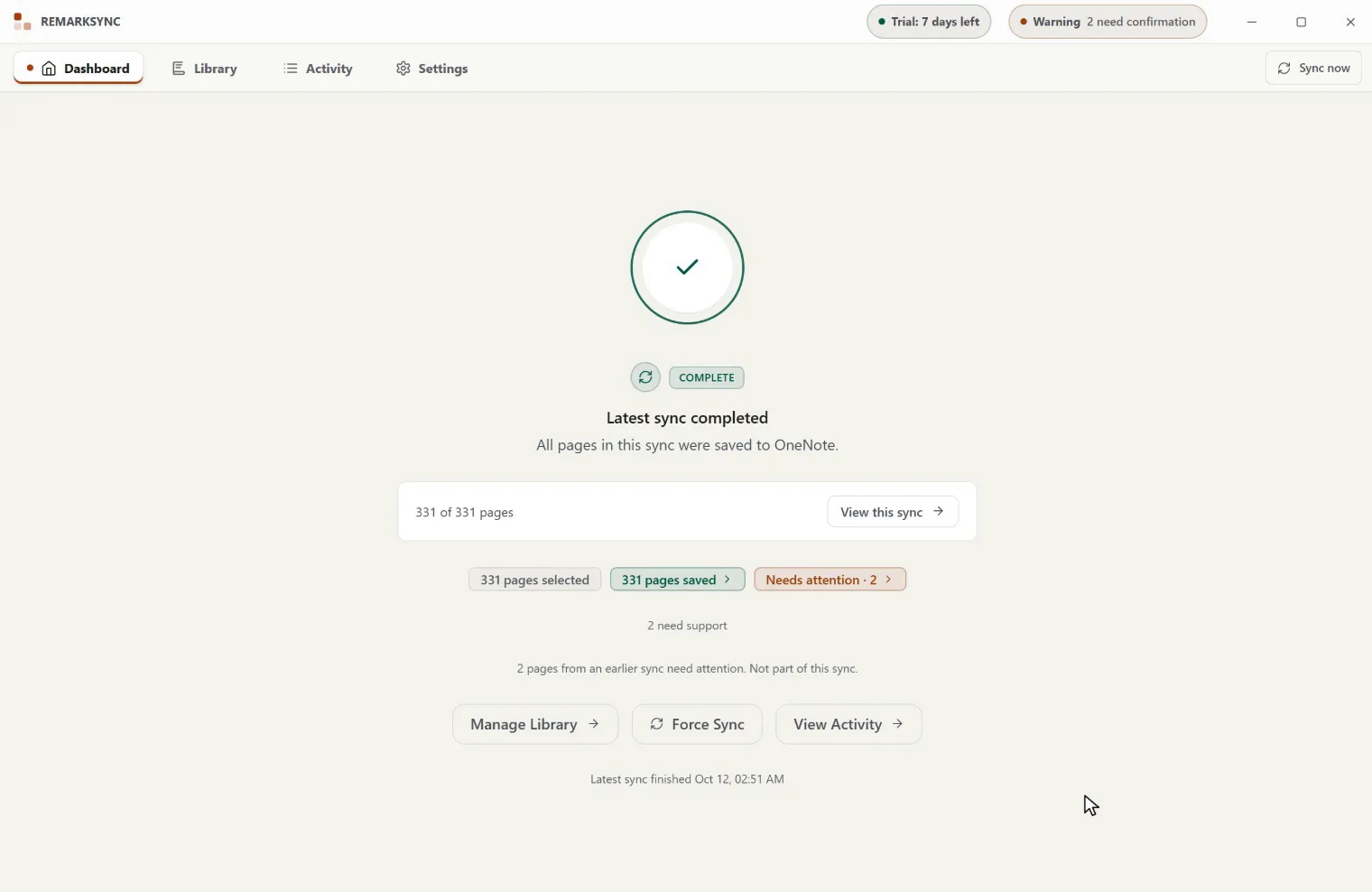
In this example, 331 of 331 pages completed in the latest sync while 2 pages from an earlier sync need attention. The two older obligations do not reduce the latest sync to 329 pages. ReMarkSync says that pages are from an earlier sync only when it can establish that relationship. If it cannot, Activity shows Earlier activity · Session unknown instead of guessing.
Understand the counts
Section titled “Understand the counts”| Dashboard information | What it measures | Where it opens |
|---|---|---|
| N of N pages under Latest sync completed | Source pages recorded in the latest sync session | Activity > Latest sync |
| Queued | Current source pages waiting for eligible sync work | Activity > Open now, filtered to Queued |
| Retrying | Current source pages with an eligible retry scheduled or running | Activity > Open now, filtered to Retrying |
| Recovering | Current source pages being checked or repaired safely | Activity > Open now, filtered to Recovering |
| Needs attention | Current source pages that need a prerequisite, decision, or review | Activity > Open now, filtered to Needs attention |
| Failed | Current source pages with a failure | Activity > Open now, filtered to Errors |
| Waiting | Current source pages waiting for a verified reason shown in their detail | Activity > Open now, filtered to Waiting |
These are page counts. They do not count retry attempts, events, upload parts, or OneNote requests. A page can move between states, and queued or retrying work can overlap during a transition. Do not add the status buttons to calculate a grand total.
Read an active or waiting state
Section titled “Read an active or waiting state”During work, Dashboard names the current item and explains what is happening. A waiting message also states the reason and the next step.
| Dashboard shows | What it means | Read more |
|---|---|---|
| Waiting for sync, with a line such as “195 delivered · 83 waiting · 1 recovering” | Pages wait their turn or wait for OneNote. Nothing is stuck. | Why a page is waiting |
| A chip Appearing soon · 1 | OneNote received a page and is about to show it. | Appearing soon |
| Sync paused after repeated errors, with Resume now | OneNote kept rejecting pages. ReMarkSync tries again at the time shown. | Sync paused after repeated errors |
| Sync is paused or Sync needs your attention, with a OneNote access panel | Pages wait for a OneNote access problem. The panel names it and shows its buttons. | OneNote access problems |
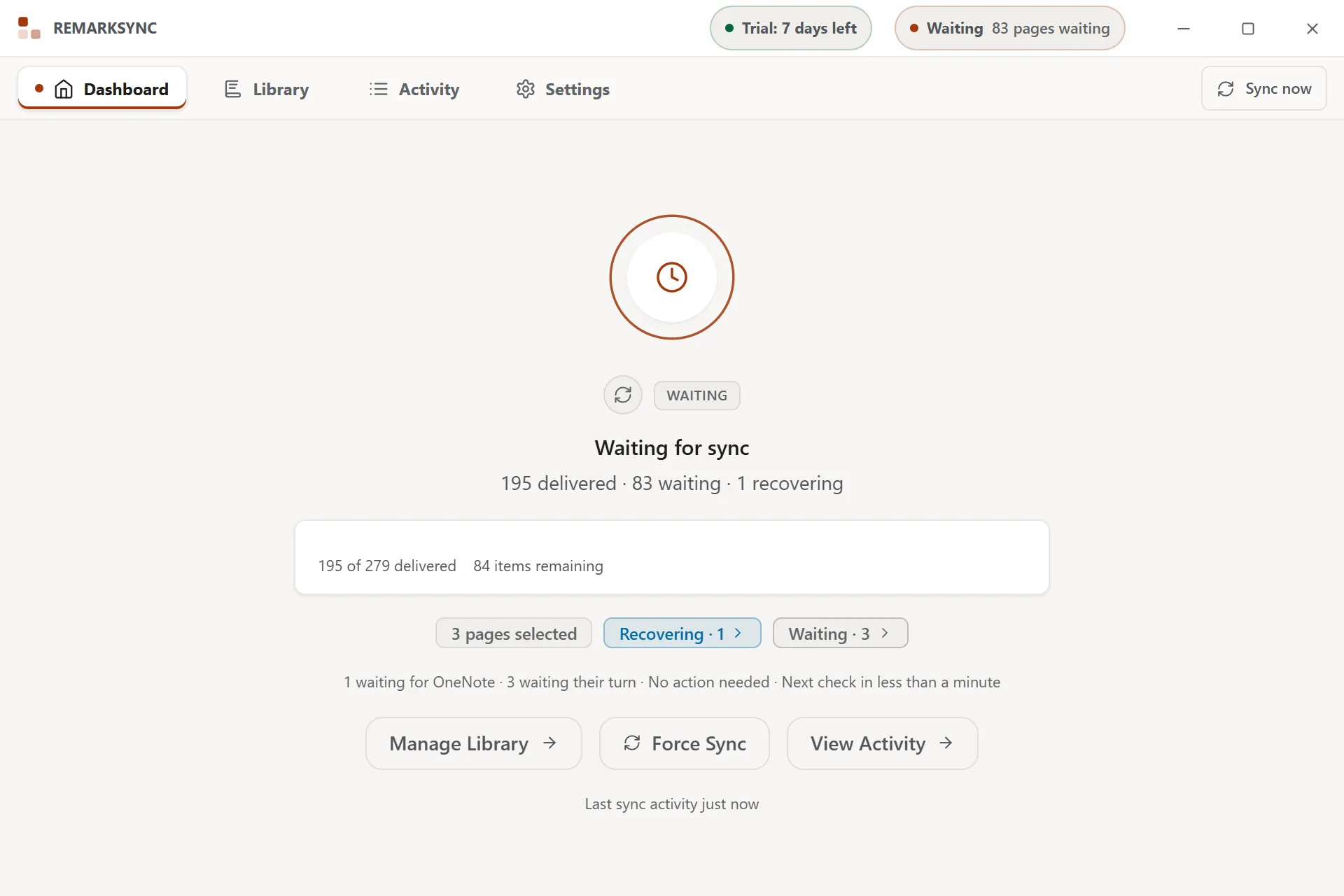
Use Force Sync on Dashboard, or Sync now at the top of the window, to check for new eligible changes when no sync is running. Both buttons do the same thing. They do not bypass a protected uncertain OneNote result. Open Activity for page-level recovery guidance.
Pages saved always matches the pages delivered to OneNote.
A page that is missing its local source while OneNote’s result is unresolved appears under Needs attention, and no automatic check is scheduled. Open Activity and use Get help on the page. See when the local source is missing.
Use Dashboard in a compact window
Section titled “Use Dashboard in a compact window”In a narrower window, the same latest-sync result and current-status counts remain available in a stacked layout. Select a count to open the matching pages as you would in a wider window.
Expected result
Section titled “Expected result”If your screen looks different
Section titled “If your screen looks different”Dashboard shows only the counts that apply to the current state. A status count can disappear after the underlying page resolves. If a count opens an empty list, select Refresh in Activity and check the visible scope and filter; the page may have changed state between the two views.