Fix a sync problem
Outcome: You will identify whether the problem is in the source download, selection, Microsoft access, or page delivery.
Which message do you see?
Section titled “Which message do you see?”If ReMarkSync already shows a message on the page, go straight to its guide:
| Message in ReMarkSync | Where to read |
|---|---|
| Couldn’t upload this page with Retry this page | Retry one page |
| Get help is the main button | Get help for a page |
| Waiting its turn to sync, Appearing soon, Waiting for OneNote, Sync is paused | Why a page is waiting |
| Sync paused after repeated errors | Why a page is waiting |
| Allow OneNote access, Admin approval needed, or another OneNote access message | OneNote access problems |
| Any other button on the page | Recover and retry a page |
If there is no message, check the sync path below.
Before you begin
Section titled “Before you begin”- Keep ReMarkSync open.
- Know the name of one missing document or page.
- Do not repeatedly retry an item if OneNote may already contain it.
Check the sync path
Section titled “Check the sync path”- Open the official reMarkable desktop app.
- Confirm the latest edit is visible there. If it is not, wait for the official app to finish syncing.
- In ReMarkSync, open Library.
- Search for the page and confirm it is selected.
- Open Dashboard and read the latest-sync result separately from the current page-status counts. If there is no active sync or recovery to wait for, use Sync now to check for new changes. It does not bypass a protected recovery state.
- Open Activity, select Open now, and search for the page name. Use Latest sync when you are checking only the most recent session.
- If the page shows a OneNote access message, follow OneNote access problems.
- If the page says No action needed, ReMarkSync is handling it. See Why a page is waiting.
- If the page has a button, read its message first, then use Recover and retry a page to choose. A visual check in OneNote alone cannot prove that a page is absent.
Common symptoms
Section titled “Common symptoms”Gather diagnostics for support
Section titled “Gather diagnostics for support”For a problem on one page, the quickest route is Get help on that page. It saves the file and prepares the email for you. See Get help for a page.
- In Activity, select Diagnostics.
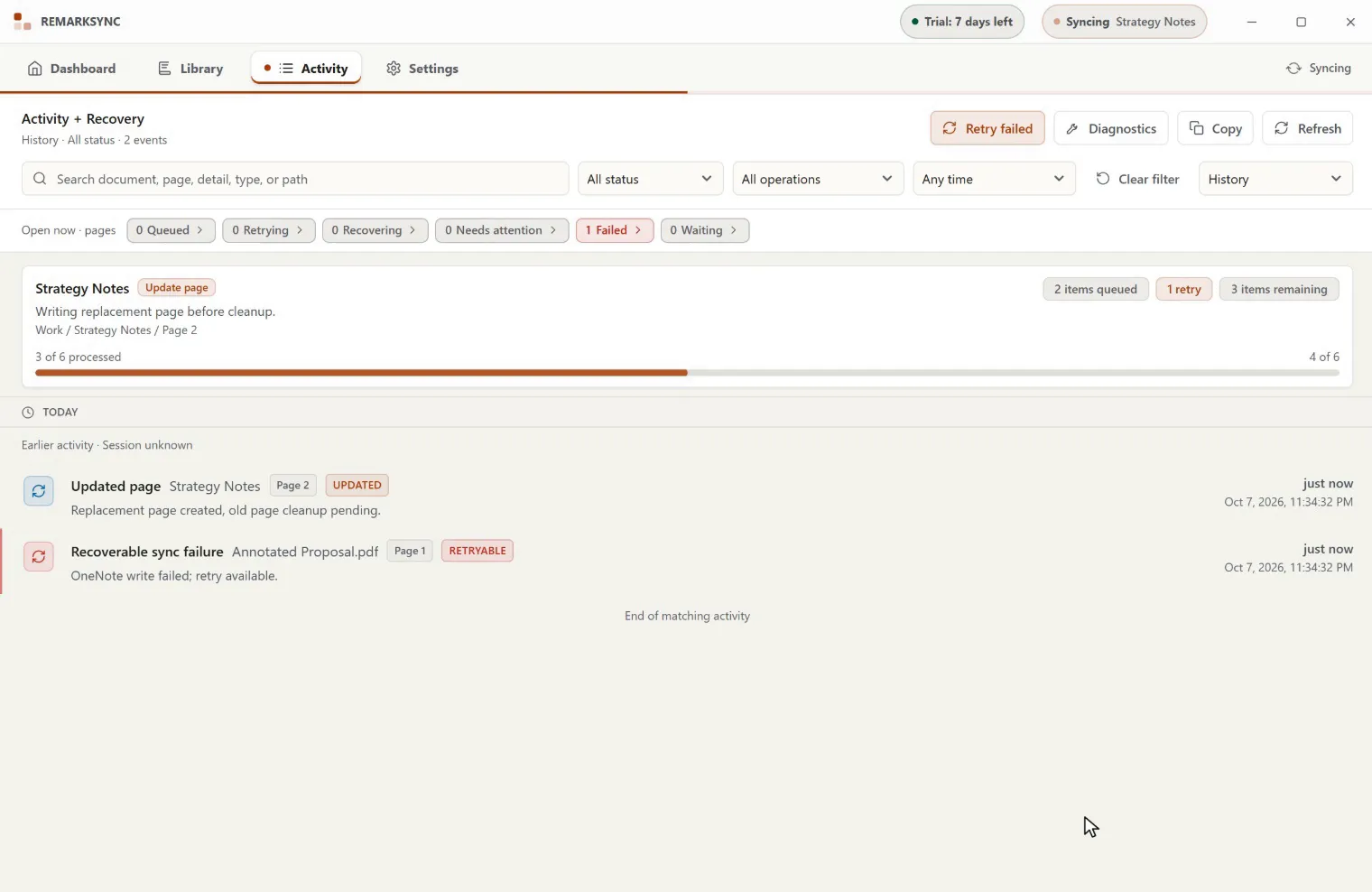
- Keep Include names and paths off unless support specifically asks for that information and you have reviewed it.
- Select Export diagnostics only when you intend to attach the file to a support request.
Expected result
Section titled “Expected result”If your screen looks different
Section titled “If your screen looks different”Recovery controls appear only for problems ReMarkSync can handle safely. If no retry is offered, use the error detail and contact support instead of forcing repeated attempts.
Troubleshooting
Section titled “Troubleshooting”If the same failure continues after these checks, use Get help on the page, or email support@remarksync.com with the ReMarkSync version, platform, approximate time, and the exact visible message. Attach diagnostics only if you choose to share them.