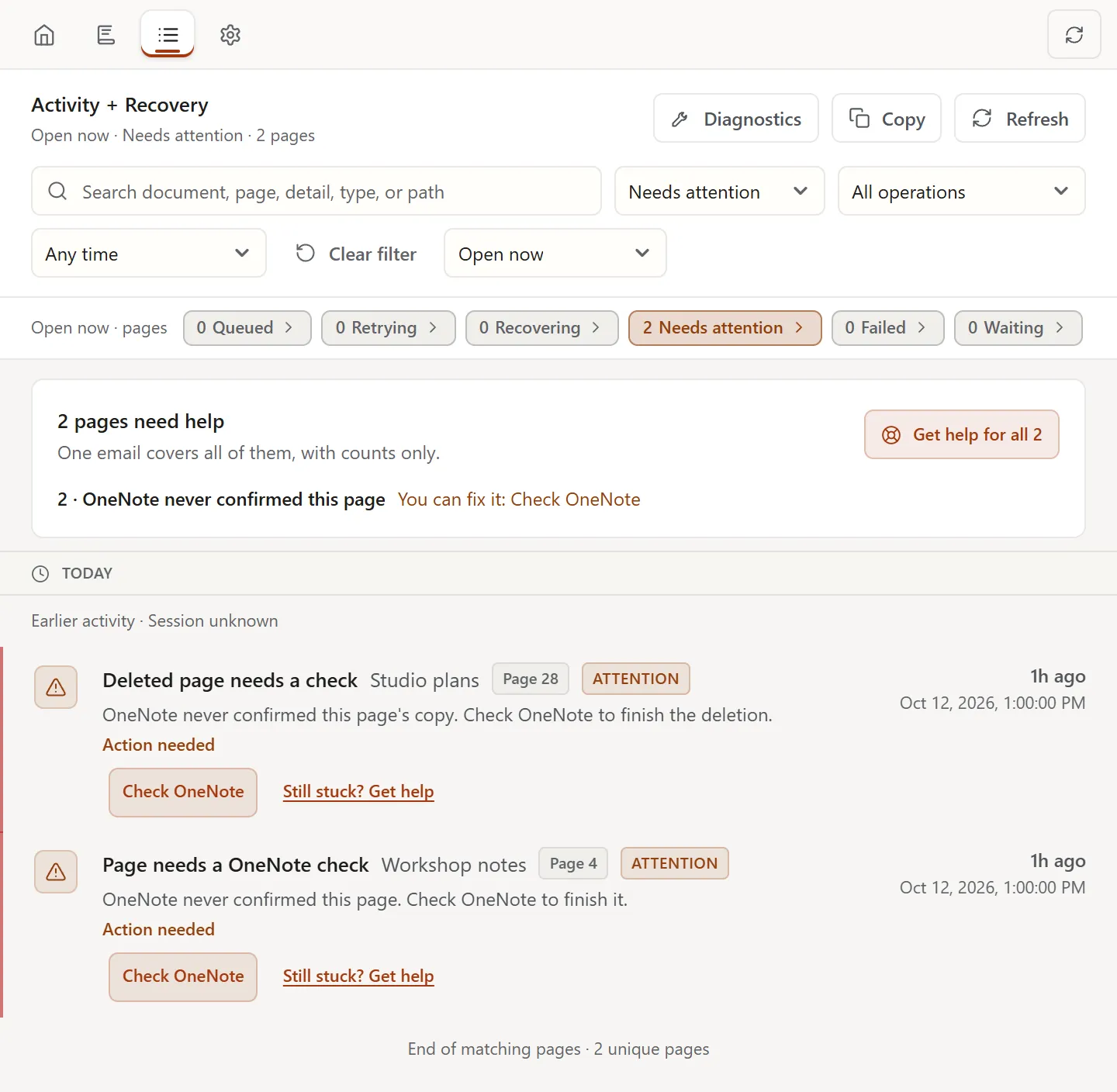
Review Activity and sync history
Outcome: You will find the exact pages represented by a count, understand their sync history, and know whether to wait or take an offered action.
Before you begin
Section titled “Before you begin”- Run at least one sync.
- Know the document or page name you want to check when investigating one item.
Choose the right scope
Section titled “Choose the right scope”Open Activity and use the scope at the right of the filter row:
| Scope | Use it to answer | What appears |
|---|---|---|
| Open now | What is waiting, retrying, recovering, failed, or needs attention now? | One current row for each matching source page |
| Latest sync | What happened to the pages in my latest recorded sync? | The page results linked to that sync session |
| History | What happened in this and earlier sessions? | Session groups and other retained events |
Opening Activity directly selects History. Selecting View this sync on Dashboard selects Latest sync. Selecting a Dashboard status count selects Open now and the matching status.
Open the pages behind a count
Section titled “Open the pages behind a count”- Select a status count on Dashboard or in the Open now · pages strip in Activity.
- Confirm that Open now is selected and that the chosen status appears in the filter row.
- Review the list. It contains the unique source pages represented by that count.
- Select a row to read its explanation, saved-content state, next step, and available actions.
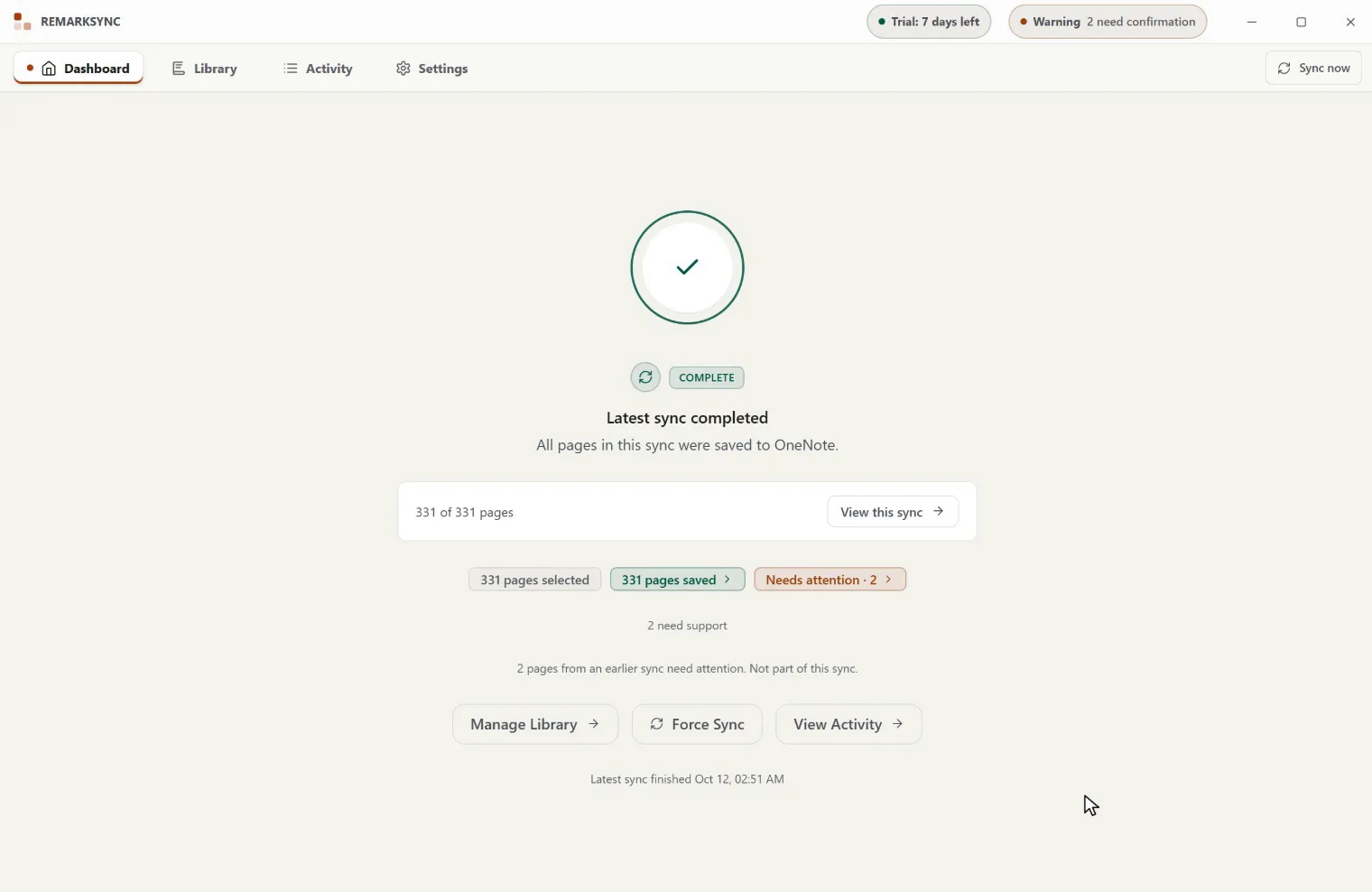
The status buttons count pages. They do not count jobs, retries, observations, events, or multipart uploads. A page can move between categories, and queued or retrying work can overlap during a transition. Do not add the buttons to calculate a total.
Read a page that needs you
Section titled “Read a page that needs you”In Open now, each page shows a short message, who acts, and its buttons:
- No action needed: ReMarkSync is handling the page. See Why a page is waiting.
- Action needed: the page has a main button with the recommended fix, then Still stuck? Get help and More options. See Recover and retry a page, or OneNote access problems for access messages.
- Needs support: Get help is the main button. See Get help for a page.
Search and clear filters
Section titled “Search and clear filters”- Enter a document or page name in Search activity.
- Use All status, All operations, and Any time to narrow the selected scope.
- Read the scope and filters together. For example, Latest sync with Completed means completed pages from the latest session, while History with the same filter can include older events.
- Select Clear filter to clear search, status, operation, and date restrictions. The selected scope and session remain in place. To leave an expanded session, select its session heading again.
If the result is empty, read the empty-state message. No matching pages or No matching activity means the current restrictions found nothing. No remaining follow-up means nothing currently needs action in that scope. A current count can also become empty if the page resolves before the list refreshes; select Refresh and check the scope again.
Inspect a sync session
Section titled “Inspect a sync session”- Select History.
- Find a session such as Manual sync, Automatic sync, or Requested recovery.
- Expand the session to see its events and page results.
- Select a page row when you need its detailed state.
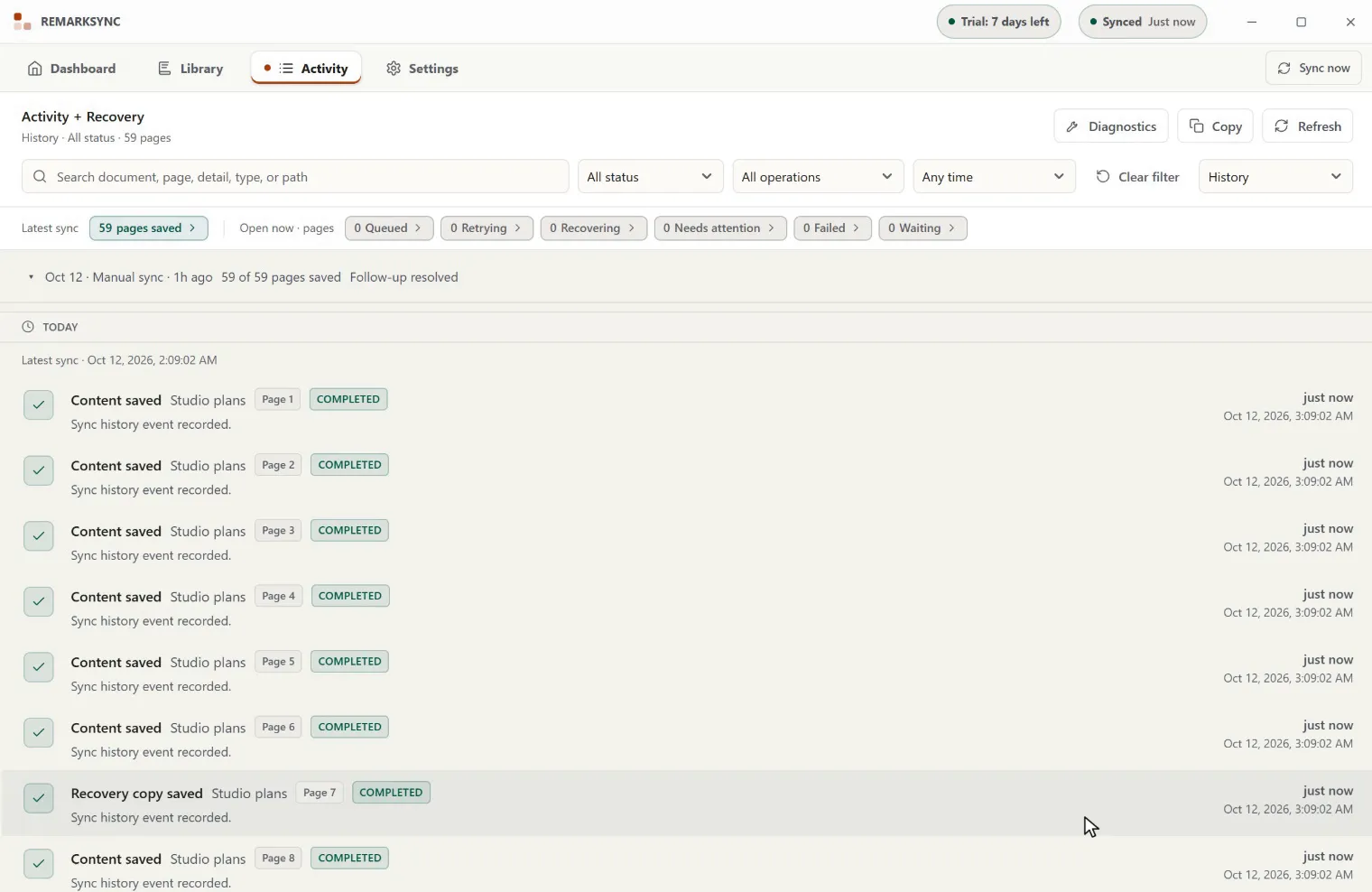
The time shown for an event is the time of that event on your device. A session heading describes its recorded session; it is not a promise that every later recovery event finished at the session’s start time. Older records can have less session information, so ReMarkSync preserves Session unknown when it cannot prove membership.
Read a page timeline
Section titled “Read a page timeline”- Select a page row to expand it.
- Read the facts that apply to the page, such as Content in OneNote, Follow-up, Local source, Session, Protection, Next check, or Resolved.
- Expand Timeline to follow meaningful state changes in order.
- If Older transitions appears, select it to load more retained transitions for that page.
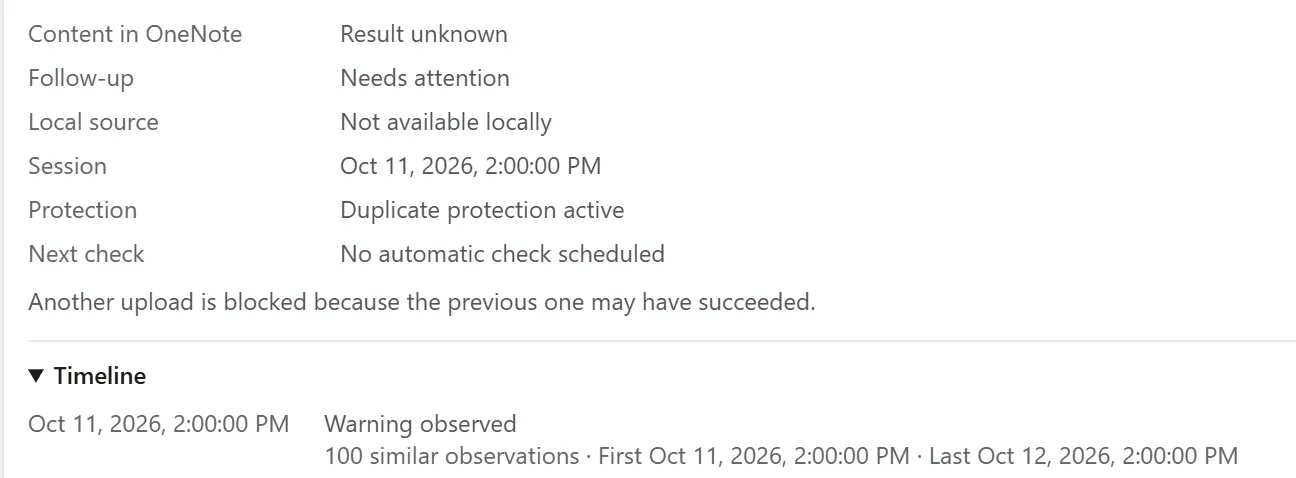
Repeated checks and retries can belong to one page and one recovery process. The timeline compresses similar observations so the important changes remain readable. History is device-local and can be limited by the records available for that installation; it is not an unlimited cloud audit log.
Understand what has already been saved
Section titled “Understand what has already been saved”The expanded facts distinguish delivery from follow-up work:
| What you see | What it means | What to do next |
|---|---|---|
| Content saved | The page content is saved in OneNote | No upload is needed for that saved content |
| Content saved; title needs review | The content is saved, but the title still needs review or repair | Follow the title action if one is offered; do not upload the content again |
| Recovery copy saved | OneNote confirmed a readable recovery copy | Future updates use the verified copy; no additional upload is needed |
| Result unknown with protection | OneNote may have accepted the original write, but ReMarkSync cannot confirm it | Keep the protection and use only the offered check or recovery action |
| Not delivered | ReMarkSync has evidence that delivery did not complete | Read the reason and use Retry this page only when it is offered |
| Removed or archived | The current result concerns deletion or archive behavior | Read the event and current page state before changing anything |

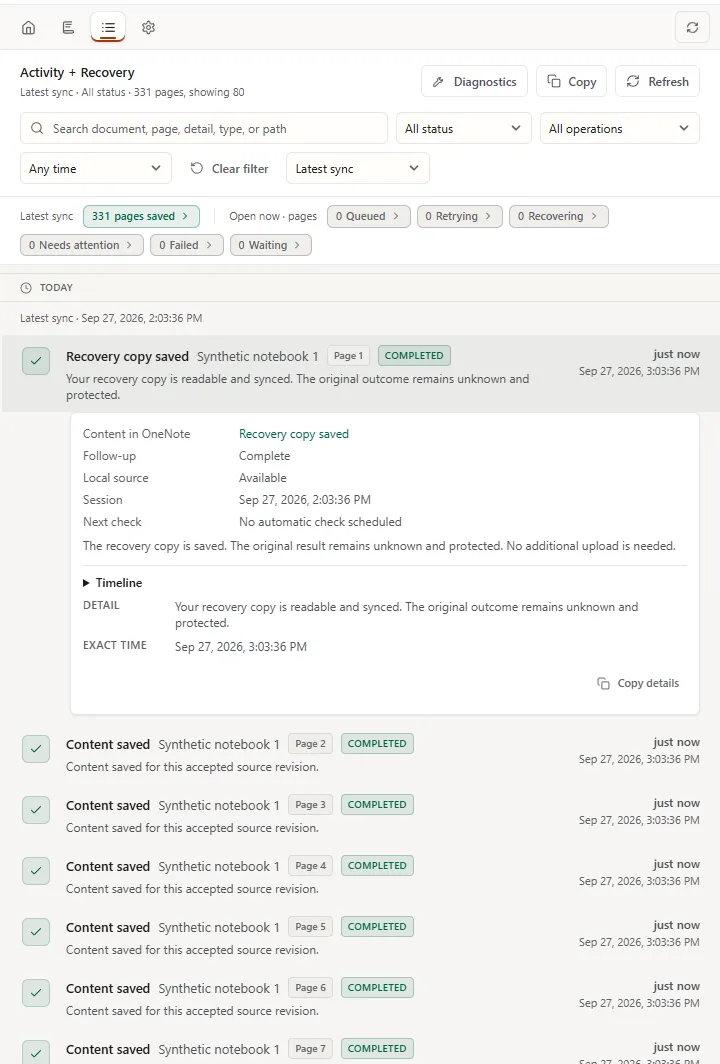
Historical events can remain after a page leaves Open now. Use the current facts and most recent meaningful transition to decide whether follow-up is still required.
When a page changes during upload
Section titled “When a page changes during upload”Usually you see nothing special: the page just sent stays the real OneNote page, and one more normal update brings your newest version.
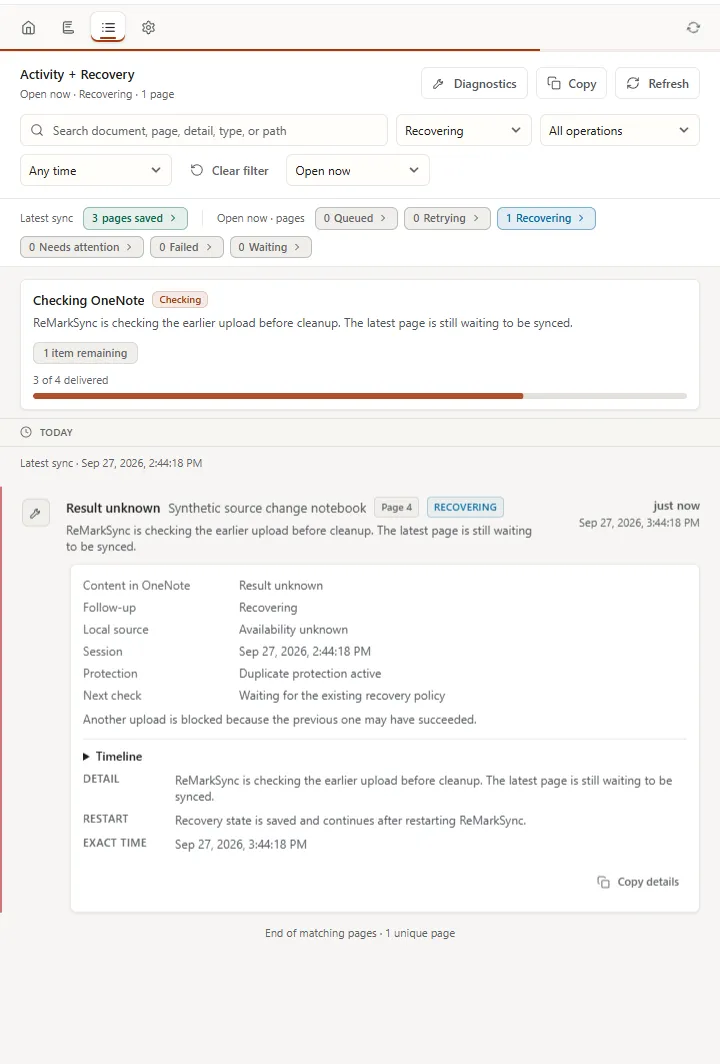
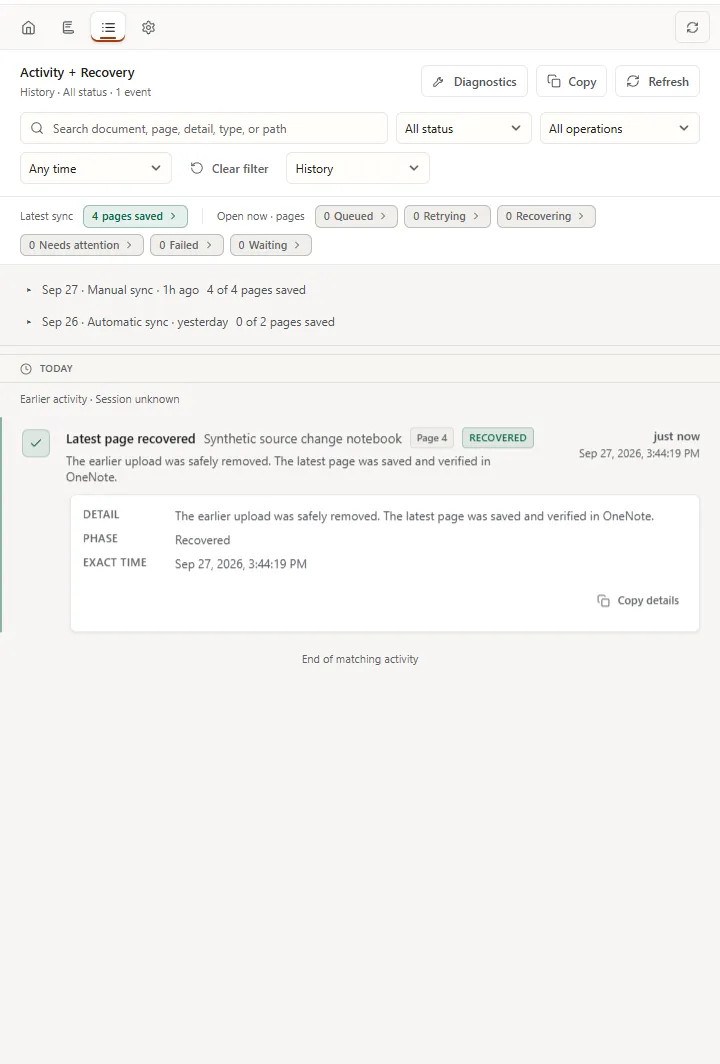
In rare cases, for example when the earlier upload did not finish, ReMarkSync first resolves the earlier upload. The page then reads Finishing an earlier upload safely in Open now, and History records the transition labels below. Completion of the earlier upload alone does not mean the latest changes are saved.
| Activity state | What it means |
|---|---|
| Waiting for local page file | The latest source file is not available yet. Let the official reMarkable desktop app finish downloading it. |
| Page recovery queued, Checking earlier upload, Cleaning up earlier upload, or Page recovery retry scheduled | Recovery is still in progress. The latest page is not confirmed in OneNote yet. Wait for the state to change. |
| Latest page queued for sync | The earlier upload was resolved, but the latest page still needs to be saved and verified. |
| Waiting to resume page recovery | The recovery state is saved, but no check is running. Resume sync and follow the current explanation. |
| Latest page recovered | The earlier upload was safely resolved and the latest page was saved and verified. No current follow-up remains. |
| Page recovery needs support | ReMarkSync cannot continue safely. The latest changes are not confirmed; use Get help on the page. |
Only Page recovery retry scheduled promises another scheduled check. Other states show a Next check time only when one is actually scheduled.
When a protected page’s source is missing
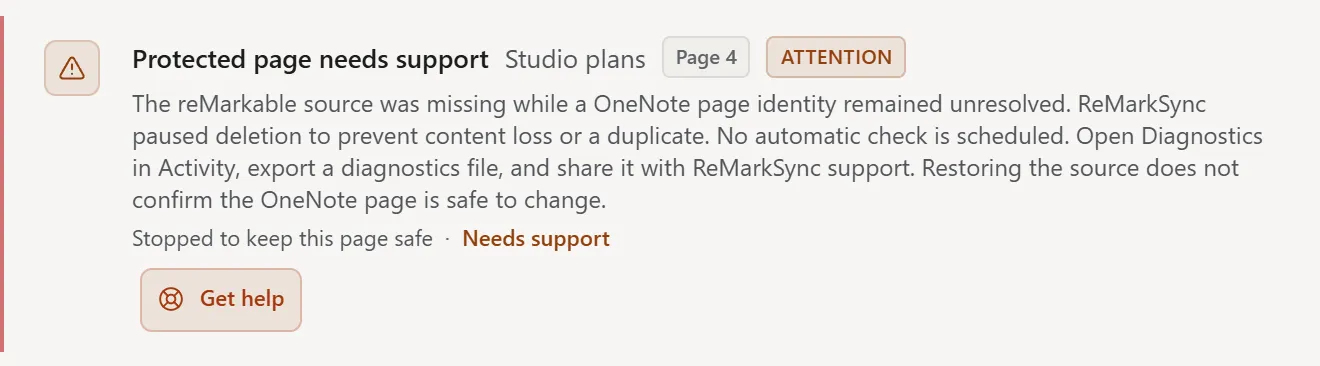
Section titled “When a protected page’s source is missing”In Open now, this protected page reads Stopped to keep this page safe with Needs support, and Get help is its main button. Its detail says the local source is missing while the identity of a possible OneNote page is still unresolved. History records the related event as Protected page needs support. ReMarkSync pauses deletion to protect content and prevent a duplicate. The item remains in Needs attention, with No automatic check scheduled.
Restoring the source does not confirm the OneNote page is safe to change. Click Get help on the page and follow its steps. See Get help for a page. Sync now does not bypass this protection.
Use only the action shown for the page
Section titled “Use only the action shown for the page”- Retry this page queues one eligible recoverable failure.
- Retry failed queues current recoverable failures and skips states it cannot retry safely.
- A protected uncertain write can offer a read-only check, guarded recovery, or a recovery-copy workflow instead of retry.
- Still stuck? Get help and Get help open the help steps for the page. See Get help for a page.
- More options shows other actions for the page, such as Choose another section.
- Copy details copies the expanded page detail for a support request.
- Diagnostics opens the privacy-reviewed support export.
- Refresh reloads current results. It does not perform sync or recovery work.
- Expanding a row, changing a filter, and browsing history do not perform sync or recovery work.
Do not re-upload saved content, clear protection records, reset the profile, or infer that a missing OneNote page makes an uncertain create safe to repeat. Follow Recover and retry a page for the state shown.
Use Activity in a compact window
Section titled “Use Activity in a compact window”In a narrower window, filters and the current page counts wrap into a compact layout. The selected scope and filter still define the results.