ReMarkSync User Guide
Start here
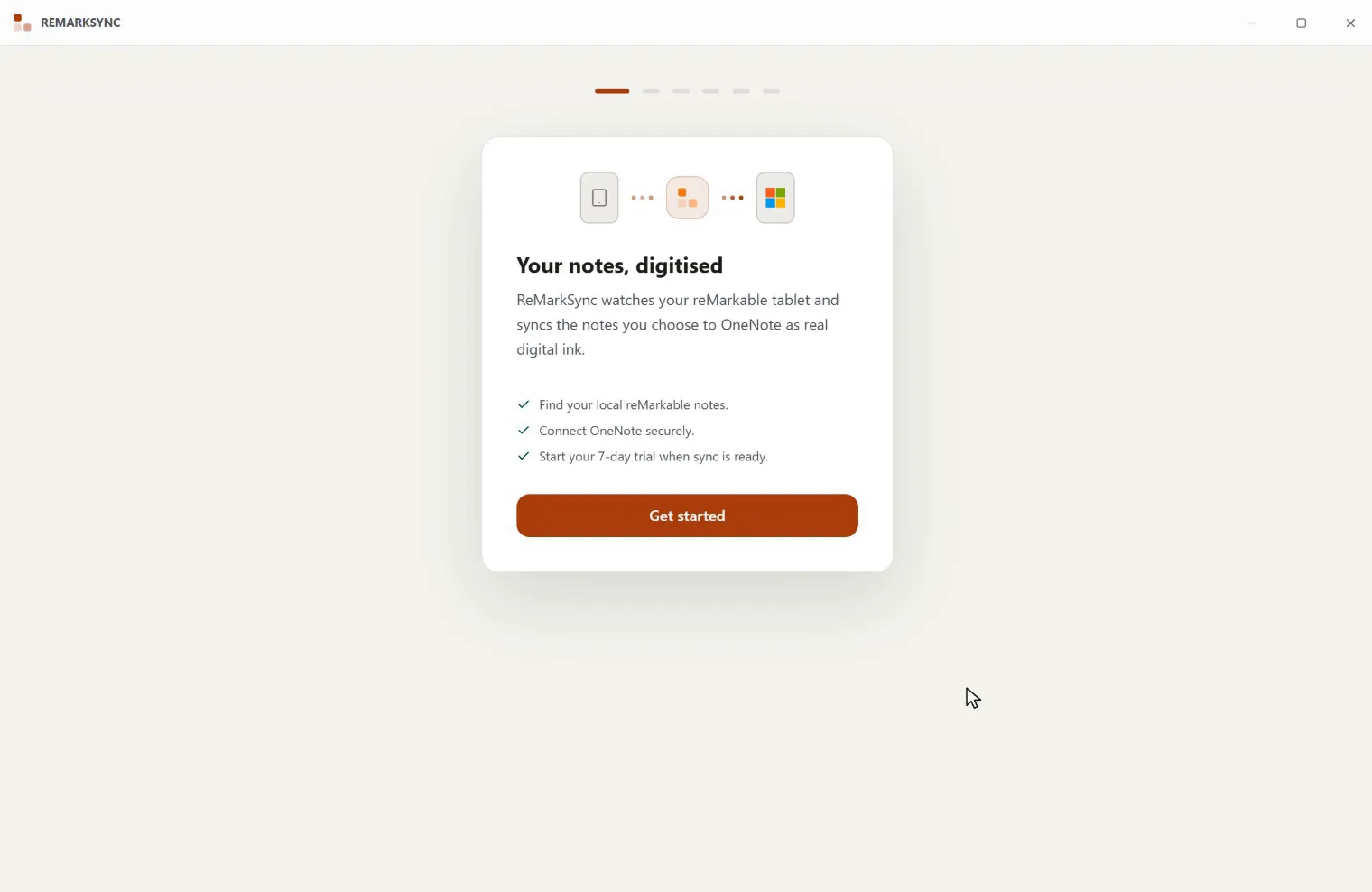
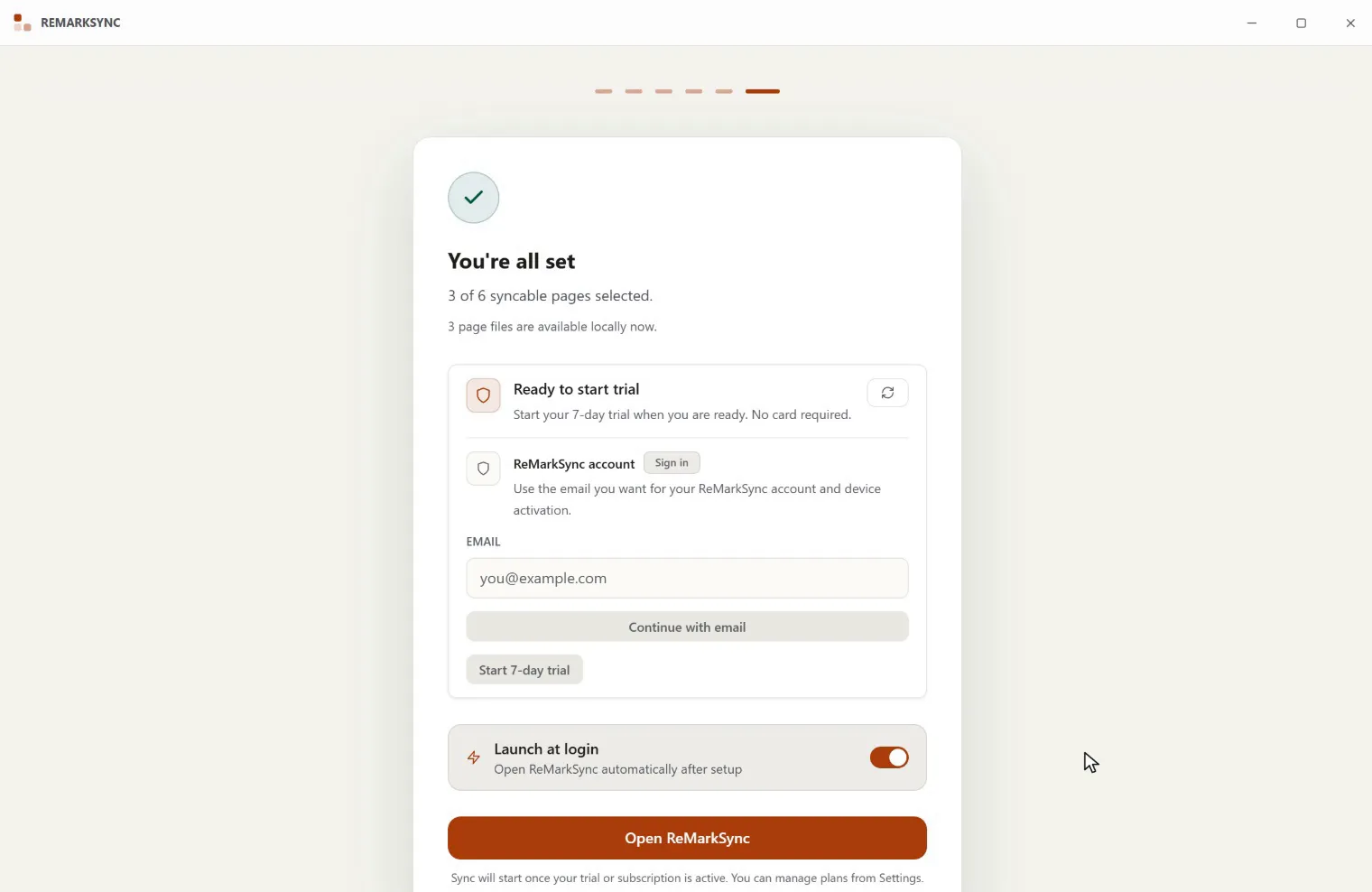
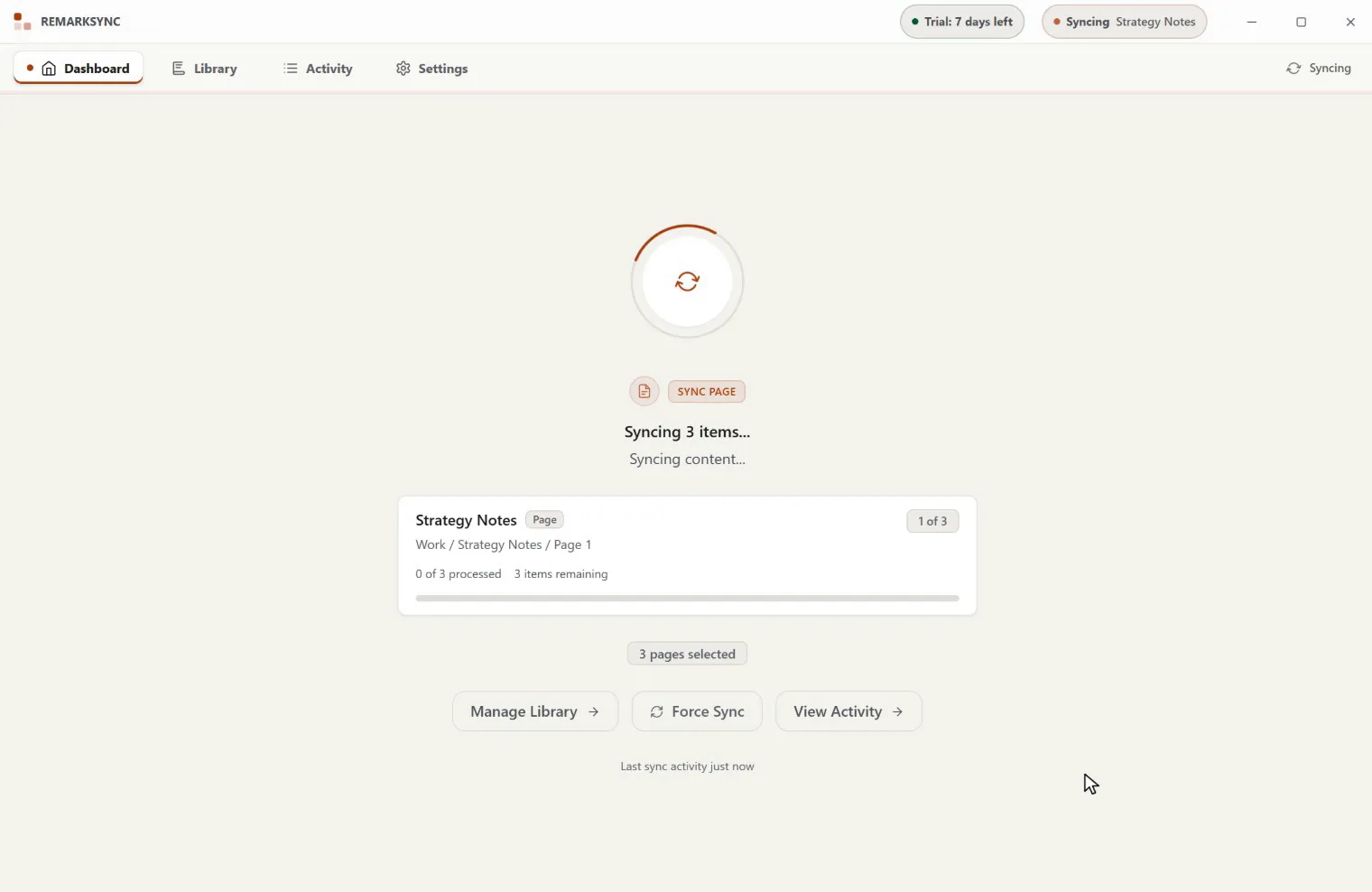
Set up ReMarkSync, choose what should sync, and confirm your notes in OneNote.
What’s new
Section titled “What’s new”See the release notes for the latest features, improvements, fixes, and availability on your platform.
New to ReMarkSync? See how reMarkable to OneNote sync works before you install.
Choose a task
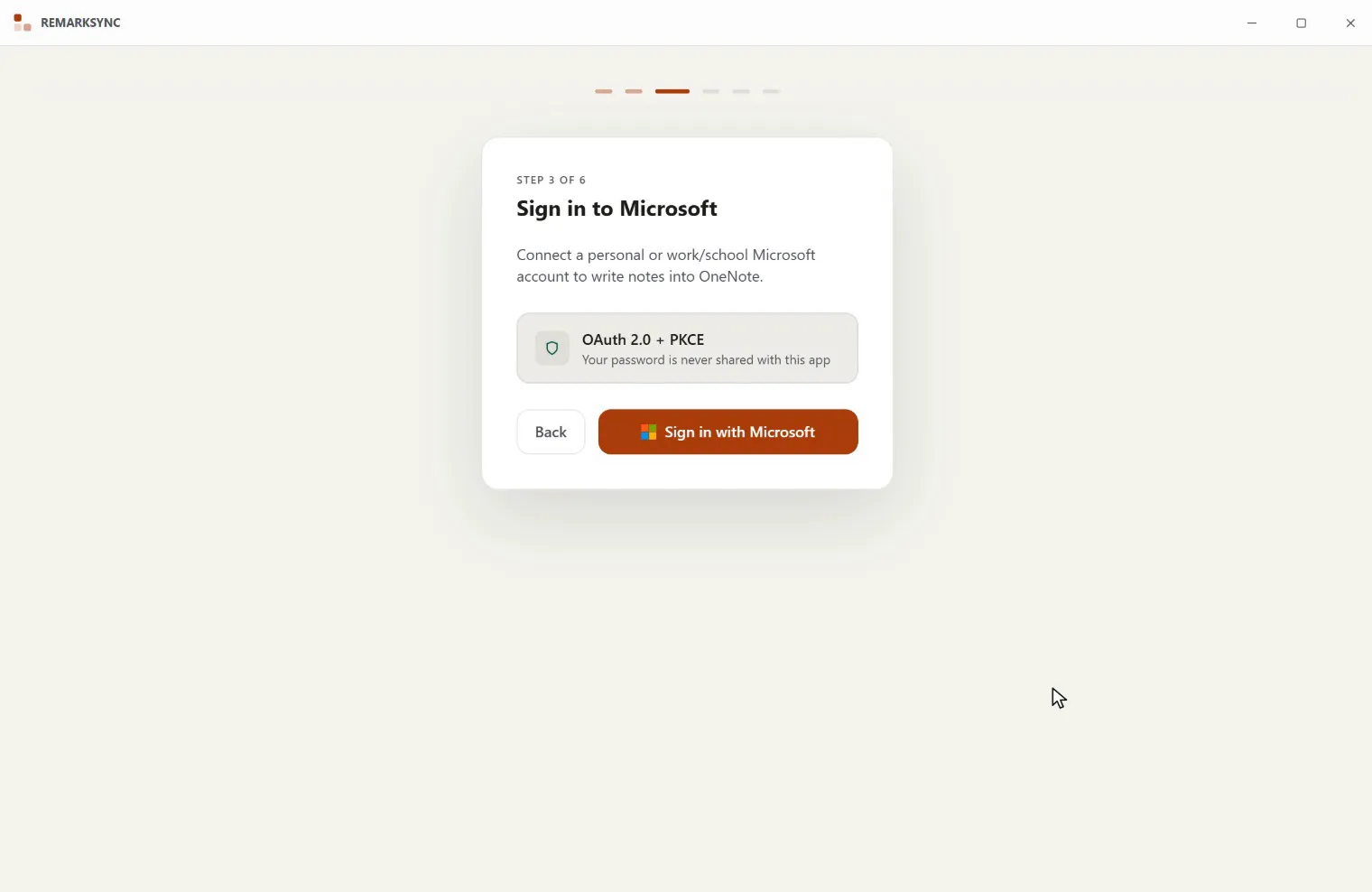
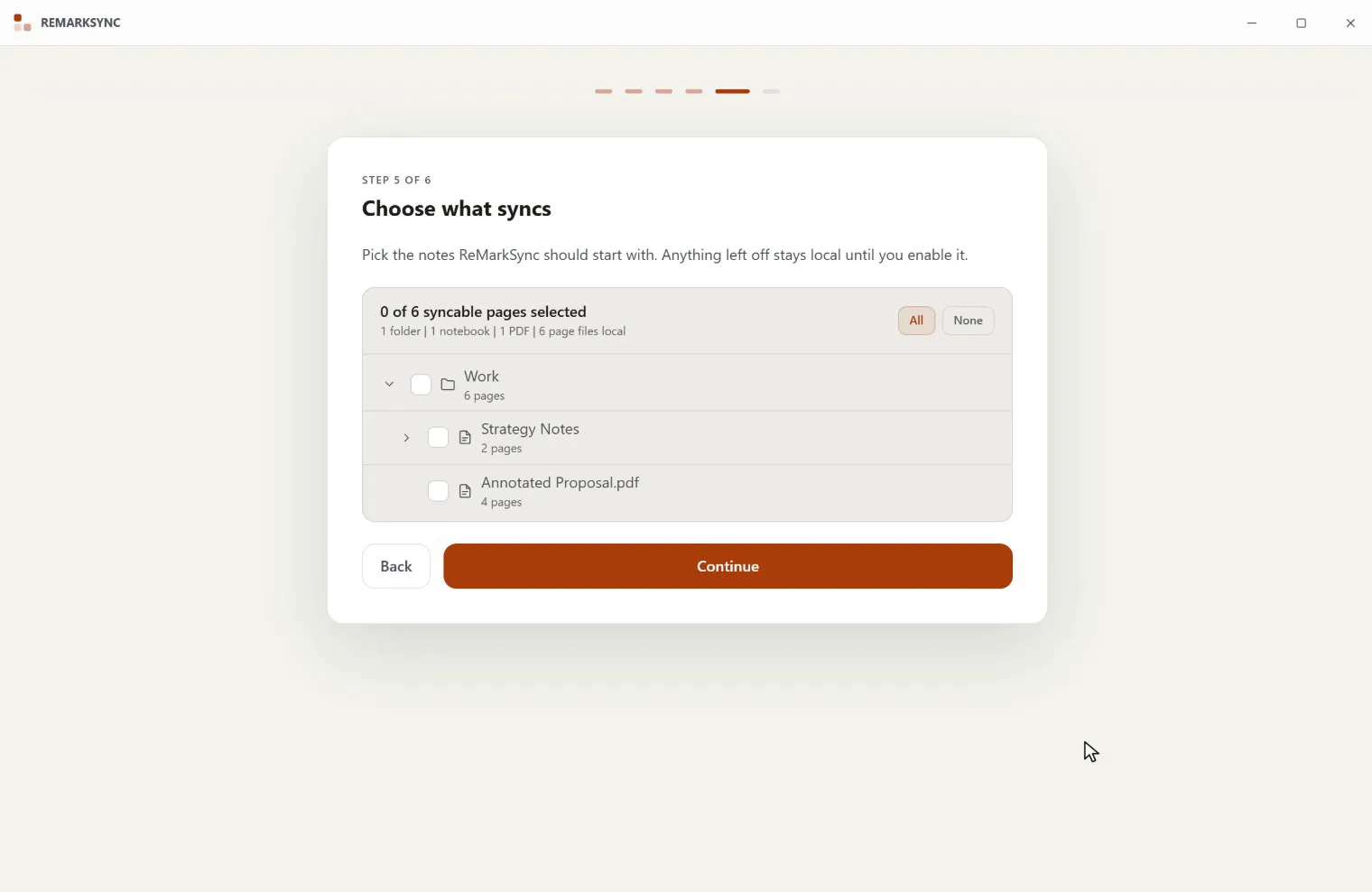
Section titled “Choose a task”Install on WindowsInstall the Microsoft Store release and open ReMarkSync.Install on macOSChoose the correct signed DMG and move ReMarkSync to Applications.Connect OneNoteSign in securely and choose the notebook that will receive your notes.Choose what syncsTurn on only the folders, notebooks, PDFs, or pages you want in OneNote.Complete the first syncStart the sync, follow its progress, and confirm the result in OneNote.See what synced notes look likeSide-by-side comparisons of reMarkable pages and their OneNote results.Switch the OneNote notebookSend future syncs to a different notebook without deleting the old one.Manage Settings and trialControl your subscription, data folder, preferences, and app updates.Fix OneNote access problemsKnow what each OneNote access message means, who acts, and what to click.Troubleshoot a problemCheck the most common causes when a change has not reached OneNote.Include new notes automaticallySet notebook and folder rules, keep exceptions, and opt in after upgrading.Recover and retry a pagePick the right button when a page needs your decision.Why a page is waitingSee what each waiting status means and whether you need to do anything.Get help for a pageSave a diagnostics file and email support from a page that needs help.
Quick links
Section titled “Quick links”New to ReMarkSync? Begin with Before you start. It explains what you need and how the two desktop apps work together.