Recover and retry a page
Outcome: You will pick the right button for a page that needs your decision, and know what happens after you click it. ReMarkSync never deletes your original page or sends a page twice without asking.
Is ReMarkSync still checking on its own?
Section titled “Is ReMarkSync still checking on its own?”If the page says No action needed, you don’t need to do anything. Read Why a page is waiting instead. That covers Appearing soon, Waiting for OneNote, OneNote can’t open this page with Check now, and Sync paused after repeated errors.
If the page shows an access message, such as Admin approval needed, Microsoft blocked access to this notebook, OneNote library is too large or Check OneNote access, read OneNote access problems.
Which message do you see?
Section titled “Which message do you see?”Open Activity and switch to Open now. Activity opens on History, and the buttons live in Open now. Find the page’s message, then its section.
| Message on the page | Button | Section |
|---|---|---|
| Couldn’t upload this page | Retry this page | Retry one page |
| Page needs a OneNote check or Deleted page needs a check | Check OneNote | Pages that need a OneNote check |
| OneNote didn’t save this page | Send again… | OneNote didn’t save this page |
| Check OneNote again | Check OneNote again… | Check OneNote again |
| OneNote can’t open this page when a copy is offered | Create recovery copy… | Create a recovery copy |
| Page saved. Title not confirmed | Check title again or Use source title | Page saved, title not confirmed |
| This page wasn’t updated | Sync this page anyway… | This page wasn’t updated |
| Get help is the main button | Get help | Get help for a page |
How a page row is laid out
Section titled “How a page row is laid out”Each page that needs you has, from left to right:
- The main button: the fix ReMarkSync recommends, for example Retry this page.
- Still stuck? Get help: opens help for this page if the fix does not work. See Get help for a page.
- More options: other actions, such as Choose another section or Run guarded recovery….
When only ReMarkSync support can fix the page, Get help comes first instead.
Retry one page
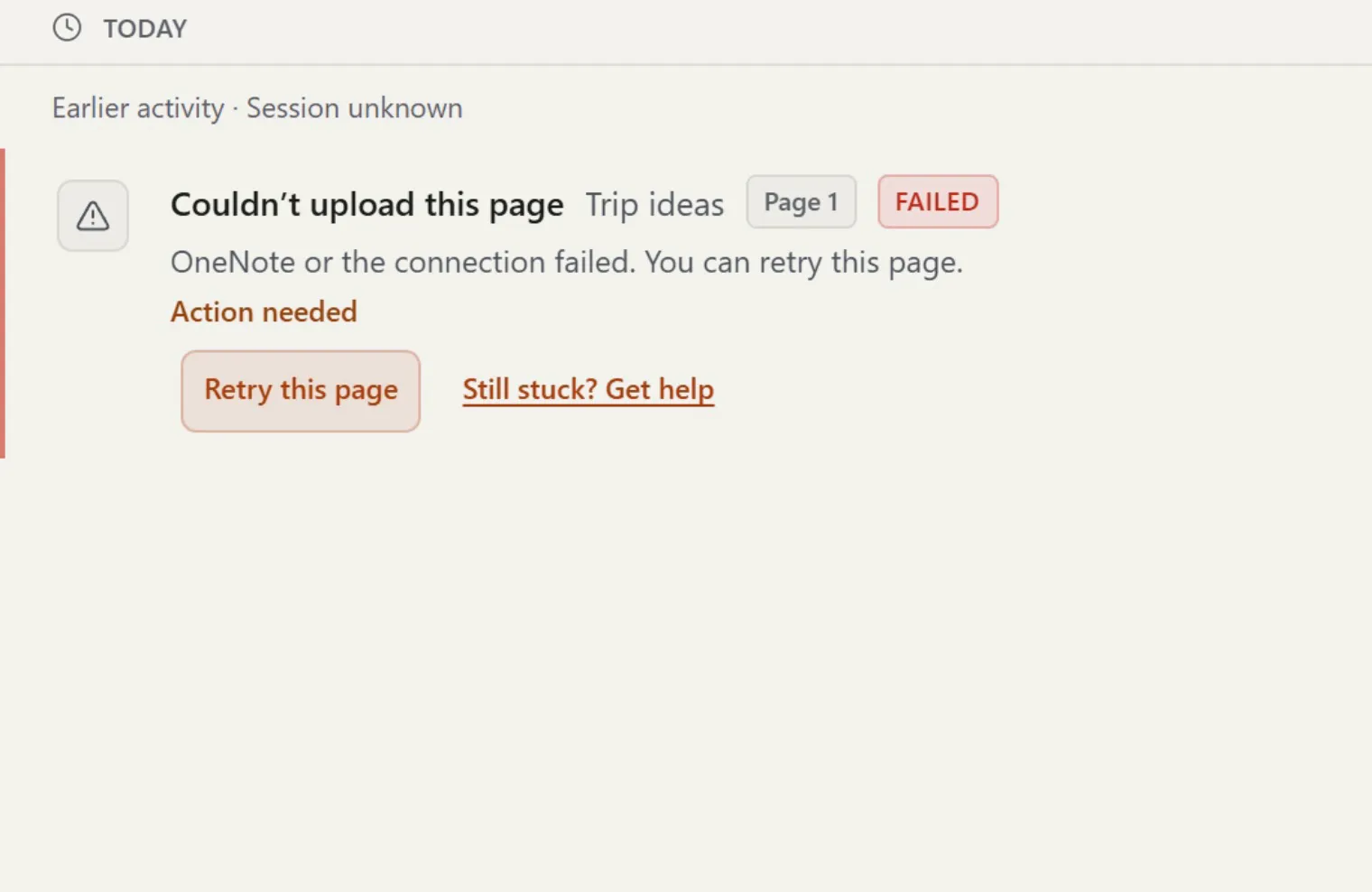
Section titled “Retry one page”The page reads Couldn’t upload this page with “OneNote or the connection failed. You can retry this page.”
- Open Activity and switch to Open now.
- On the page, click Retry this page once. You should see: “Queued 1 recoverable page.” The page waits its turn, then syncs.
“Queued” means ReMarkSync accepted the retry. It does not mean the page is saved yet.
Retry failed in the Activity toolbar retries every page that can be retried, not only the ones you see. It skips pages that are not selected, pages whose file is missing, and pages that need another button.
When retrying has not helped
Section titled “When retrying has not helped”After 3 failed syncs, the page reads, for example, “This page failed 4 times since Oct 9. Retrying on its own won’t help.” Now Get help is the main button, and the retry button reads Retry anyway. Use Get help so support can see what went wrong. See Get help for a page.
Pages that need a OneNote check
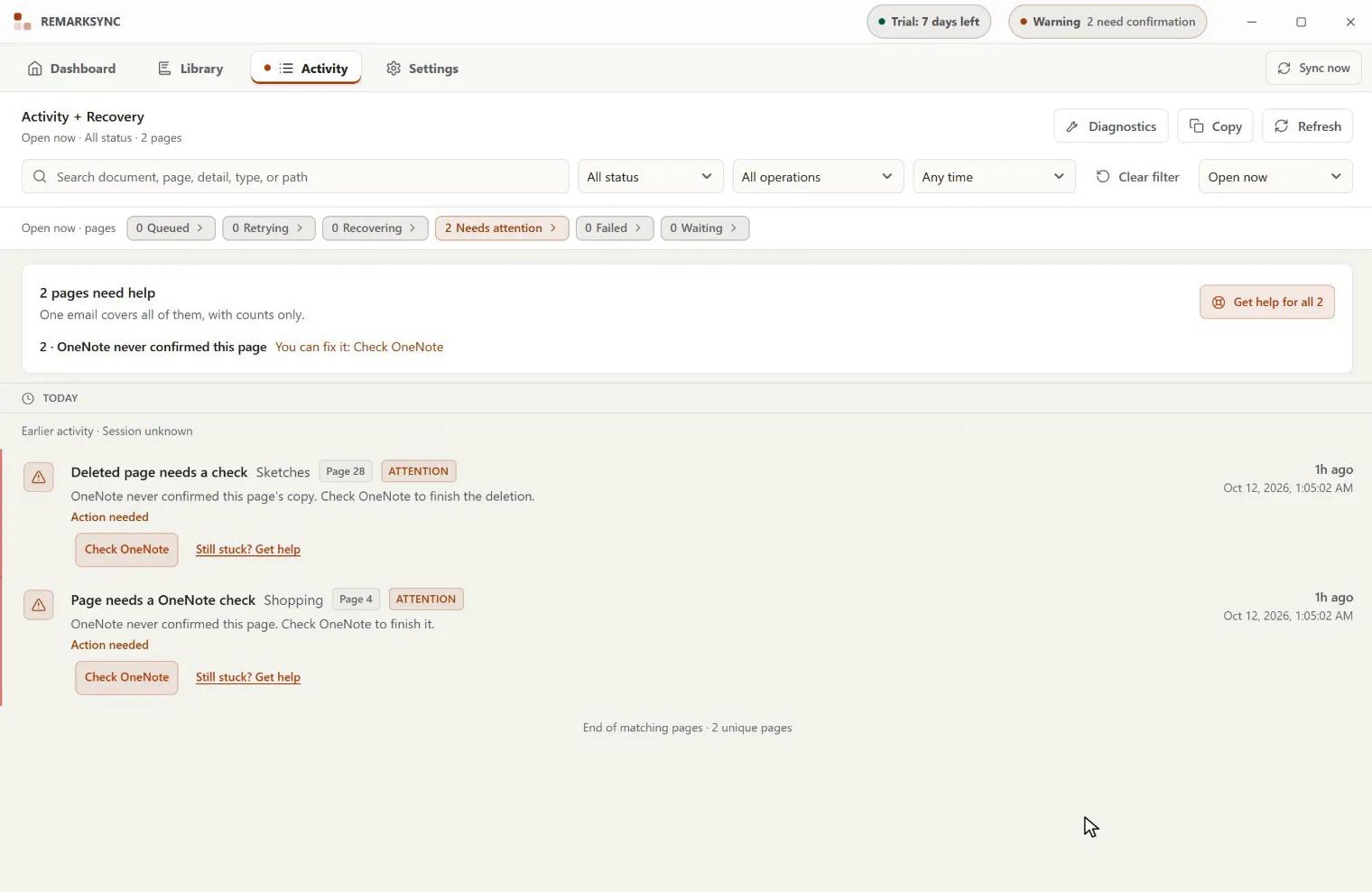
Section titled “Pages that need a OneNote check”Sometimes a page stays stuck because OneNote never confirmed it. ReMarkSync then shows one of two messages:
- Page needs a OneNote check: OneNote never confirmed the page’s last upload.
- Deleted page needs a check: a page you deleted, with “OneNote never confirmed this page’s copy. Check OneNote to finish the deletion.”
Both offer Check OneNote. ReMarkSync looks for this exact page in OneNote. Nothing changes if OneNote’s answer is unclear.
You don’t need to click anything at first. Each time ReMarkSync starts, it checks each of these pages once by itself while nothing else is syncing. To check now:
- Open Activity and switch to Open now.
- On the page, click Check OneNote. You should see, for example: “Found in OneNote. Finishing this page now.” with “No new copy is needed.”
| OneNote’s answer | For Page needs a OneNote check | For Deleted page needs a check |
|---|---|---|
| The page is there | “Found in OneNote. Finishing this page now.” No new copy is made. | “Found in OneNote. Applying your delete setting now.” |
| The page is not there | “Not in OneNote. Sending this page once now.” | “Not in OneNote. This deletion is done.” Nothing changed in OneNote. |
| OneNote lists it but can’t open it | “OneNote lists this page but can’t open it.” You can then create a recovery copy. | “It stays protected. Get help if it stays this way.” |
| Not sure yet | “OneNote didn’t find this page. Checking once more in a minute.” | Same. |
| No answer | “OneNote didn’t answer. Nothing changed.” Try again later, or Get help. | Same. |
| Checked a moment ago | “Checked a moment ago. Try again in a minute.” | Same. |
| The page changed meanwhile | “This page changed. Nothing was done.” | Same. |
The check only reads OneNote. A page is sent again only when OneNote clearly says it is not there.
OneNote didn’t save this page
Section titled “OneNote didn’t save this page”ReMarkSync sent the page, but OneNote did not confirm it. Sending it again blindly could create a duplicate, so ReMarkSync checks first.
- On the page, click Send again….
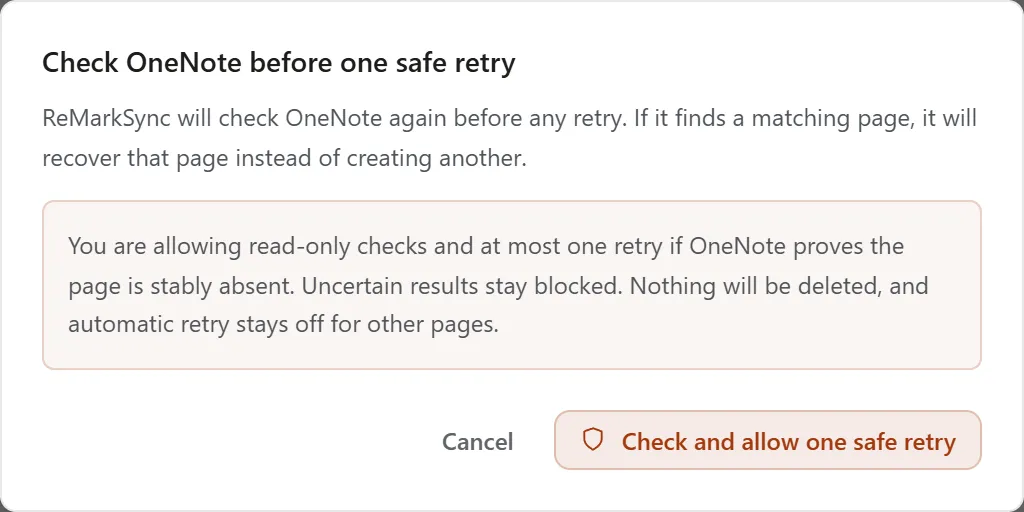
- Read the dialog Check OneNote before one safe retry, then click Check and allow one safe retry. You should see: “Checking OneNote before any retry.”
ReMarkSync checks OneNote first. If the page is there, it keeps that page. It sends the page once more only if OneNote proves the page is not there. You never get a duplicate. Cancel leaves everything as it is.
Check OneNote again
Section titled “Check OneNote again”The page reads Check OneNote again when ReMarkSync needs a fresh look before it can continue.
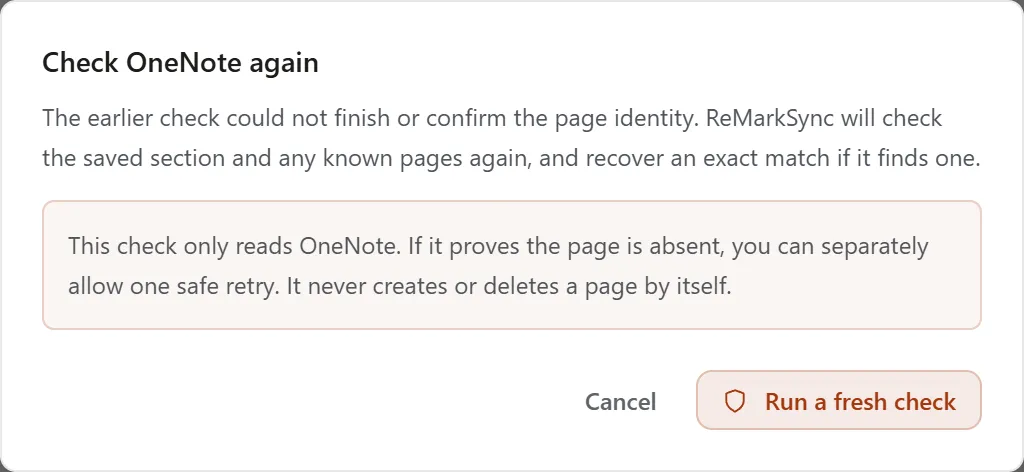
- On the page, click Check OneNote again….
- In the dialog Check OneNote again, click Run a fresh check.
This check only reads OneNote. If it finds the page, the page is finished. If it finds nothing, ReMarkSync asks you again before it creates anything.
Some older pages offer Find the existing OneNote page instead, with the button Search OneNote. It works the same way: it only reads OneNote.
Create a recovery copy
Section titled “Create a recovery copy”When OneNote keeps failing to open a page, ReMarkSync can save a new copy of it instead. The page reads OneNote can’t open this page and offers Create recovery copy…. Its details can say “OneNote still can’t open this page. You can create a copy in the current section or choose another section. If the first page shows up later, you may see both.”
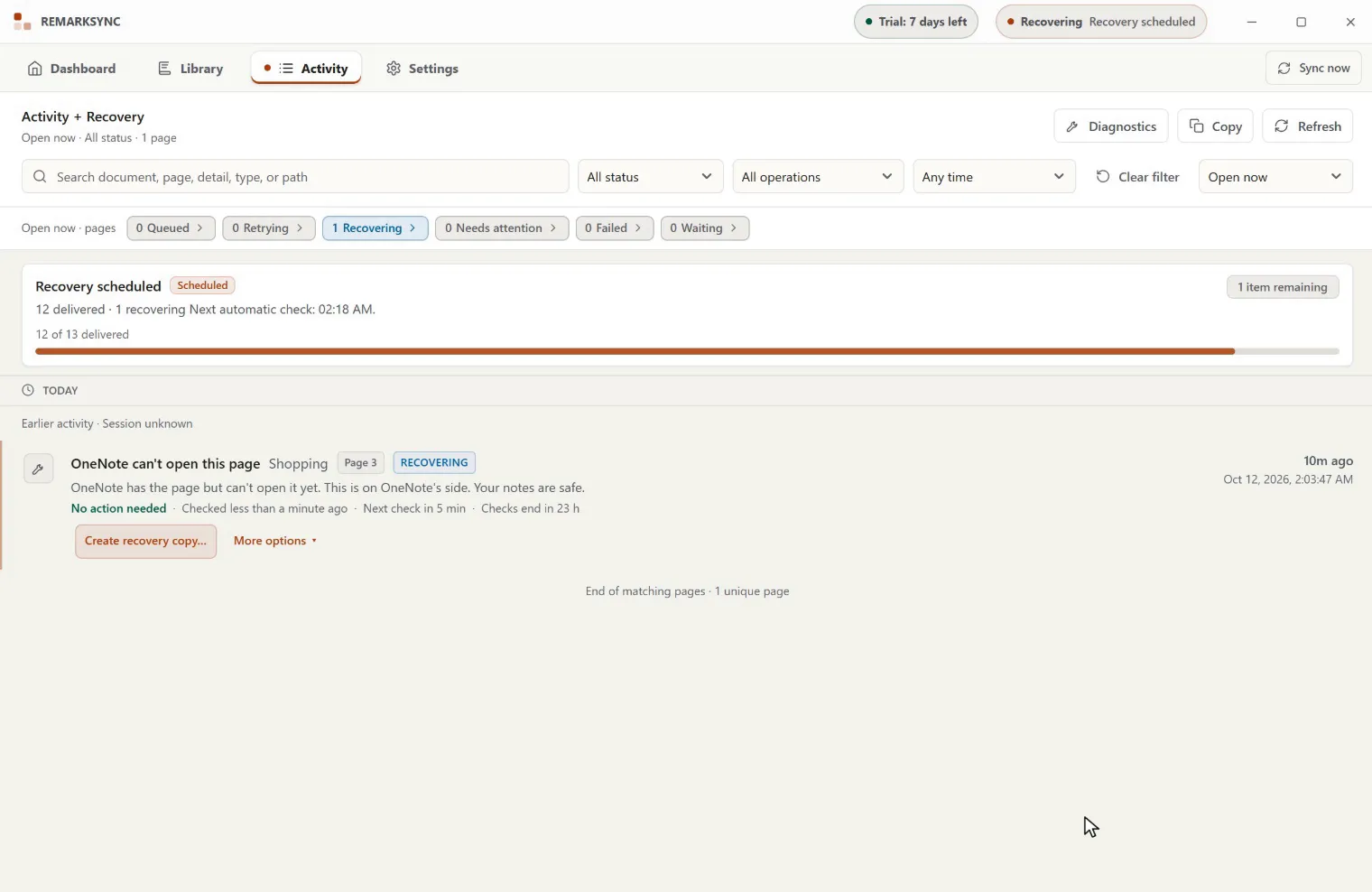
- On the page, click Create recovery copy….
- In the dialog Create recovery copy, check Source to confirm the page.
- Under Destination section, keep the current section or choose another one. If sections are missing, click Refresh sections.
- Click Create one Recovery copy. You should see: “Recovery copy queued. Waiting for OneNote to confirm readability.”
When OneNote confirms the copy, the page reads Recovery copy saved. In History, its sync session counts it as saved, for example “59 of 59 pages saved”.
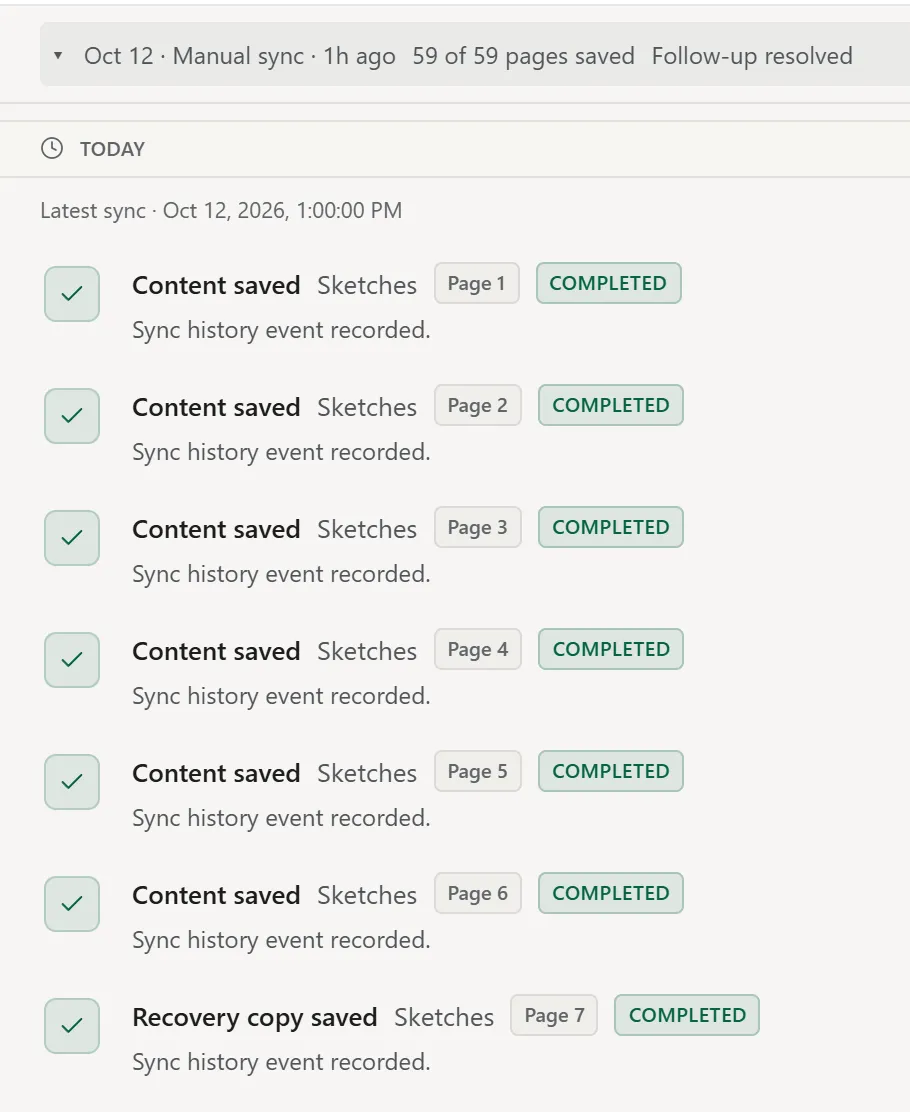
What to know:
- The copy becomes the real page the next time you change that page on your reMarkable. From then on it updates like any other page. If you saved the copy in another section, it moves back to the page’s own section.
- ReMarkSync never removes the original page without keeping a copy of it. In some cases it then tidies the original up: it renames it, for example “Shopping (older version 1)”, and handles it like a deleted page, following your Deleted pages setting. Archive and Delete move it to Deleted from reMarkable; Keep leaves it where it is. See Older versions of a page.
- Until then, if the original shows up in OneNote, you may see both.
- For a PDF page, the copy is flattened for readability. Handwriting and annotations stay visible, but they are not editable OneNote ink.
- Cancel creates nothing.
| You see | What it means |
|---|---|
| Recovery copy queued | The copy waits to be sent and checked. It is not saved yet. |
| Checking recovery copy | ReMarkSync is confirming that the copy is readable. |
| Recovery copy saved or Synced with recovery copy | The copy is saved and readable. Future changes use it. |
| Recovery copy needs support | ReMarkSync can’t confirm the copy. Another copy is blocked to avoid duplicates. Use Get help. |
Repair this page
Section titled “Repair this page”For a page that OneNote lists but can’t open, More options can offer Run guarded recovery….
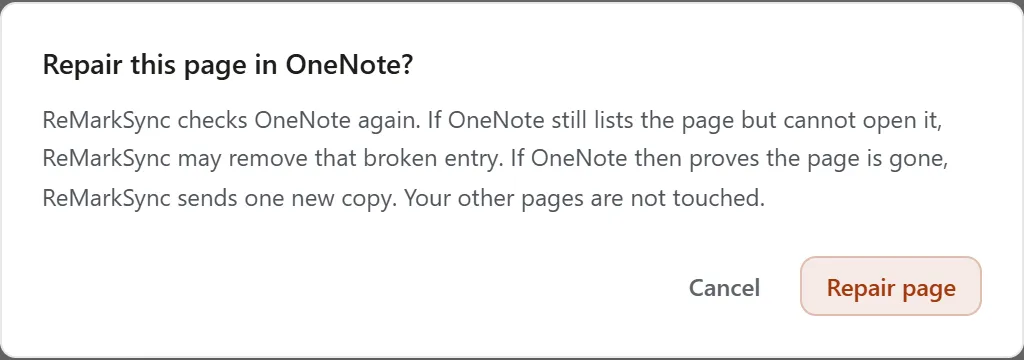
- On the page, click More options, then Run guarded recovery….
- Read the dialog Repair this page in OneNote?, then click Repair page.
ReMarkSync checks OneNote again. If OneNote still lists the page but cannot open it, ReMarkSync may remove that broken entry. If OneNote then proves the page is gone, ReMarkSync sends one new copy. Your other pages are not touched. Cancel changes nothing.
Keep repairing in background lets ReMarkSync keep checking on its own until its checks end.
Page saved, title not confirmed
Section titled “Page saved, title not confirmed”The page content is saved, but ReMarkSync could not confirm its title in OneNote. ReMarkSync never changes a title on its own, so it asks you.

- Check title again: reads the title in OneNote once more. If it matches, you see “Title confirmed. This page is complete.”
- Use source title: replaces the blank or default title in OneNote with the page’s title from your reMarkable. If someone edits that title in OneNote at the same moment, their edit may be overwritten.
This page wasn’t updated
Section titled “This page wasn’t updated”The page reads “The handwriting looks much smaller than last time, so ReMarkSync kept the previous OneNote version to be safe. If the page looks right on your reMarkable, sync it anyway. Anything drawn directly in OneNote on this page will be replaced.”
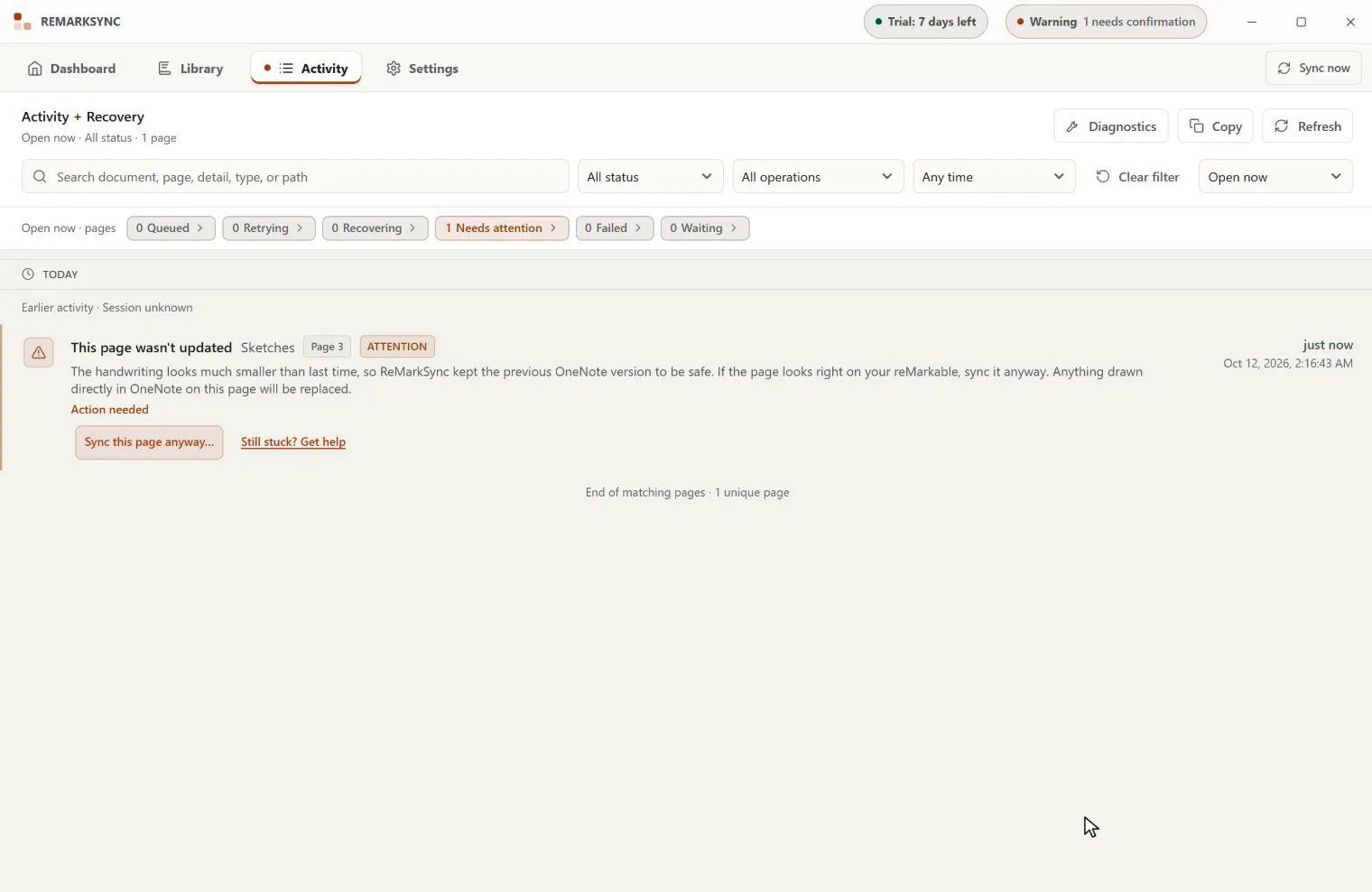
- On the page, click Sync this page anyway….
- Read the dialog Replace the OneNote page with the current reMarkable version?. “The previous OneNote version will be removed, including anything drawn directly in OneNote.”
- Click Sync anyway. You should see: “Syncing this page now.”
Anything drawn directly in OneNote on that page is replaced. If you want to keep it, copy it somewhere else first, or click Cancel.
When a page changes during upload
Section titled “When a page changes during upload”Usually you don’t need to do anything. If you change a page while ReMarkSync is uploading it, the page just sent stays the real OneNote page. One more normal update then brings your newest version.
In rare cases, for example when the earlier upload did not finish, the page reads Finishing an earlier upload safely with No action needed. History can show Checking earlier upload, then Latest page queued for sync, then Latest page recovered. Wait for Latest page recovered: it confirms the newest version is saved.
When the local source is missing
Section titled “When the local source is missing”If a page’s file disappears from your computer while ReMarkSync is still checking OneNote, ReMarkSync stops and keeps the page protected. This prevents a lost page or a duplicate.
The page reads Stopped to keep this page safe with Needs support, and Get help is its main button. History records Protected page needs support, and the details say No automatic check scheduled.
- On the page, click Get help and follow the steps. See Get help for a page.
- Leave the page as it is while support looks at it.
Restoring the file or clicking Sync now does not remove the protection.
See the protected Activity example.
Latest sync and Open now
Section titled “Latest sync and Open now”While a page is still open, Latest sync shows the same message and buttons as Open now. Pages that are finished show only their result.
Confirm the result
Section titled “Confirm the result”A page is done when it leaves Open now and Latest sync or History shows a result such as Created page, Updated page, OneNote page recovered, Recovery copy saved or Latest page recovered.