Connect OneNote
Outcome: ReMarkSync will have permission to write your selected notes to a OneNote notebook you choose.
Which Microsoft account can I use?
Section titled “Which Microsoft account can I use?”Any Microsoft account that can open OneNote works as the destination:
- Personal accounts such as outlook.com, hotmail.com, or live.com.
- Work or school accounts from Microsoft 365, supported since ReMarkSync v0.3.0.
The destination account is fully independent from your ReMarkSync account. The two emails do not need to match, and you can switch to a different Microsoft account later without losing your trial or subscription.
Before you begin
Section titled “Before you begin”- Finish Detect your notes.
- Use a Microsoft account that can open OneNote.
- If your organization manages the account, be prepared for its normal approval or sign-in requirements.
Sign in and choose a destination
Section titled “Sign in and choose a destination”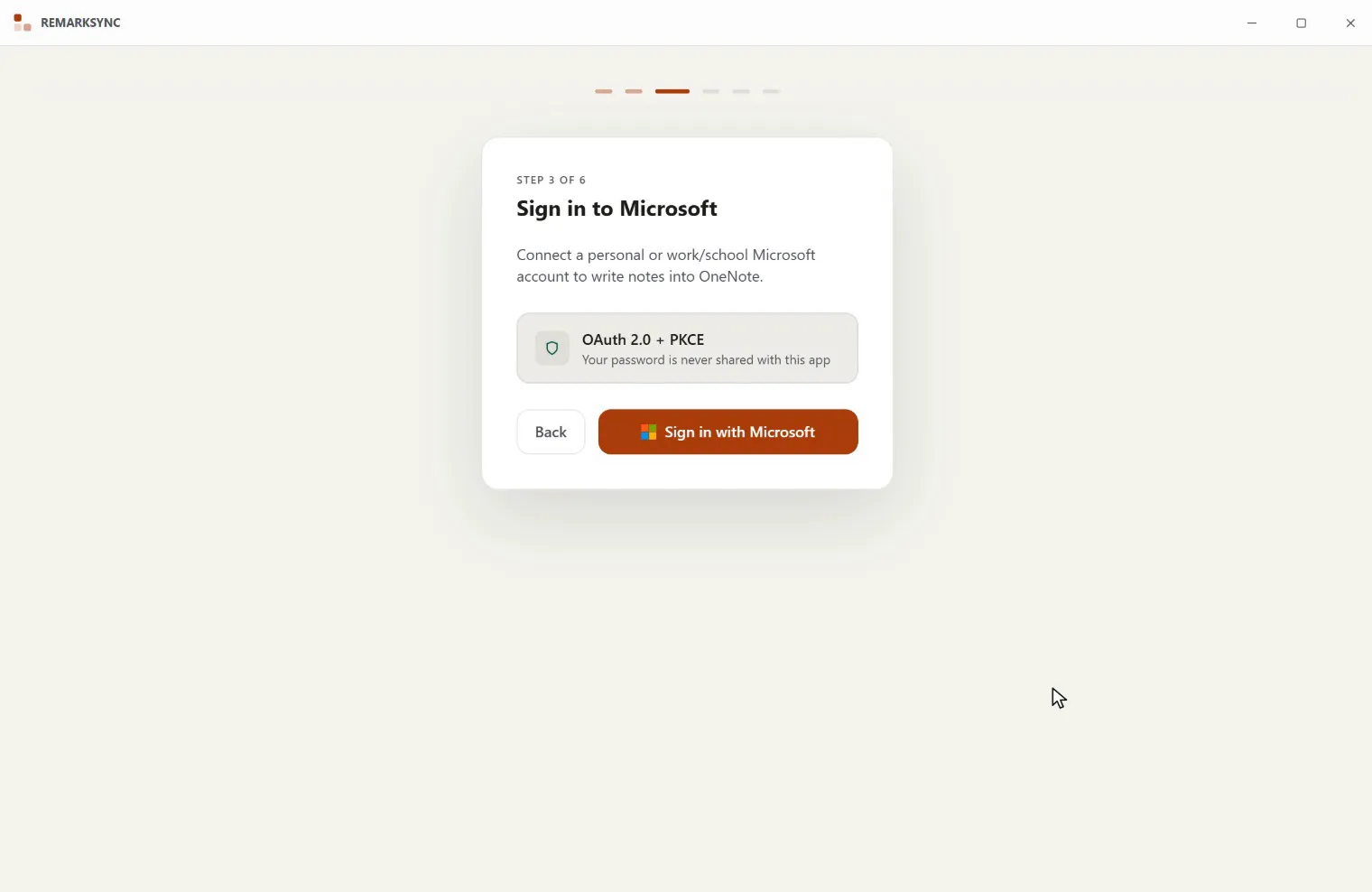
-
At Sign in to Microsoft, select Sign in with Microsoft.
-
Complete Microsoft sign-in in the secure browser window.
-
Return to ReMarkSync.
-
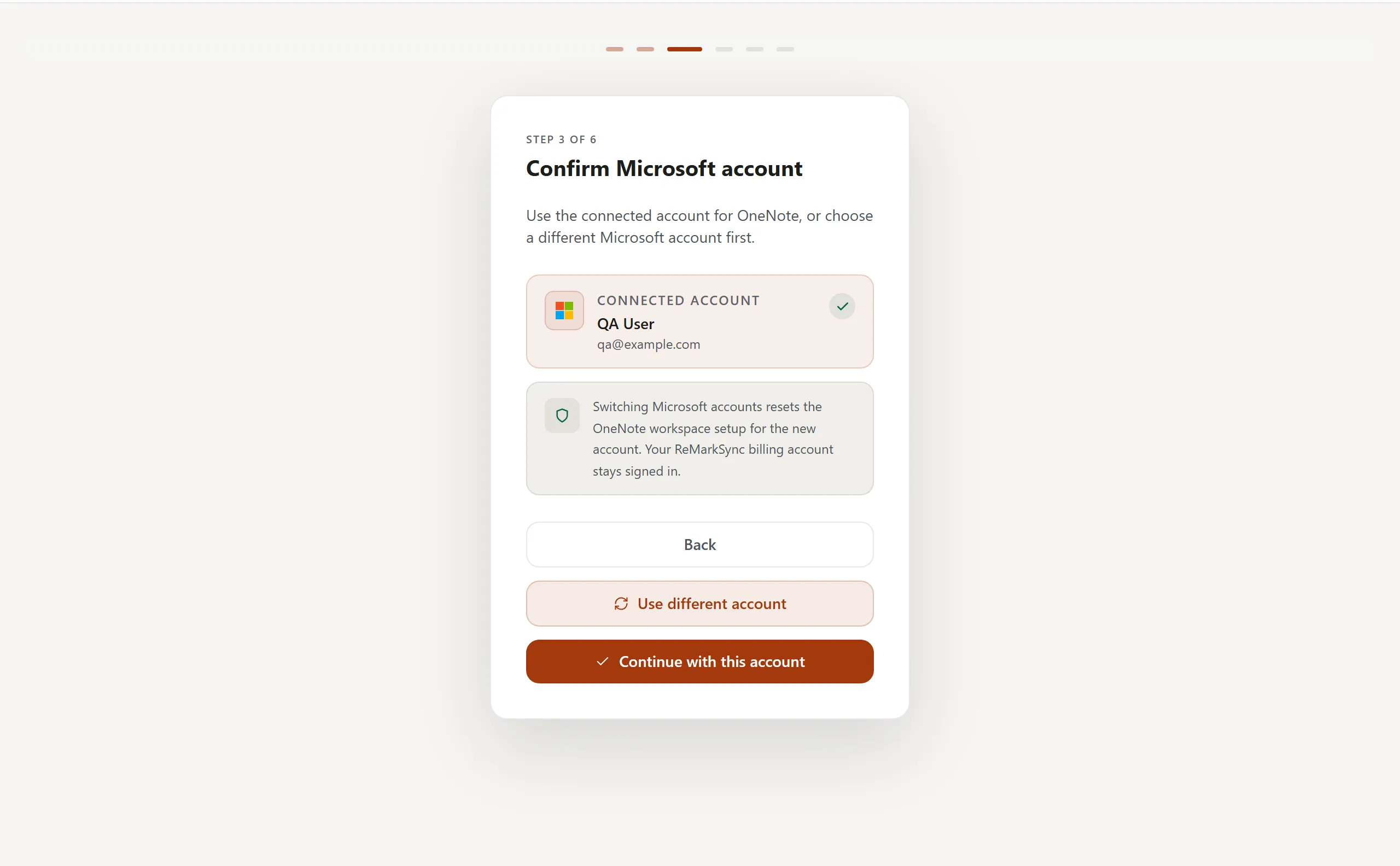
If Confirm Microsoft account appears, select Continue with this account. To use another account, select Use different account.
-
At Choose destination, select Load to retrieve your OneNote notebooks.
-
Open the Notebook list and choose the notebook that should receive your reMarkable notes.
-
Select Save & continue.
Expected result
Section titled “Expected result”If your screen looks different
Section titled “If your screen looks different”Microsoft may ask for multi-factor authentication, organization approval, or account selection. Those screens belong to Microsoft. Complete only the sign-in steps you normally expect for that account.
Work or school accounts are supported. If a notebook later needs extra organization permission, ReMarkSync keeps your pages safe and offers Allow OneNote access. See OneNote access problems for every access message.