
Make your handwriting searchable
Outcome: You type a word you wrote by hand into OneNote search, and OneNote finds the page and shows you where the word is.
OneNote does not search the handwriting it receives from your reMarkable. When handwriting search is on for a notebook, ReMarkSync reads your handwriting on your computer and adds a small piece of searchable text just under each word it recognizes. That text travels in the same page as your ink. Your handwriting stays exactly as you wrote it and stays editable.
Handwriting search works on Windows and macOS. It is off until you turn it on for a notebook.
Before you begin
Section titled “Before you begin”- Search reads English handwriting. US, UK and other English spellings all count.
- It works for notebooks. PDFs are not supported yet.
- On Windows, Windows needs English handwriting installed. Most English versions of Windows already have it. If it is missing, ReMarkSync shows you how to add it: see Install English handwriting on Windows.
- On macOS, there is nothing to install.
Turn on search for a notebook
Section titled “Turn on search for a notebook”- Open Library and find the notebook.
- Open the notebook row’s ··· menu. It opens Notebook options. Choose Handwriting search in OneNote.
- Read the short summary, then select Turn on for this notebook.
- The notebook row now shows Search on.
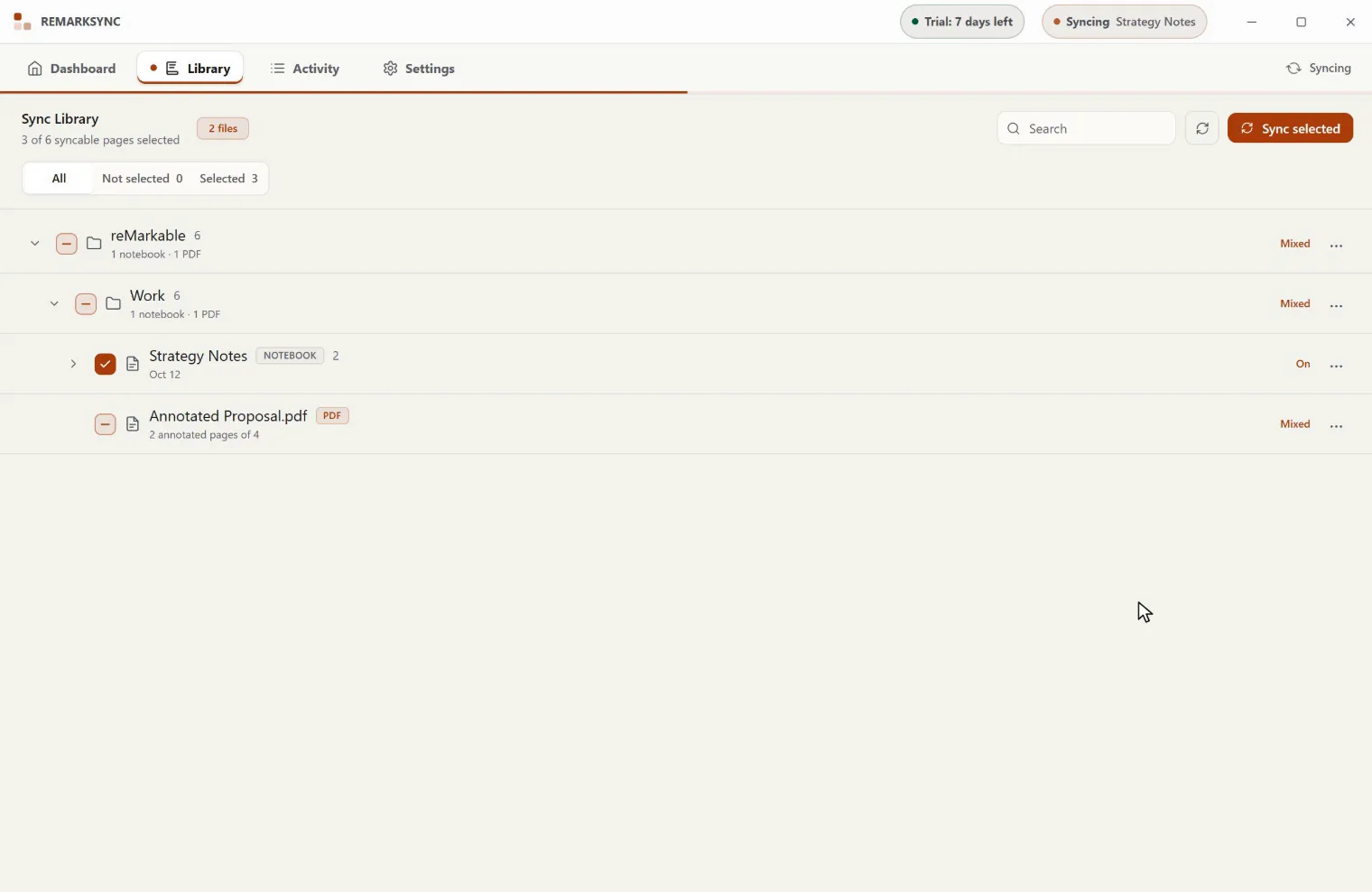
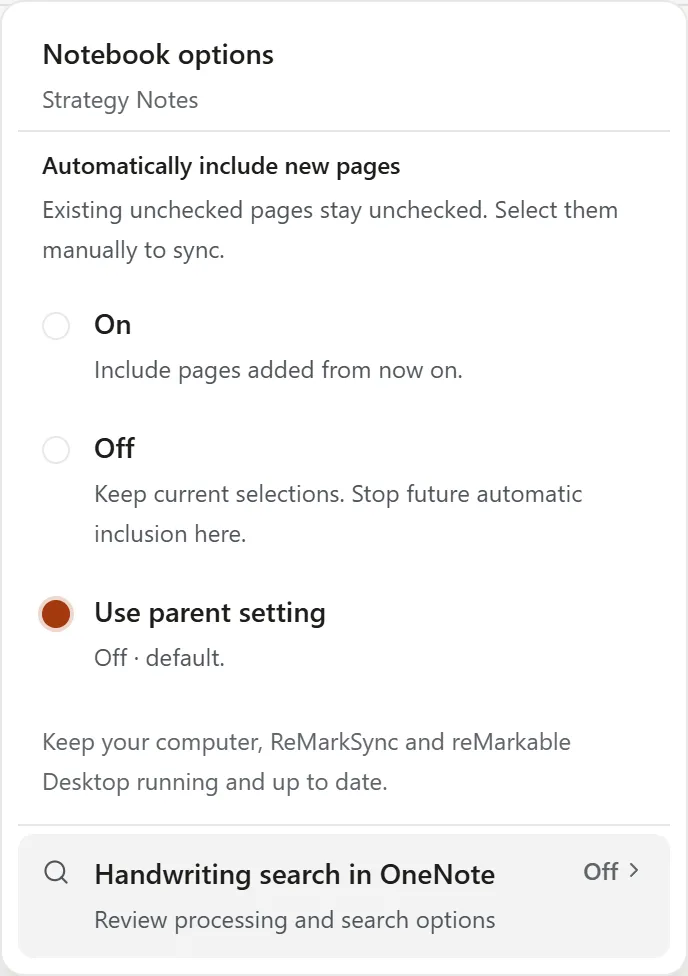
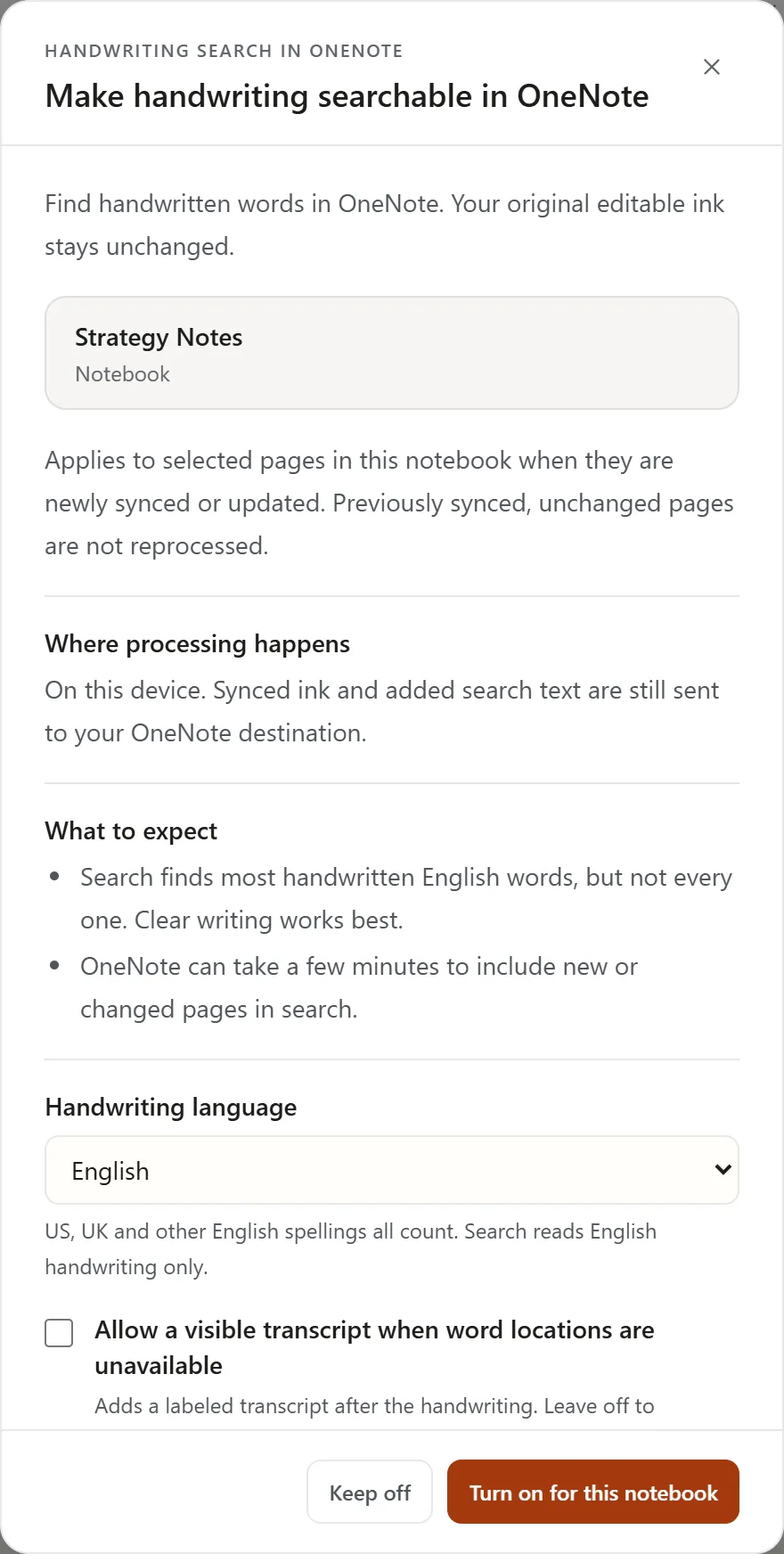

Which pages become searchable? Pages that sync after you turn search on: new pages, and pages you change. Pages that were already in OneNote before can be made searchable too, if you ask for it (see the next section).
Example: a shopping list. You turn on search for your Personal notebook, then write a new page: milk, eggs, bread, call Giorgio. After the page syncs and OneNote has had a few minutes to catch up, searching OneNote for eggs finds the page and highlights the spot just under your handwritten word.
Make existing pages searchable
Section titled “Make existing pages searchable”When you turn search on for a notebook that already has pages in OneNote, the options offer Also make existing pages searchable, with the number of pages. It is off unless you select it.
- What happens: each of those pages is sent to OneNote again with search text, and the old copy is replaced.
- Changes made in OneNote are replaced too. Anything you added to these pages in OneNote, such as typed notes or a new title, is replaced by the reMarkable page. Pages you renamed in OneNote are left as they are, and the options say how many.
- It runs slowly in the background. Your new pages always go first, and only a small part of the hourly OneNote limit is used, so it handles about 30 pages an hour: 300 pages take about 10 hours. It continues after a restart.
- Later: if search is already on, choose Handwriting search in OneNote again. Handwriting search options opens and offers the same choice; select it, then Save changes.
- Progress and Stop: the search options and Activity show how many pages are done, with a Stop button. The page being sent finishes; pages already done keep their search text. Activity history shows one line, Existing pages made searchable.
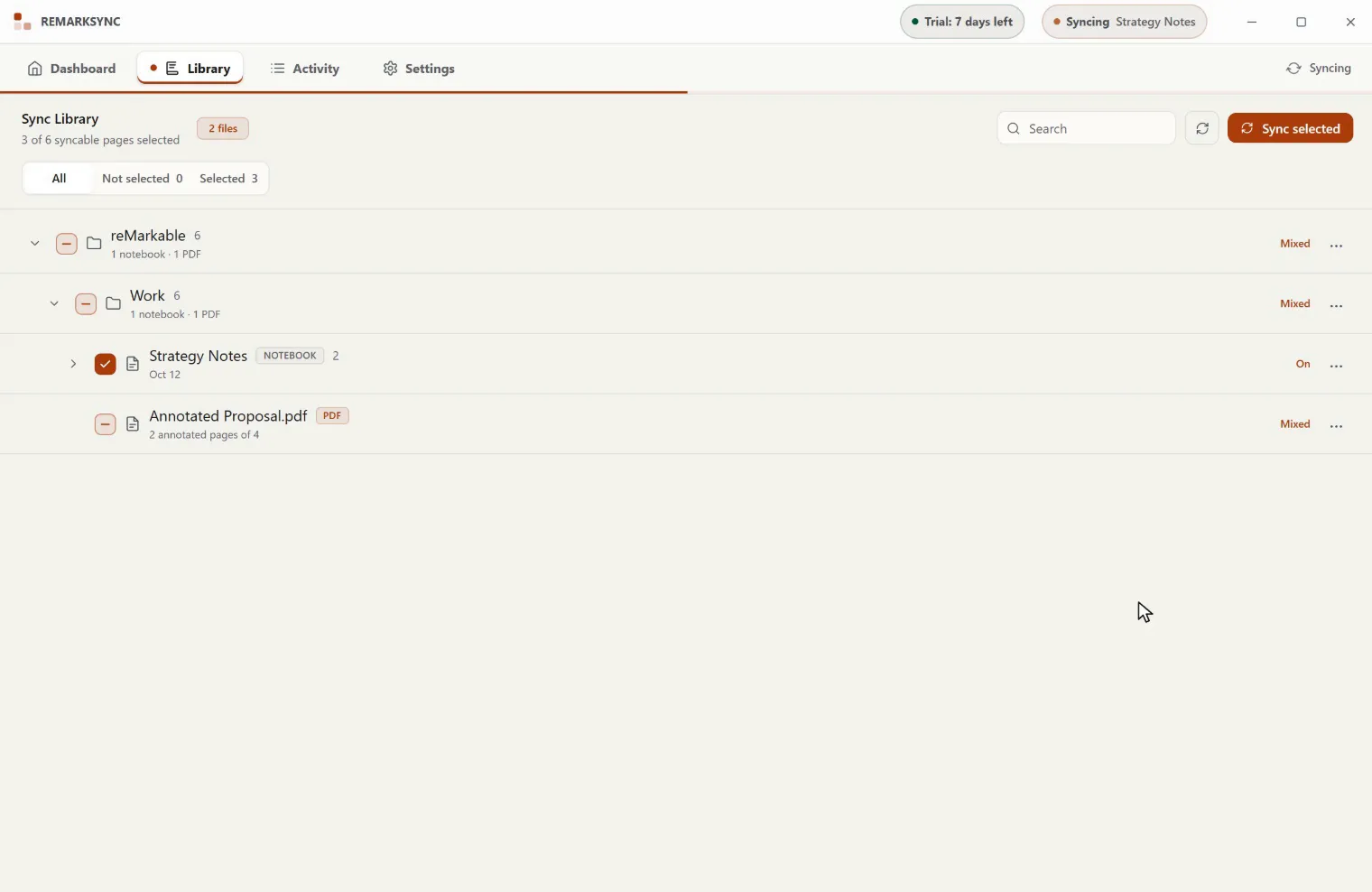
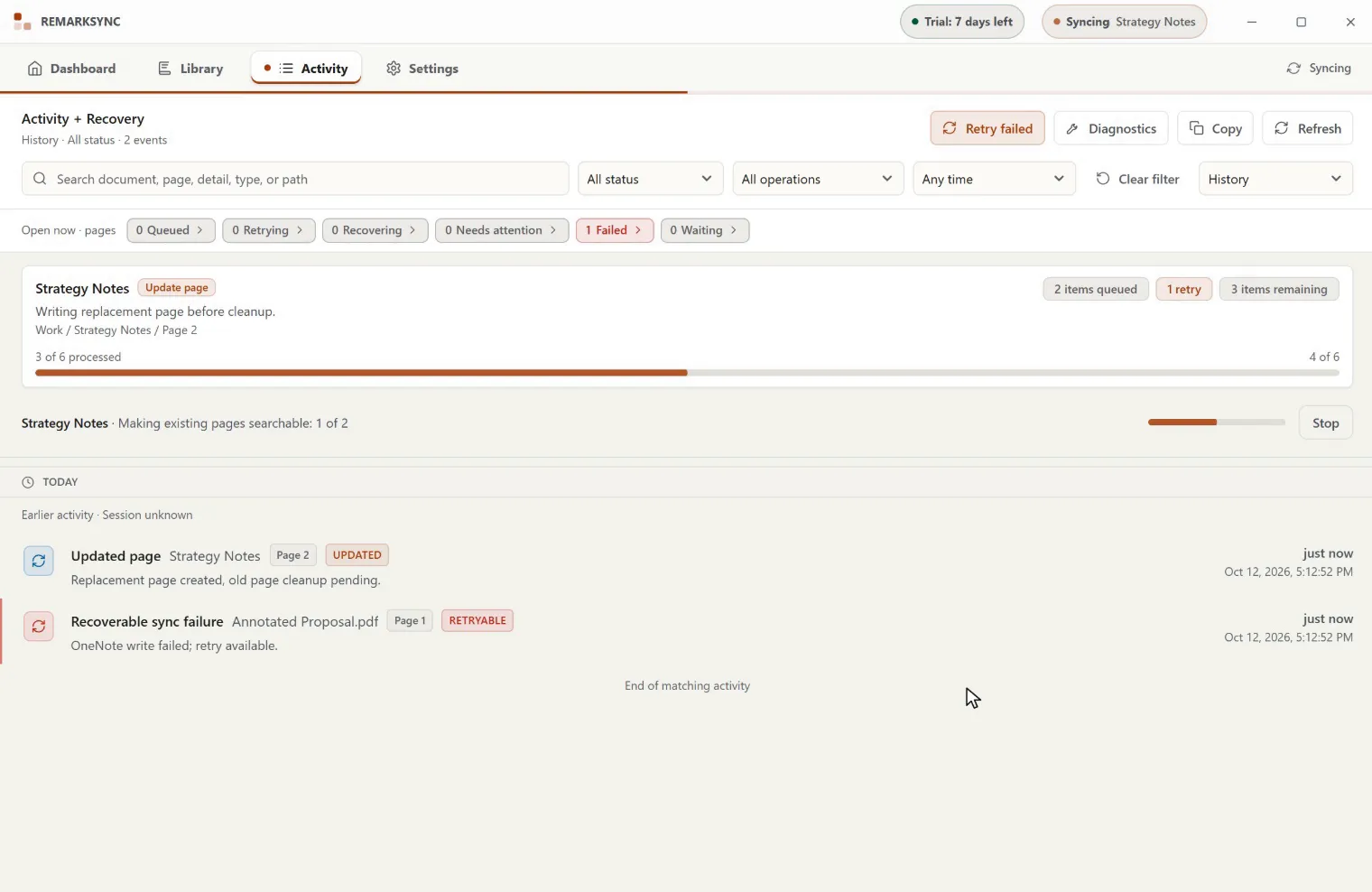
Example: 300 old pages. You turn search on for Work and select Also make existing pages searchable (300 pages). Over the next 10 hours or so, Activity shows Work · Making existing pages searchable: 42 of 300 while your new notes keep syncing as usual.
The transcript choice
Section titled “The transcript choice”The options also offer Allow a visible transcript when word locations are unavailable. When search text could not be placed safely next to a word, ReMarkSync can add a short, labeled list of those words after your handwriting instead. Leave it off to keep your pages looking exactly like your reMarkable pages.
What search can find
Section titled “What search can find”Search finds most handwritten English words, but not every one. Clear writing works best, whether you print or write joined-up.
| You wrote | Can OneNote find it? |
|---|---|
| Everyday English words, like milk or meeting | Usually yes |
| UK and US spellings, like colour and color | Yes, both |
| Names and brands, like Giorgio or IKEA | Sometimes. Common names are found more often than rare ones |
| Dates, times and prices, like 29/09, 14:30, 6pm or £12.50 | Often. Clear, separate digits work best |
| Phone numbers and longer numbers, like 555-0142 or 2027 | Often |
| Short numbers on their own, like 7 or 20 | No. A quick mark is too easily read as one |
| One-letter words, like a or I | No. Searching for them would match almost every page |
| Words in other languages | No |
| Drawings, arrows and scribbles | Not searched. Rarely, a scribble can be read as a short word |
| Handwriting on PDFs, or on rotated pages | No |
| A word cut in two where a long page is split | No. The rest of the page is still searchable |
How many words? In our tests in October 2026, about six to seven in ten words on everyday handwritten notes became searchable, and about eight in ten on neat, clear writing. Dates, times and prices are found about eight times in ten on Windows, and less often on a Mac for now.
Find a word in OneNote
Section titled “Find a word in OneNote”- Wait a few minutes after the page syncs. OneNote takes a little time to include new or changed pages in search. In our test, OneNote on the web found a new page about 4 minutes after it synced.
- In OneNote, search for the word. Choose where to search, for example the section or the notebook. The choices depend on which OneNote you use.
- Open the result. OneNote highlights the searchable text just under or next to your handwritten word.
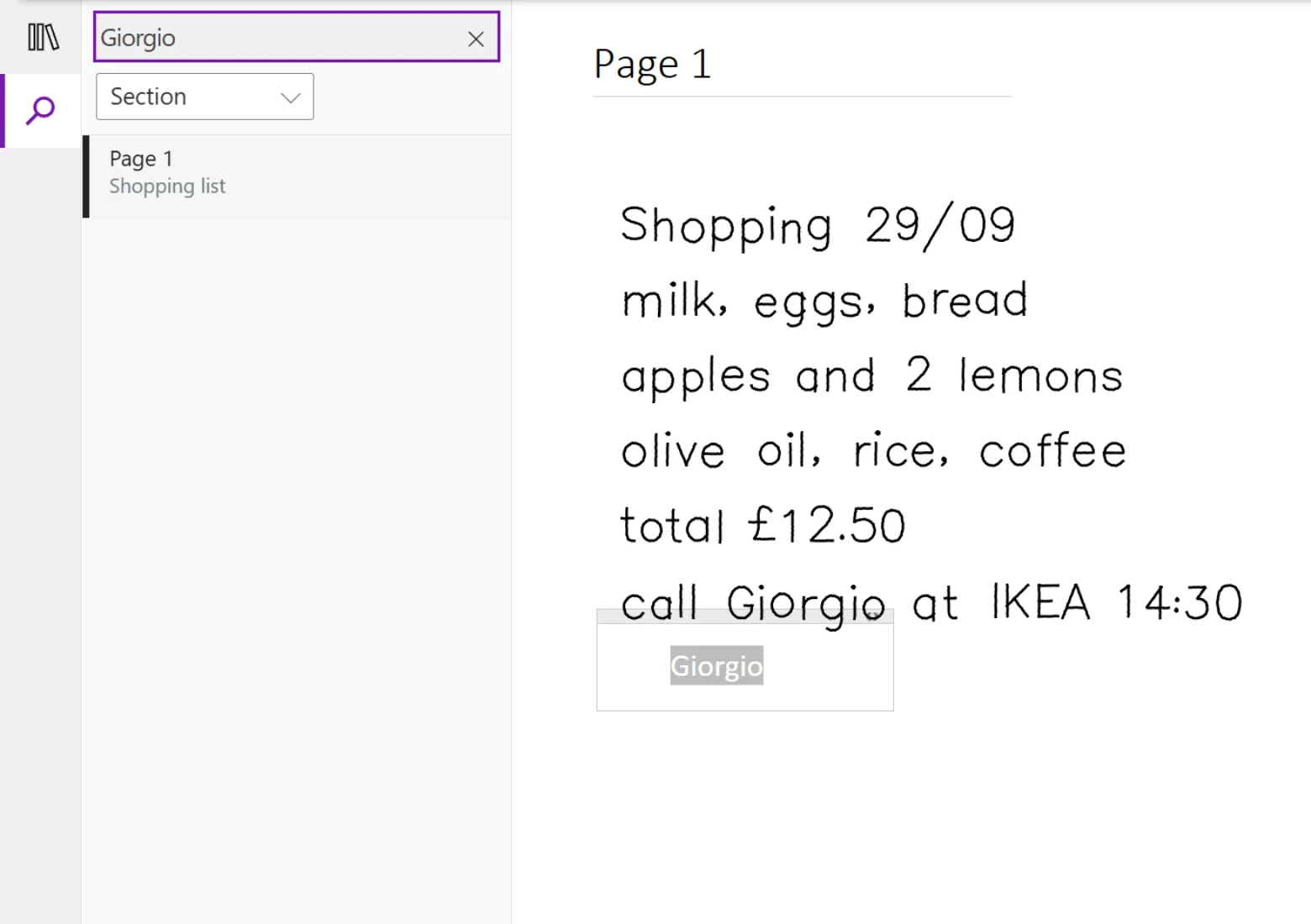
The searchable text is white, so on a normal white page you do not see it. It is only there for search.
Tip: search for a word that is not too common, like a name or a topic, rather than the or and.
Install English handwriting on Windows
Section titled “Install English handwriting on Windows”If Windows does not have English handwriting, ReMarkSync tells you in the search options and in Settings. Your ink still syncs, but pages that sync while English handwriting is missing get no search text. They get it the next time you change them on your reMarkable, after English is installed.
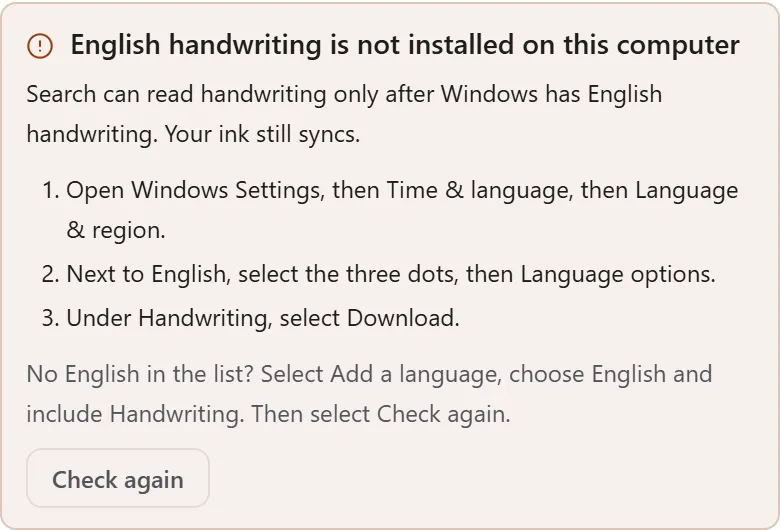
- Open Windows Settings, then Time & language, then Language & region.
- Next to English, select the three dots (···), then Language options.
- Under Handwriting, select Download.
- Back in ReMarkSync, select Check again. When it says English handwriting is ready, new and changed pages become searchable when they sync.
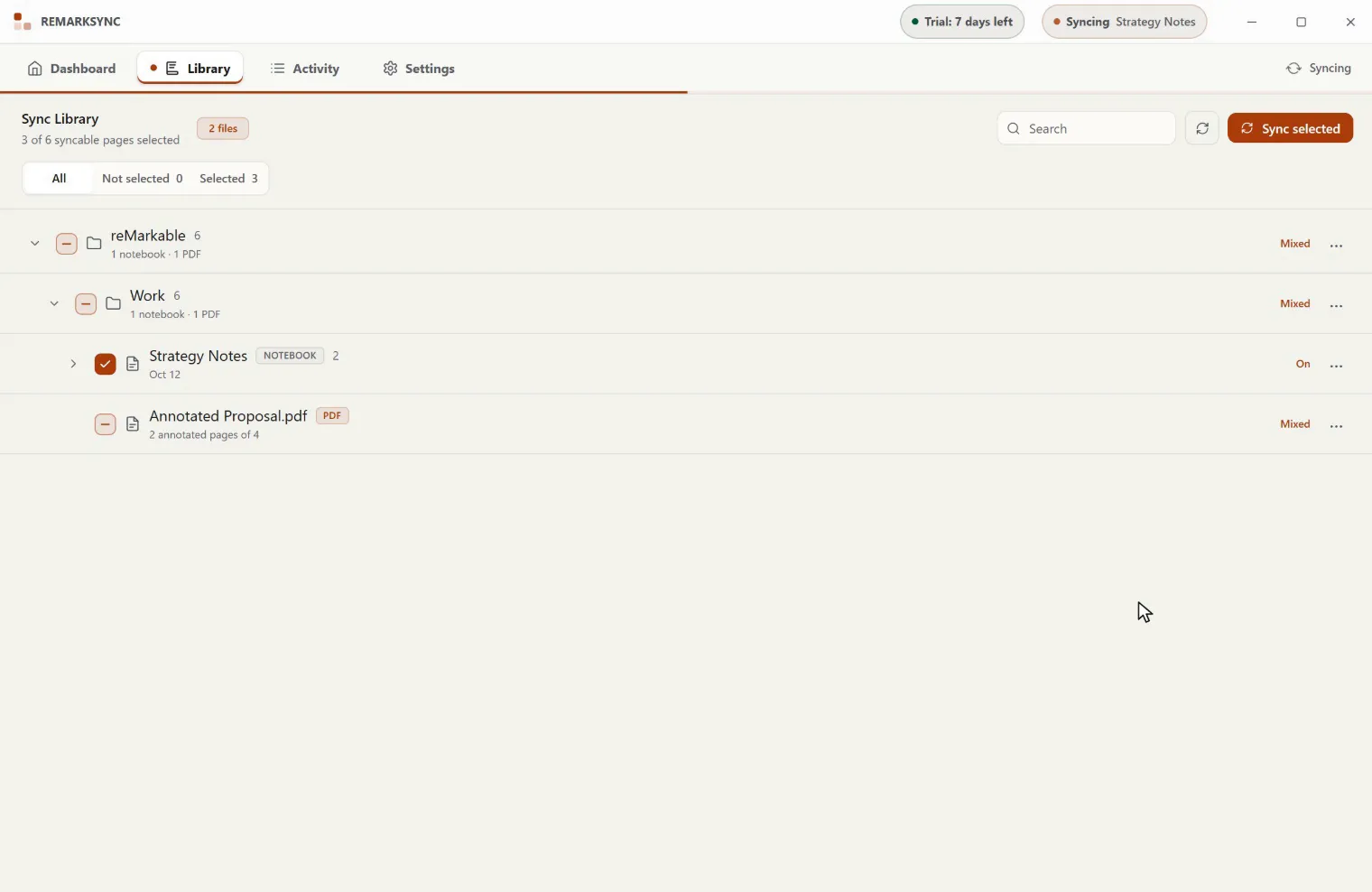
If the message says English spelling is not installed on this computer, follow the same steps but select Download under Basic typing in step 3. ReMarkSync uses the English spell checker to keep only real words.
No English in the list? In Language & region, select Add a language, choose an English language such as English (United Kingdom) or English (United States), and include Handwriting. A download can take a few minutes. Select Check again when it finishes.
Changing Windows language settings is your choice: ReMarkSync never changes them for you.
On a Mac
Section titled “On a Mac”On macOS, ReMarkSync uses the text recognition built into macOS. There is nothing to install.
Your handwriting stays on your computer
Section titled “Your handwriting stays on your computer”- ReMarkSync reads your handwriting on your computer. It never sends your handwriting, page images or recognized words to an online service to read them.
- The searchable text goes to your OneNote page together with your ink, like the rest of the page.
- ReMarkSync’s logs and diagnostics keep only counts and codes, such as how many words were found. They never contain your words.
Read more in Privacy and security.
Turn search off
Section titled “Turn search off”- For one notebook: open its ··· menu (Notebook options), choose Handwriting search in OneNote, select Turn off search, then confirm.
- For everything: open Settings, find Handwriting search, select Turn off for all…, then confirm the count.
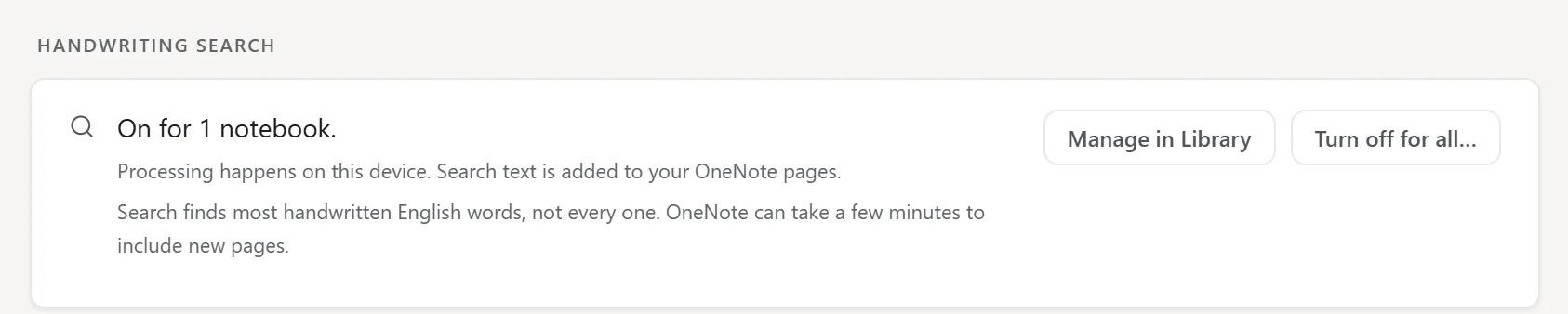
Your ink keeps syncing as before. Searchable text already in OneNote may remain on those pages; turning search off does not change pages that were already sent. If existing pages were still being made searchable, the rest are not sent.
Common problems
Section titled “Common problems”| What you notice | What to check or do |
|---|---|
| OneNote does not find a word you wrote. | Wait a few minutes and search again. Check that the page synced after you turned search on, or make existing pages searchable. Check the table above: short numbers, one-letter words and other languages are not searchable. Try another word from the same page. |
| ReMarkSync says English handwriting or spelling is not installed. | Follow Install English handwriting on Windows, then select Check again. |
| Activity shows Ink synced; search text unavailable. | The page synced, but without search text. The details say why, for example that the handwriting language is not installed, or that there was no room for search text on the page. |
| Handwriting search in OneNote is not available. | Update ReMarkSync. Search is available on Windows and macOS, for notebooks only. |
| A search finds a page where you did not write that word. | Rarely, a scribble or a quick mark is read as a short word. If it happens often, tell us through Contact support and say which kind of page it was. You do not need to send the page. |
Related guides
Section titled “Related guides”- Manage the Library: find notebooks and their options.
- What synced notes look like: how your ink appears in OneNote.
- Review Activity and sync history: check what happened to a page.
- Privacy and security: what stays on your computer.