Manage Settings, trial, and updates
Outcome: You will know where every ReMarkSync control lives and how to manage your trial, subscription, accounts, and updates.
Before you begin
Section titled “Before you begin”- Complete guided setup.
- Open the Settings tab.
Subscription and trial
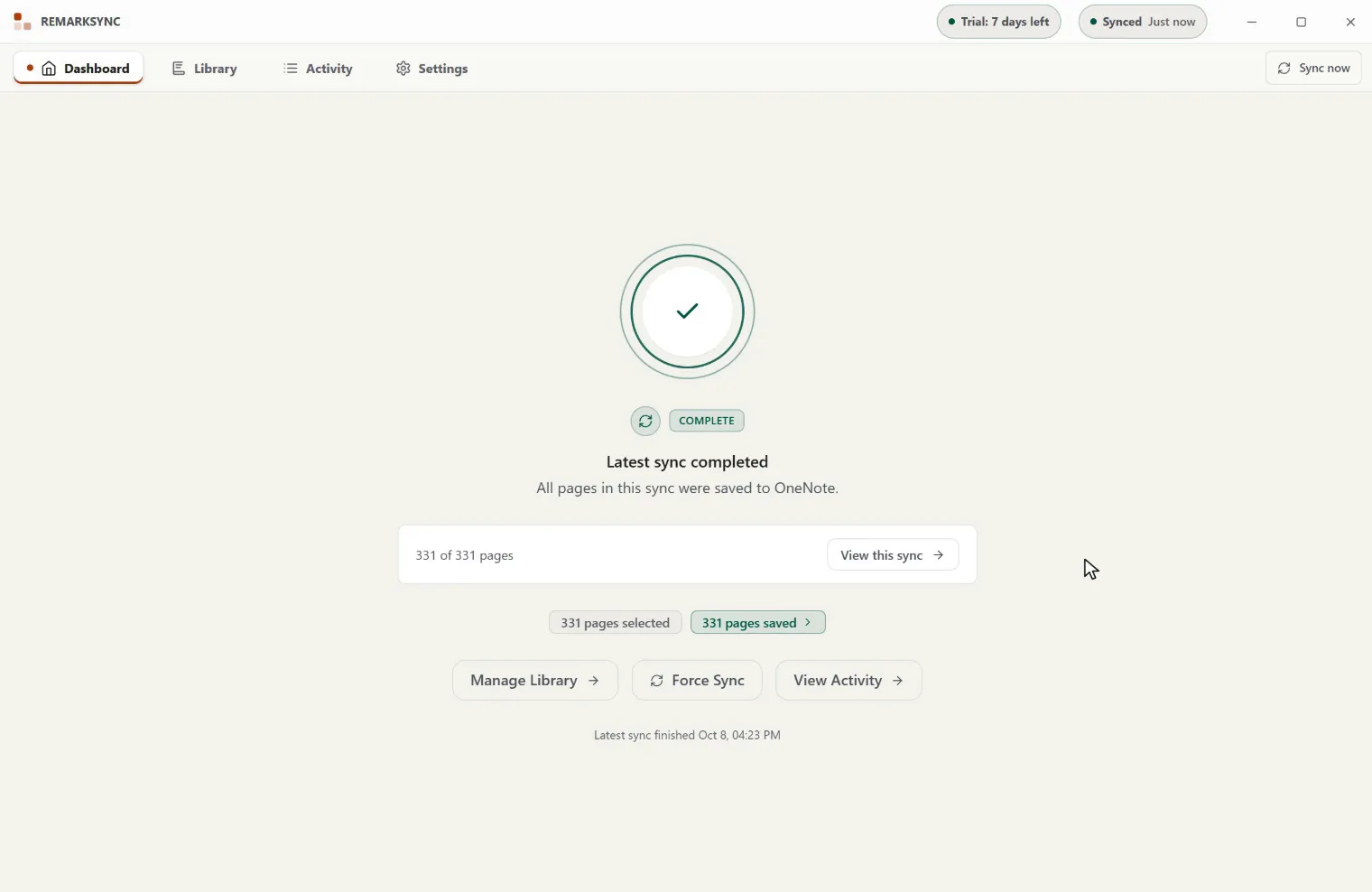
Section titled “Subscription and trial”The Subscription section at the top of Settings shows your trial or plan status, the ReMarkSync account it is linked to, and the available plans. The title bar shows your trial status from any tab, and selecting it opens this section.
- Use Refresh to re-check your subscription after a purchase.
- Use Choose monthly or Choose annual (or Become a Founding Member while that offer is open) to open the secure checkout in your browser.
- Use Sign out only if you want to move the ReMarkSync account; sync pauses until you sign in again.
reMarkable data folder
Section titled “reMarkable data folder”The reMarkable section shows which local data folder ReMarkSync reads.

Microsoft account
Section titled “Microsoft account”The Microsoft account section shows the Microsoft account that ReMarkSync writes to in OneNote. It is separate from your ReMarkSync account, so changing it does not affect your trial or subscription.
- Switch account: after you confirm, ReMarkSync pauses sync and lets you sign in with another Microsoft account. Choose a OneNote notebook again to resume sync.
- Disconnect: signs this Microsoft account out and pauses sync. Select Sign in with Microsoft to connect again.
Your ReMarkSync account stays signed in either way.
Switch the OneNote notebook
Section titled “Switch the OneNote notebook”To send pages to a different notebook in the same Microsoft account, select Switch OneNote notebook in Settings and follow Switch the OneNote notebook.
Preferences
Section titled “Preferences”The preferences section controls day-to-day behavior:
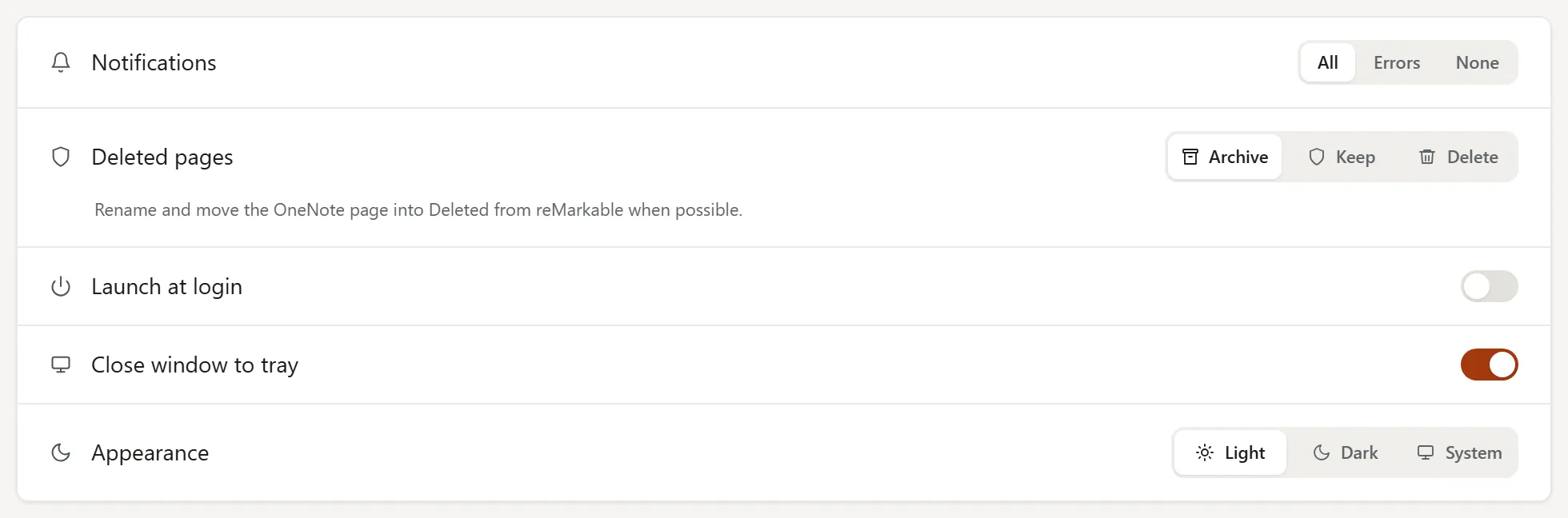
- Notifications: choose All, Errors, or None.
- Deleted pages: see Choose deletion behavior.
- Launch at login: start ReMarkSync automatically with your computer.
- Close window to tray: keep sync running in the background when you close the window.
- Appearance: Light, Dark, or System.
App updates
Section titled “App updates”On macOS, ReMarkSync checks for updates and asks before downloading or installing. Microsoft Store installations use the Store’s update settings.
Update ReMarkSync on macOS
Section titled “Update ReMarkSync on macOS”When a new release is available, a banner appears at the top of the app with the version and a summary of the changes.

-
Select What’s new to read the full release notes before deciding.
-
Select Download update. The download runs in the background while you keep using the app.
-
When the banner says the update is ready, select Restart & install, or select Later and restart when it suits you. Your settings and sync history are preserved.

Updates never interrupt an active sync. ReMarkSync waits only for pages that are syncing right now; pages that are stuck don’t hold the update back. While it waits, the banner reads Finishing sync before restart, for example with “Finishing one last OneNote step. Nothing will be interrupted.” If it takes too long, the banner reads “The update is ready. Some pages are still syncing.” with “Nothing was interrupted. Try again in a few minutes.”
If an older version keeps waiting and never installs, see An update is ready but never installs.
Update ReMarkSync on Windows
Section titled “Update ReMarkSync on Windows”Microsoft Store installations receive updates through Microsoft Store, subject to its update settings and rollout. Check Store for available updates. The direct-download controls shown above describe macOS. Check release notes for availability on your platform.
After upgrading from an earlier version
Section titled “After upgrading from an earlier version”Your existing selections remain unchanged and Auto is not enabled silently. In Library, choose Review notebooks to opt in for future pages, or configure a row’s More menu later. See Include new notes automatically.
Expected result
Section titled “Expected result”If your screen looks different
Section titled “If your screen looks different”Sections appear only when they apply. For example, update controls differ between the Microsoft Store build and the direct download, and organization accounts can add a OneNote access section.