Connect your reMarkable library
Outcome: ReMarkSync will find the notes that the official reMarkable desktop app has downloaded to your computer.
Set up the reMarkable desktop app first
Section titled “Set up the reMarkable desktop app first”ReMarkSync reads the notes that reMarkable’s own desktop app keeps on your computer, so that app must be installed and signed in before anything can sync.
- Download the desktop app from my.remarkable.com and install it.
- Sign in with your reMarkable account and pair your tablet if asked.
- Wait until My files shows the notebooks and PDFs you want to sync.
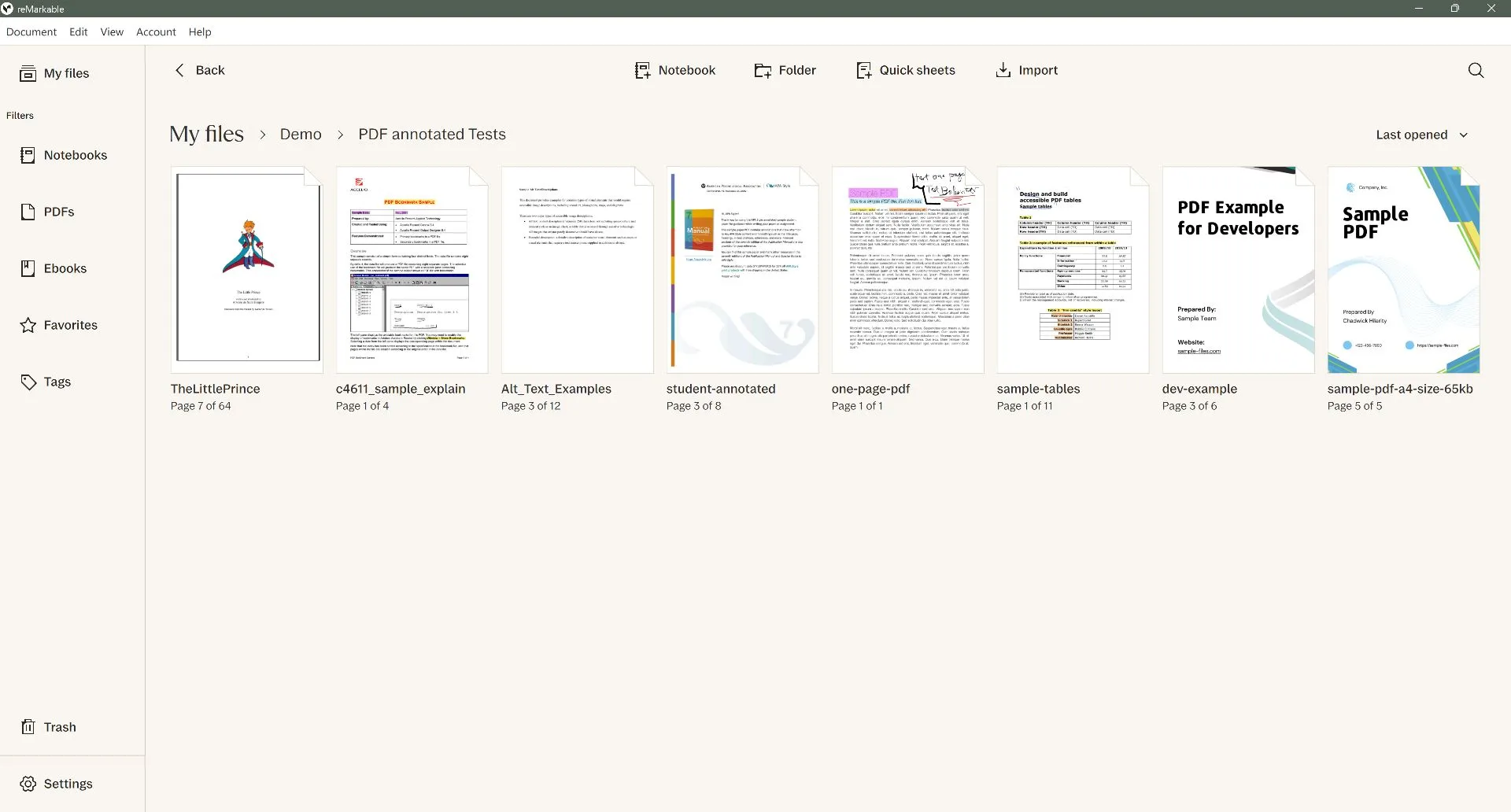
Keep the reMarkable desktop app installed and let it open occasionally, because that is how new handwriting reaches your computer for ReMarkSync to pick up.
Before you begin
Section titled “Before you begin”- Pair your tablet with the official reMarkable desktop app.
- Confirm the notes you want are visible in that desktop app.
- Keep the reMarkable desktop app open until its sync finishes.
Detect your notes
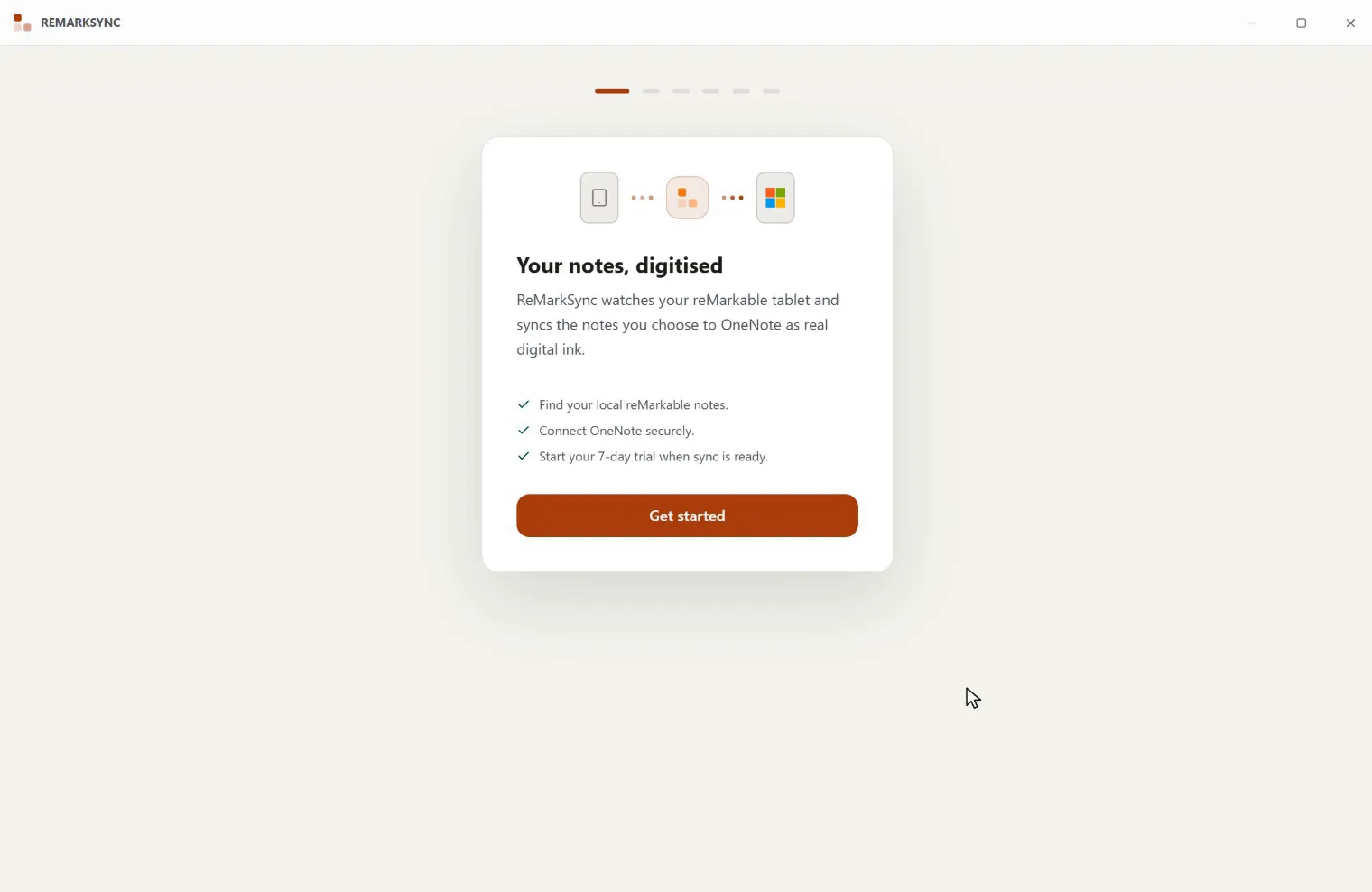
Section titled “Detect your notes”- Open ReMarkSync.
- Select Get started if guided setup is not already open.
- At Detect your notes, wait while ReMarkSync looks for the local reMarkable data folder.
- When Found your reMarkable library appears, review the folder, document, and syncable-page counts.
- Select Continue.
If your screen looks different
Section titled “If your screen looks different”The local folder location differs between Windows and macOS. ReMarkSync normally detects it automatically, so you do not need to copy or type a system path.
If setup shows Folder found, no notes yet, the official app is installed but has not downloaded active pages. Let it finish syncing, then select Re-scan folder.