Complete your first sync
Outcome: You will send the selected pages to OneNote and confirm what the first sync saved.
Before you begin
Section titled “Before you begin”- Finish guided setup and select at least one syncable page.
- Start the free trial or use an active subscription.
- Keep the official reMarkable desktop app and ReMarkSync running.
- OneNote does not need to be open during sync.
Run and verify the sync
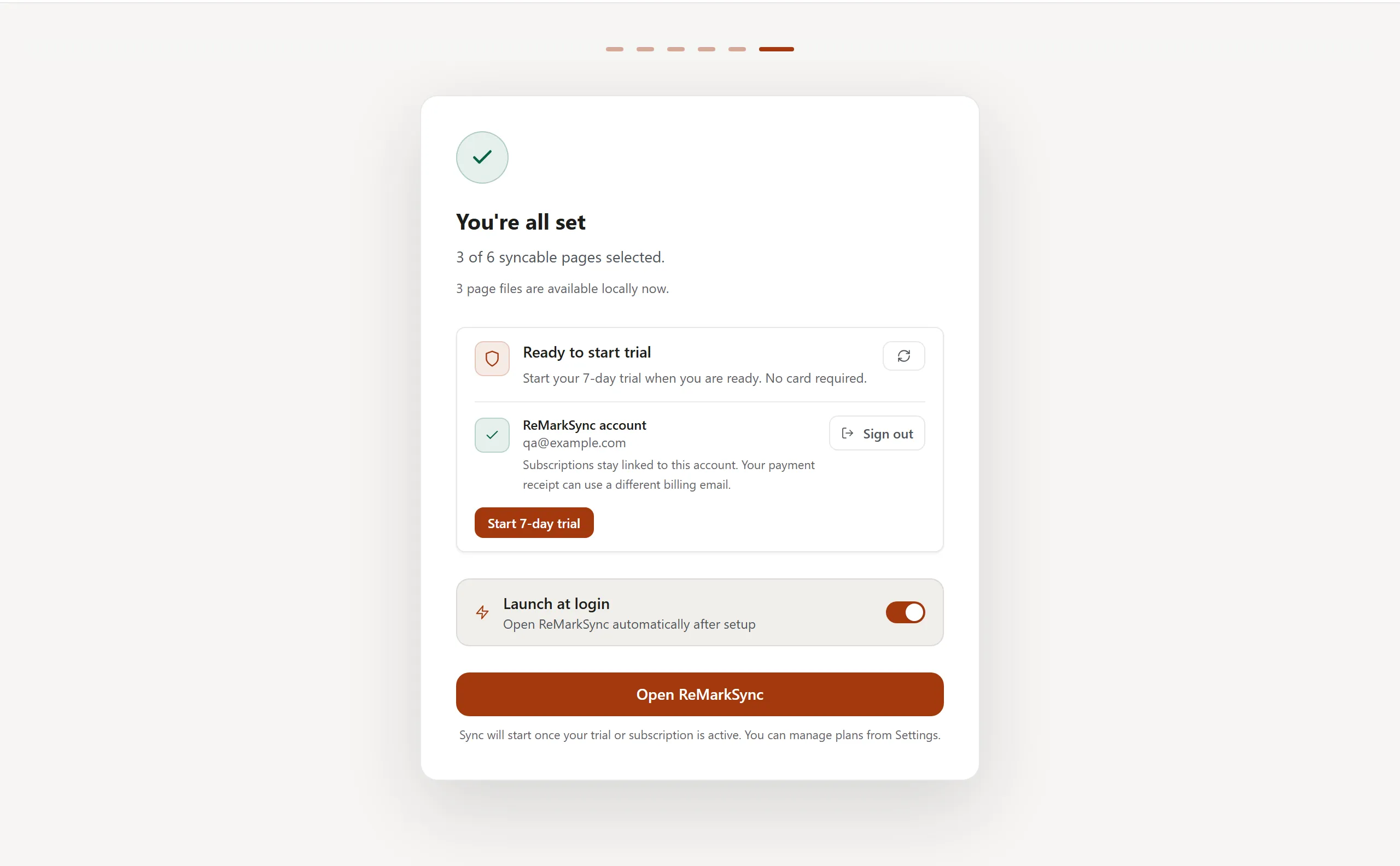
Section titled “Run and verify the sync”- At You’re all set, review the selected-page summary and select Start 7-day trial if you have not already.
- Leave Launch at login on if you want ReMarkSync to start automatically with your computer.
- Select Open ReMarkSync.
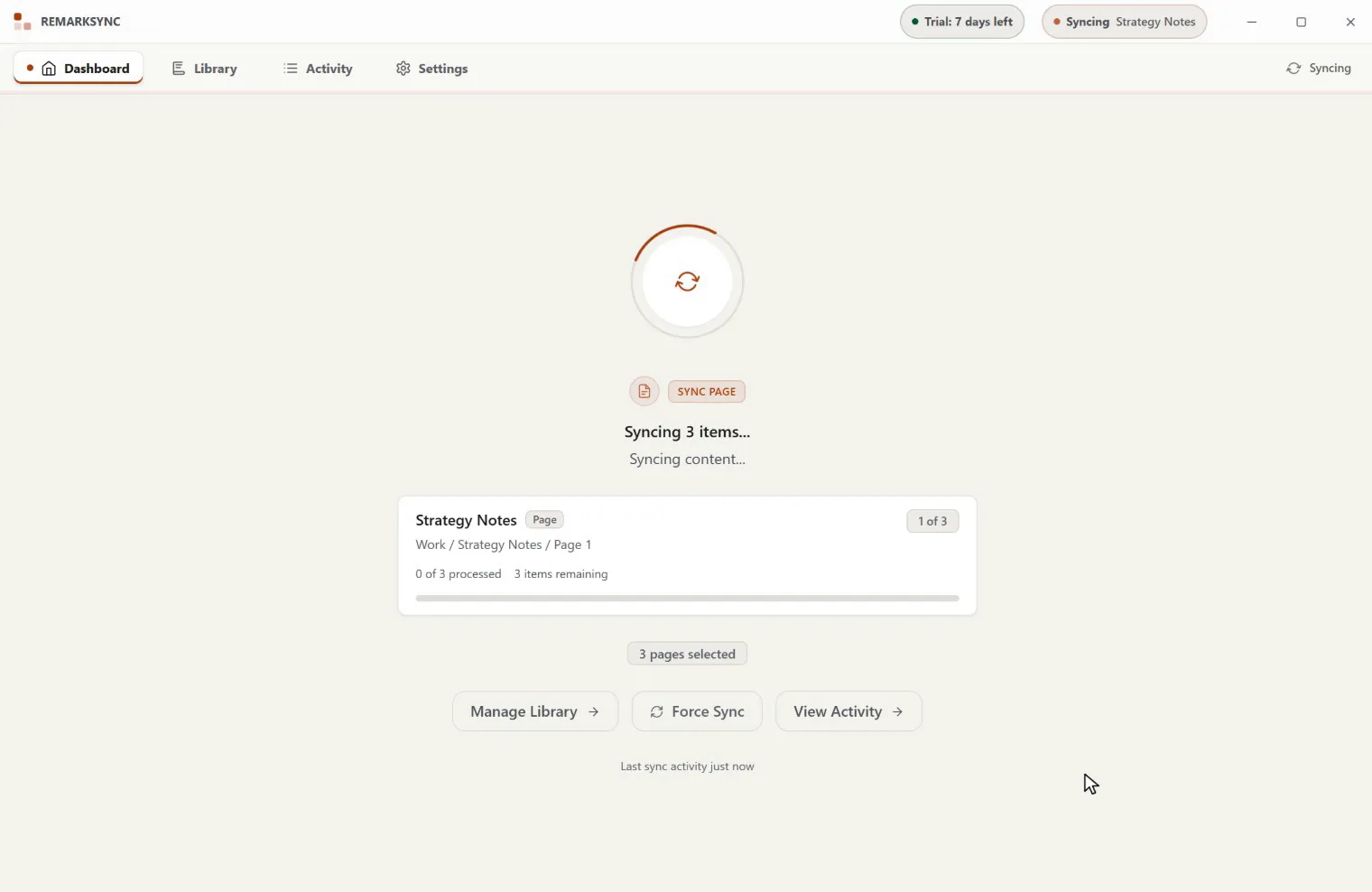
- On Dashboard, wait for automatic sync or select Sync now to check immediately.
- While work is active, follow the current item, progress, and waiting explanation. Keep both apps running until the current work settles.
- Wait for Latest sync completed, then read the result such as 3 of 3 pages.
- Select View this sync. Activity opens with Latest sync selected.
- Find one selected page and confirm its current result is completed and its Content in OneNote fact says the content is saved.
- Open OneNote with the Microsoft account you connected.
- Open the destination notebook, then the reMarkable section group.
- Open the same page and compare it with the original note.
The latest-sync total applies only to pages in that sync. If Dashboard also shows a current Waiting, Recovering, Needs attention, or Failed count, select it separately to open the exact pages in Open now.
Expected result
Section titled “Expected result”If your screen looks different
Section titled “If your screen looks different”During a larger first sync, Dashboard can show active or waiting work before the completion card appears. A page can also reach Activity before OneNote refreshes its own view. Use the page’s current Activity fact as the ReMarkSync result, then refresh OneNote.
Troubleshooting
Section titled “Troubleshooting”New pages can join later syncs through automatic inclusion. An Auto included event records selection for sync, so check the page’s later result to confirm delivery.