Why a page is waiting
Outcome: You will know why a page is waiting, whether you need to do anything, and when ReMarkSync checks again. Most waiting pages finish on their own.
Is something wrong?
Section titled “Is something wrong?”Find the status ReMarkSync shows for the page. In Activity, switch to Open now to see it: Activity opens on History.
| Status in ReMarkSync | What it means | Who acts |
|---|---|---|
| Waiting its turn to sync | The page is in line behind other pages. | Nothing to do |
| Appearing soon | OneNote received the page and is about to show it. | Nothing to do |
| Paused for request limits | Microsoft limits how many requests an app can send each hour. | Nothing to do |
| Waiting for OneNote | OneNote has not shown the page yet. | Nothing to do |
| OneNote can’t open this page | OneNote has the page but can’t open it yet. | Nothing to do, or Check now |
| Page saved. Checking title | The page is saved. ReMarkSync is confirming its title. | Nothing to do |
| Waiting for local page file | The official reMarkable app has not downloaded the page yet. | Keep the reMarkable app open |
| Sync paused after repeated errors | OneNote kept rejecting pages, so ReMarkSync paused for a while. | Nothing to do, or Resume now |
| Sync is paused | The whole sync is paused for another reason. | Depends on the reason |
A page that needs your decision says Action needed and has a button. Those cases are explained in Recover and retry a page. Access messages such as Admin approval needed are explained in OneNote access problems.
The life of a page
Section titled “The life of a page”Most pages go straight from the first step to the last:
- Waiting its turn to sync: the page waits in line.
- Appearing soon: OneNote received the page. It usually shows up within a minute or two.
- Saved: the page is in OneNote. It leaves Open now.
If OneNote does not show the page within 2 minutes, the page moves to Waiting for OneNote, and ReMarkSync keeps checking. If OneNote then reports that it can’t open the page, the page shows OneNote can’t open this page. If that lasts, ReMarkSync offers a recovery copy, explained in Recover and retry a page.
Waiting its turn
Section titled “Waiting its turn”ReMarkSync sends one page at a time. During a big sync, most pages simply wait in line.
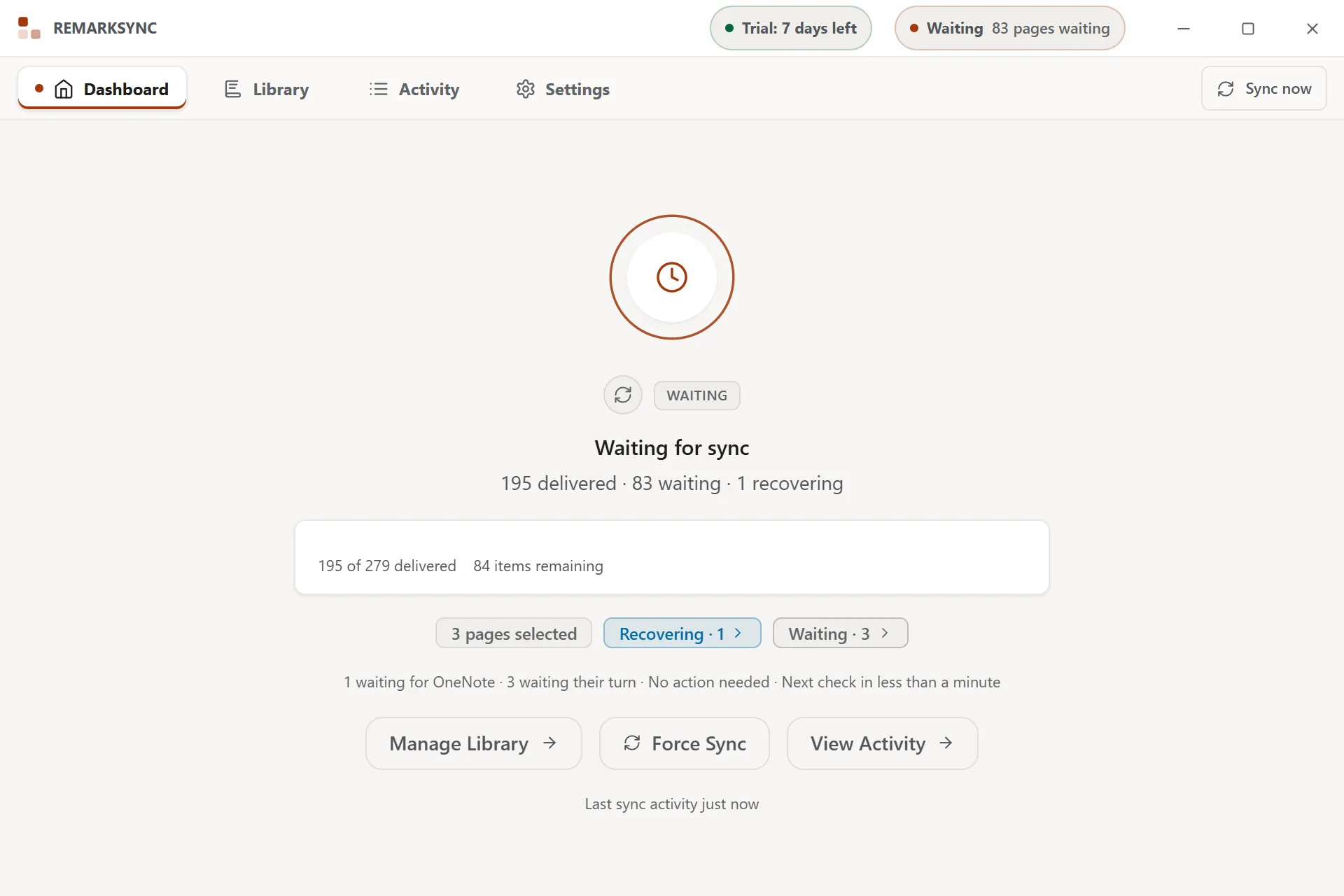
- The title bar reads Waiting with the number of pages, for example “83 pages waiting”.
- The Dashboard reads Waiting for sync with a line such as “195 delivered · 83 waiting · 1 recovering”.
- The ring shows a clock instead of turning green.
You don’t need to do anything. Keep ReMarkSync and the reMarkable app open, with the computer awake.
Appearing soon
Section titled “Appearing soon”OneNote received the page. It can take a minute before OneNote shows it.
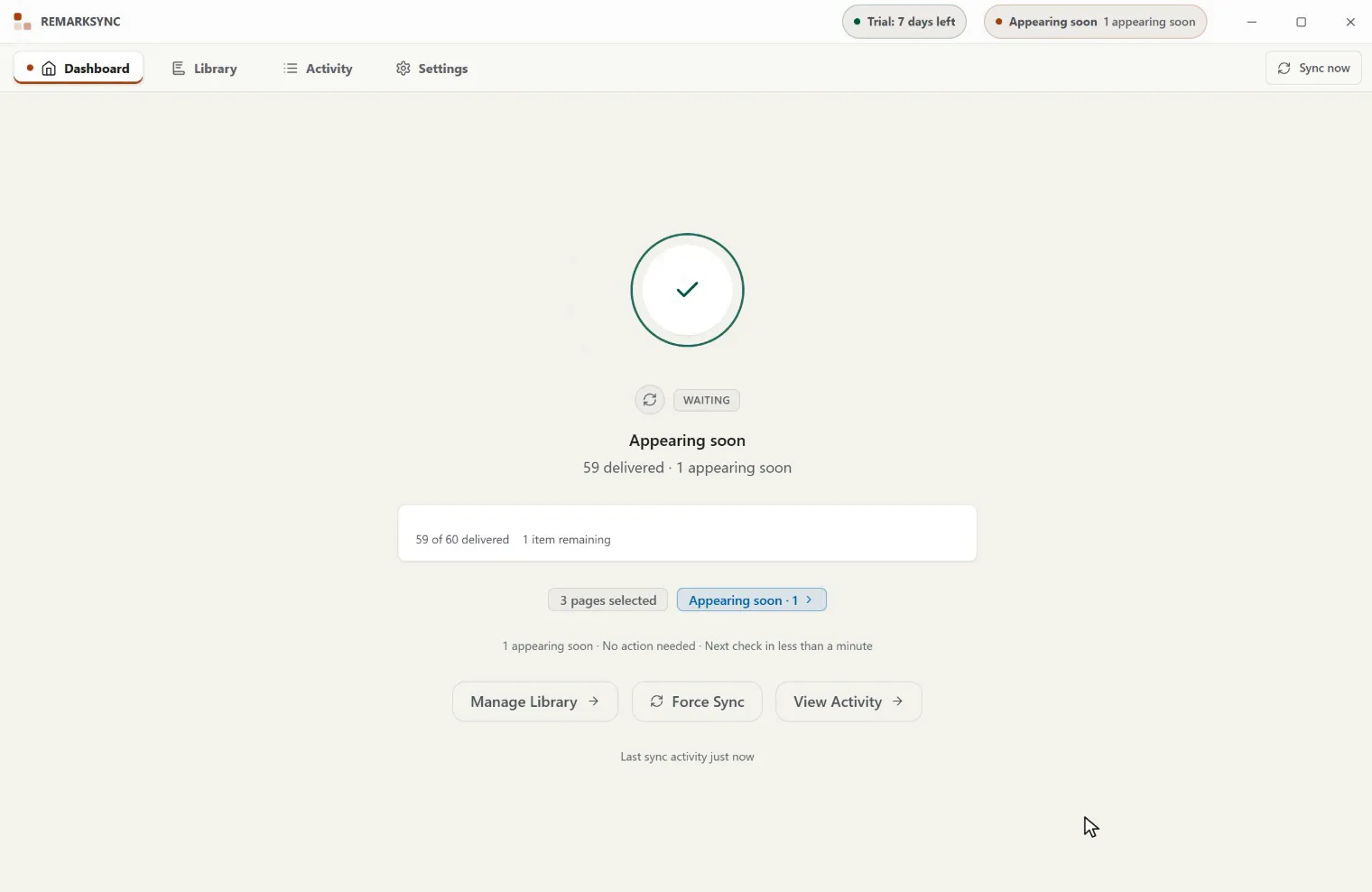
The page reads Appearing soon with “OneNote received this page. It can take a minute to show up. Nothing to do.” The Dashboard shows a chip Appearing soon · 1.
Right after an upload, a page can also read Checking OneNote with “ReMarkSync is checking that OneNote saved this page, so it isn’t sent twice.”
You don’t need to do anything. When OneNote shows the page, it is saved and leaves Open now. If it does not show up within 2 minutes, the page moves to Waiting for OneNote.
Paused for request limits
Section titled “Paused for request limits”Microsoft limits how many requests one app can send to OneNote each hour. When ReMarkSync reaches that limit, it waits until Microsoft accepts requests again.
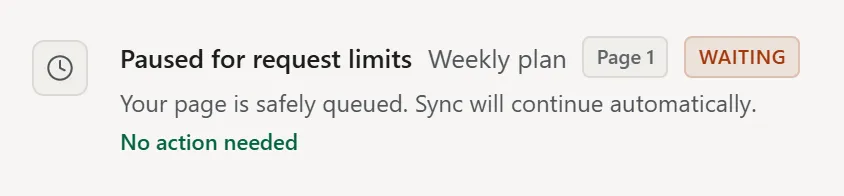
The page reads Paused for request limits with “Your page is safely queued. Sync will continue automatically.” The Dashboard counts these pages, for example “1 paused for request limits”.
You don’t need to do anything. Clicking Sync now does not make Microsoft’s limit end sooner.
Waiting for OneNote
Section titled “Waiting for OneNote”OneNote accepted the page but has not shown it yet. This is on OneNote’s side.
The page reads Waiting for OneNote with “ReMarkSync checks again on its own until the page shows up. It won’t be sent twice.” Its status line says when ReMarkSync checked and when it checks next. See Read the status line.
When several pages wait for OneNote, Open now groups them in one box:
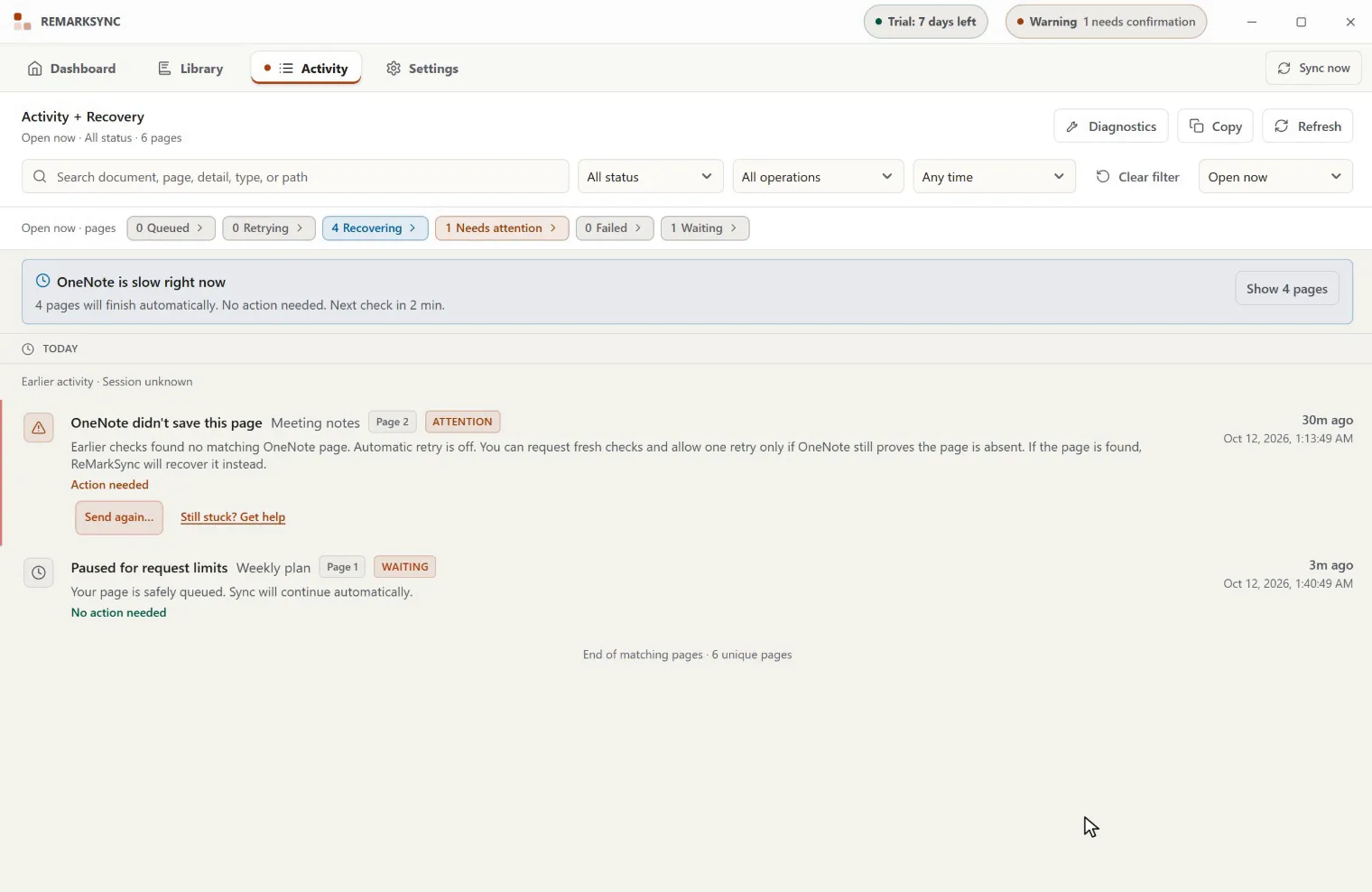
- The box reads OneNote is slow right now with, for example, “4 pages will finish automatically. No action needed. Next check in 2 min.”
- Click Show 4 pages to see the pages. Click Hide pages to fold them again.
You don’t need to do anything. If a page still waits after 24 hours, ReMarkSync offers Get help on it.
OneNote can’t open this page
Section titled “OneNote can’t open this page”OneNote has the page but can’t open it yet. The page reads OneNote can’t open this page with “OneNote has the page but can’t open it yet. This is on OneNote’s side. Your notes are safe.”
ReMarkSync keeps checking on its own. The page also tells you when a copy becomes possible, for example “We keep checking. If it doesn’t appear, you can create a copy in about 12 minutes.”
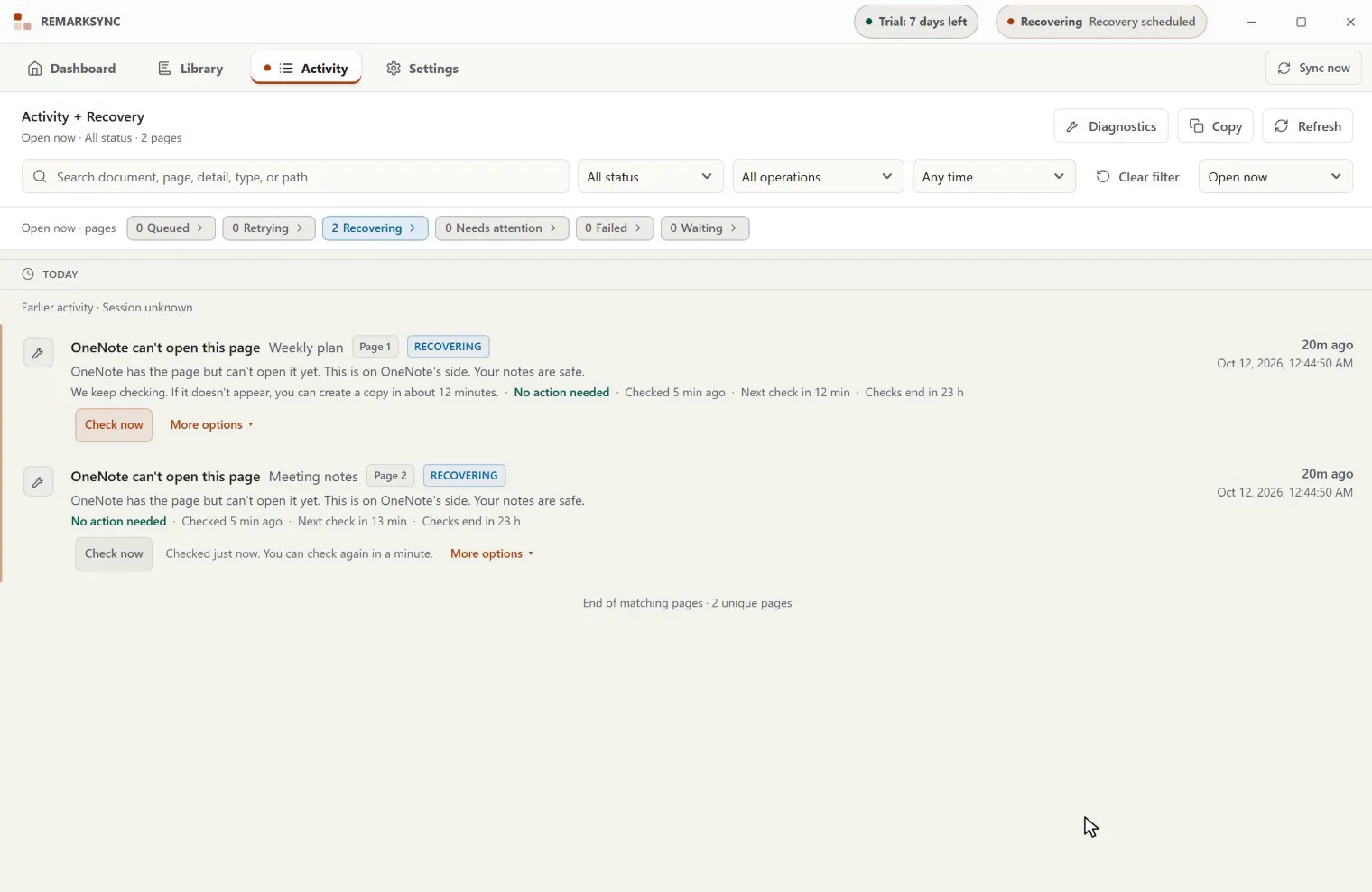
To check right away:
- Open Activity and switch to Open now.
- On the page, click Check now. You should see: “OneNote opened this page. Finishing it now.” with “No new copy is needed.” The page finishes on its own.
Check now only reads the page in OneNote once. It never removes, sends or renames anything, and the next automatic check stays as planned.
| After Check now, you see | What it means | What happens next |
|---|---|---|
| “OneNote opened this page. Finishing it now.” | OneNote can open the page now. | ReMarkSync finishes it. No copy is made. |
| “OneNote still can’t open this page.” | Nothing changed yet. | “Nothing was changed. ReMarkSync keeps checking on its own at the planned time.” |
| “OneNote didn’t answer.” | OneNote did not respond. | Same as above: ReMarkSync keeps checking. |
| “This page was checked a moment ago.” “Try again in a minute.” | The page was just checked. | Wait a minute. The button reads “Checked just now. You can check again in a minute.” |
When the copy becomes possible, the page offers Create recovery copy…. See Create a recovery copy.
Title checks
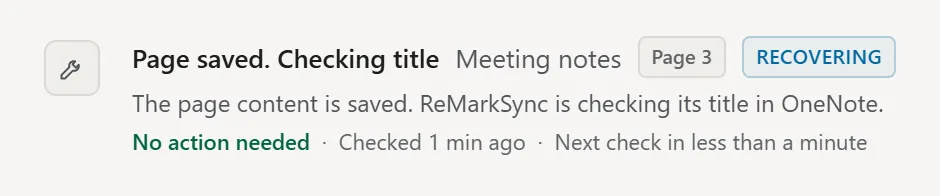
Section titled “Title checks”Sometimes OneNote saves a page before its title is confirmed. The page reads Page saved. Checking title. The content is already saved. You don’t need to do anything.
ReMarkSync never changes a page title on its own. If the title can’t be confirmed, the page reads Page saved. Title not confirmed and asks you to choose. See Page saved, title not confirmed.
Sync paused after repeated errors
Section titled “Sync paused after repeated errors”When OneNote rejects 10 pages in a row, ReMarkSync pauses the whole sync for a while instead of trying again and again. Your pages are kept and will be sent again.
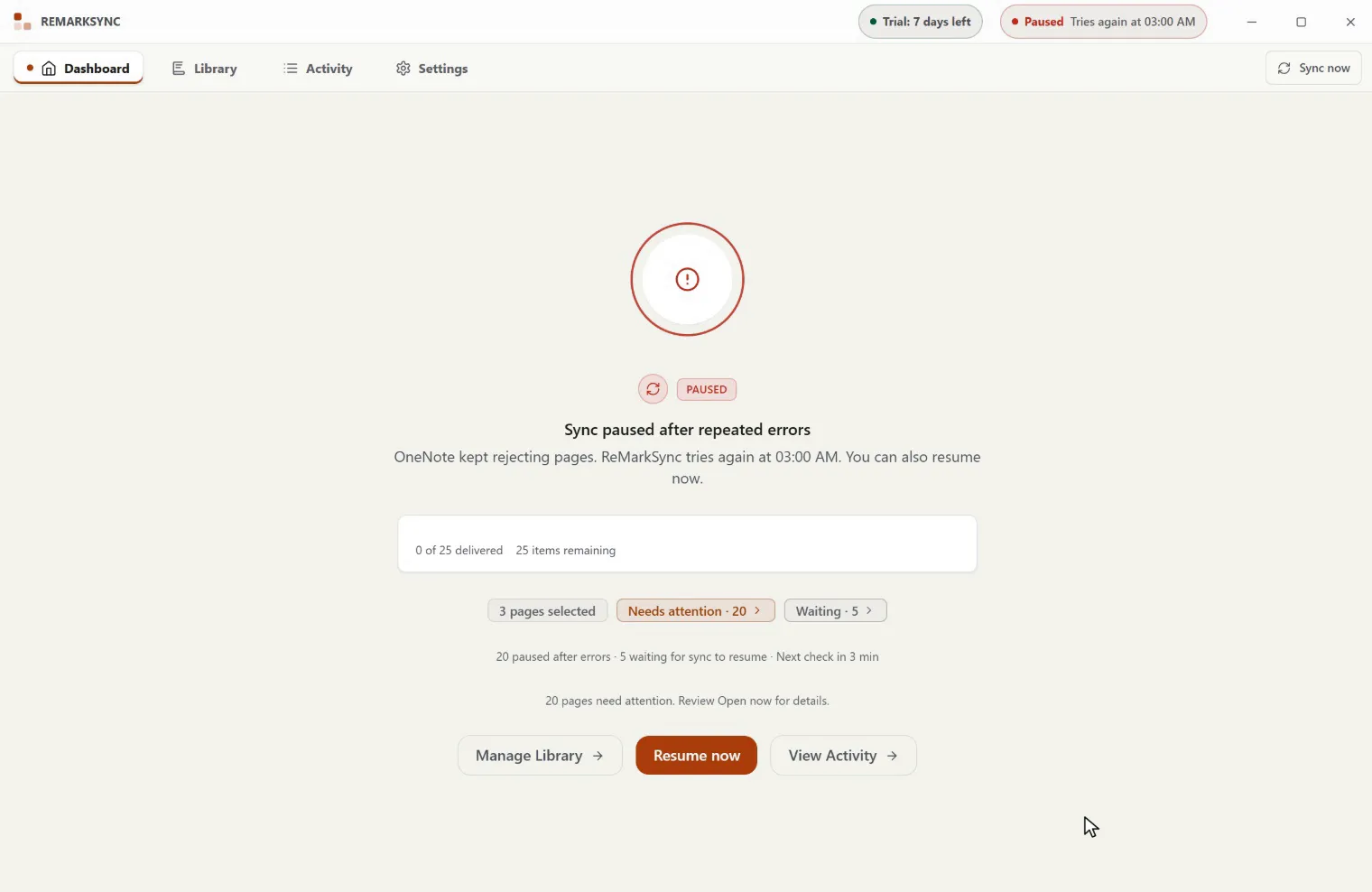
Where you see it:
- Dashboard: Sync paused after repeated errors with, for example, “OneNote kept rejecting pages. ReMarkSync tries again at 23:58. You can also resume now.”
- Title bar: Paused with “Tries again at 23:58”.
- Tray: “ReMarkSync: Paused after repeated errors, tries again at 23:58”. A notification also says “Repeated sync errors. Pausing for 5 minutes. Click for details.”
- Activity, Open now: pages that failed read OneNote did not accept this page (or ReMarkSync could not reach OneNote when the connection failed), with “Action needed · Tries again at 23:58”. Pages not tried yet read Waiting for sync to resume.
You don’t need to do anything. ReMarkSync tries again by itself:
- The first pause lasts 5 minutes, the next one 30 minutes, then 1 hour each time.
- As soon as OneNote accepts a page, the next pause starts again at 5 minutes.
If you know the problem is gone, for example your internet is back, you can resume now:
- Click Resume now on the Dashboard or on a page in Open now. You should see the pages continue. Resuming yourself cancels the planned automatic restart.
If the same page fails 3 times, it reads, for example, “This page failed 3 times since Oct 9. Retrying on its own won’t help.” and Get help becomes its main button. See Get help for a page.
Sync is paused
Section titled “Sync is paused”When the whole sync is paused for another reason, each waiting page reads Sync is paused with the reason, and Action needed. There is no next check, because nothing happens until the reason is fixed.
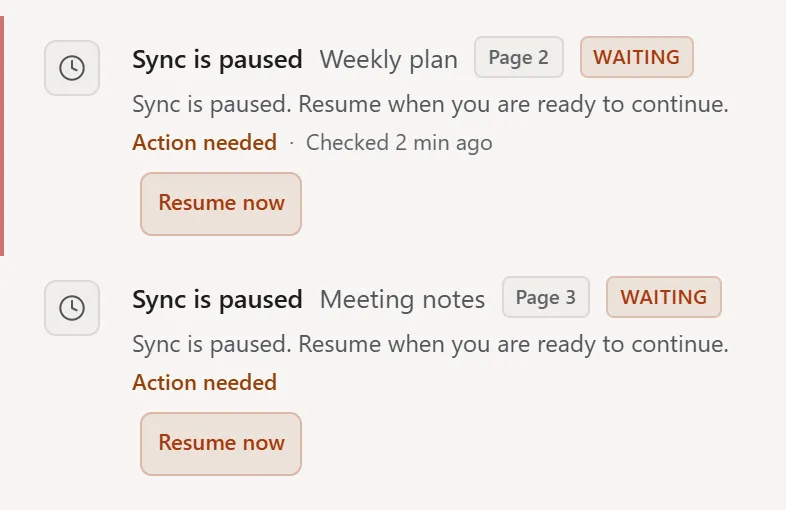
| The page says | Why sync is paused | Where to fix it |
|---|---|---|
| “Sync is paused. Resume when you are ready to continue.” | You paused sync. | Resume now on the page, or Resume Sync on the Dashboard. |
| “Your trial has ended. Upgrade to continue syncing.” | Your trial ended. | Your plan in Settings. See Settings, trial, and updates. |
| “The reMarkable data folder needs attention. Your OneNote pages were not changed; recover the folder in Settings.” | ReMarkSync can’t use the reMarkable folder. | Settings. See Connect your reMarkable. |
| “Microsoft account disconnected. Sign in again to resume syncing.” | You are signed out of Microsoft. | Sign in again. See Connect OneNote. |
| “Waiting for OneNote access. Allow OneNote access to continue.” | Another page hit a OneNote access problem. | See OneNote access problems. |
Only a pause you started yourself offers Resume now on the page. The other fixes live on the Dashboard and in Settings.
Read the status line
Section titled “Read the status line”Each waiting page has a short status line under its title, for example:
No action needed · Checked 2 min ago · Next check in 12 min · Checks end in 23 h
| Part | What it means |
|---|---|
| No action needed | ReMarkSync handles this page. Action needed means the page has a button for you. |
| Checked 2 min ago | When ReMarkSync last looked for the page in OneNote. |
| Next check in 12 min | When ReMarkSync looks again. “Next check soon” means within a minute or so. |
| Checks end in 23 h | When automatic checks stop and ReMarkSync offers you a choice. “Checks ended” means they already stopped. |
Times are estimates. Microsoft cooldowns or new requests can move a check later.
Automatic checks
Section titled “Automatic checks”ReMarkSync checks waiting pages on its own, so you rarely need Check now:
- It checks pages that OneNote can’t open soon after ReMarkSync starts, after the computer wakes, when the internet comes back, and after another page uploads.
- To stay within Microsoft’s limits, it checks at most 4 pages a minute and makes at most 60 checks an hour, and checks each page at most once every 10 minutes.