
Get help for a page
Outcome: You will know when ReMarkSync offers Get help on a page, what it saves and sends, and how to use it. ReMarkSync never sends anything by itself: you read the email and decide whether to send it.
What do you need?
Section titled “What do you need?”| You want to | Go to |
|---|---|
| Understand why Get help appears on a page | Fix first, help second |
| Get help for one page | Get help for one page |
| Know exactly what the email says | What the email contains |
| Get help for several pages at once | Several pages need help |
| Report a problem that is not about one page | Help & Support on Diagnostics |
| Write to support yourself | Contact support |
Fix first, help second
Section titled “Fix first, help second”Pages that need attention come in three kinds. ReMarkSync offers Get help only when it can actually help.
| Kind of page | What the page shows | Example |
|---|---|---|
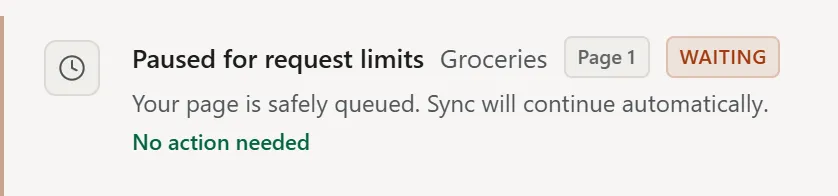
| It fixes itself | No action needed and no button. | Paused for request limits |
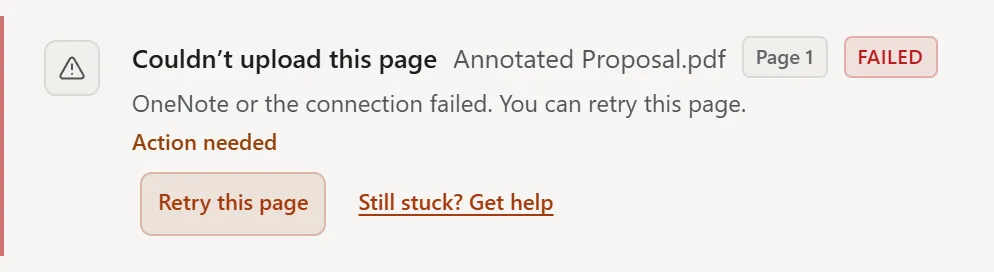
| You can fix it | The fix as the main button, then Still stuck? Get help. | Couldn’t upload this page with Retry this page |
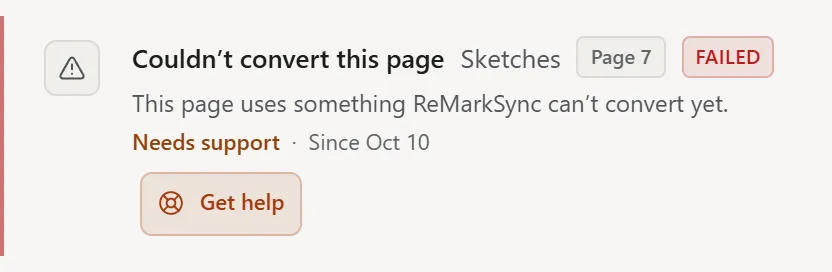
| Only we can fix it | Get help as the main button, with Needs support. | Couldn’t convert this page |
When Get help appears
Section titled “When Get help appears”| Situation | What you see |
|---|---|
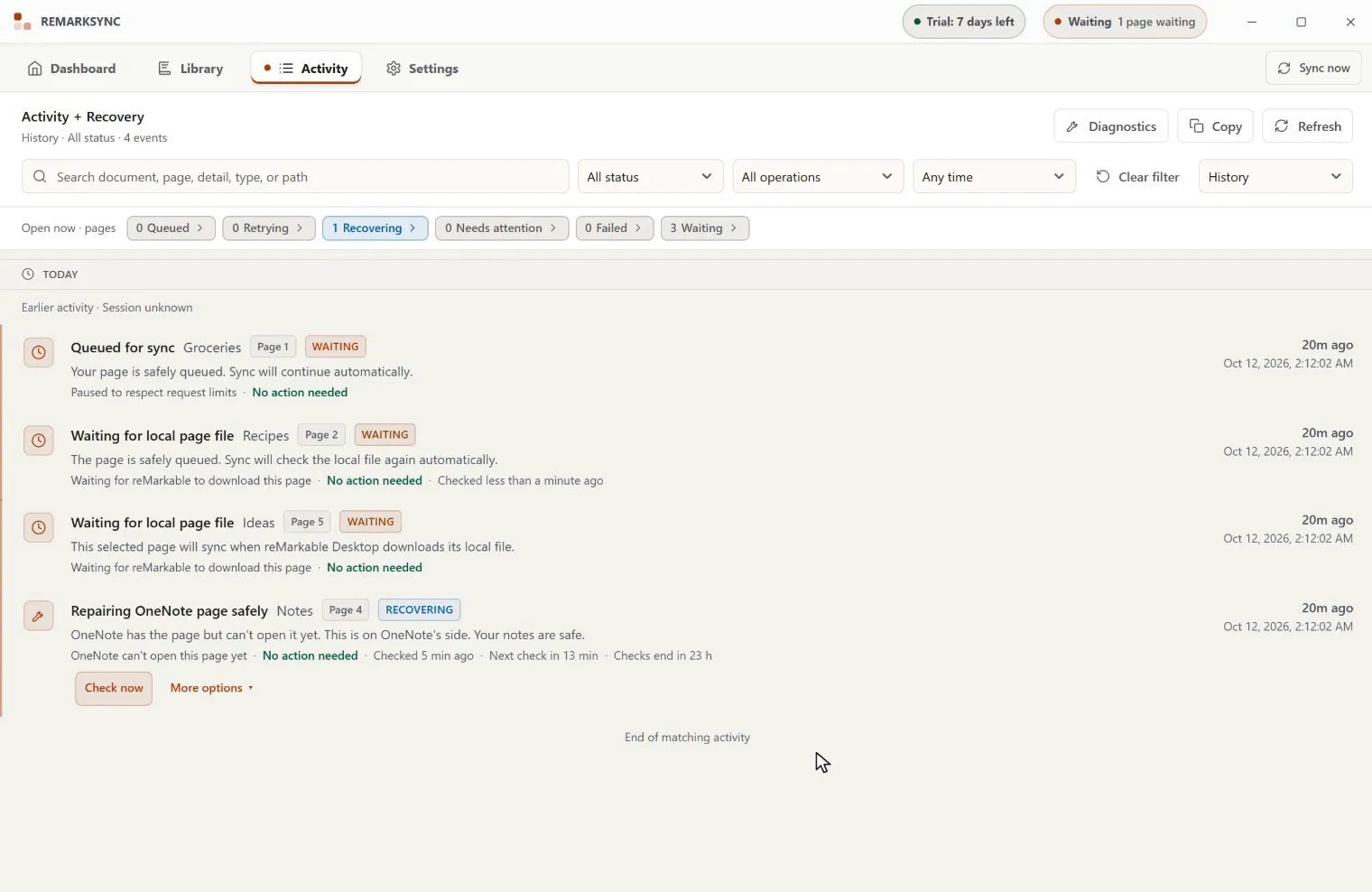
| A page waited for OneNote for 24 hours, or its automatic checks ended | Get help on a page that had no button before |
| A page’s file has not reached this computer for 2 days | Get help on the page |
| A page failed 3 times | Get help becomes the main button |
| You tried the same fix twice and the page is still stuck | Get help becomes the main button |
| The same page failed 3 times while sync was paused after repeated errors | Get help becomes the main button |
| A page needs a OneNote check | Still stuck? Get help next to Check OneNote |
Get help never appears for pages that are waiting their turn, or when sync is paused for a reason you can fix yourself, such as a pause you started.
You find Get help in Activity, in Open now and in Latest sync for pages that are still open. It is not on the Dashboard, in History, or in the tray.
When retrying has not helped
Section titled “When retrying has not helped”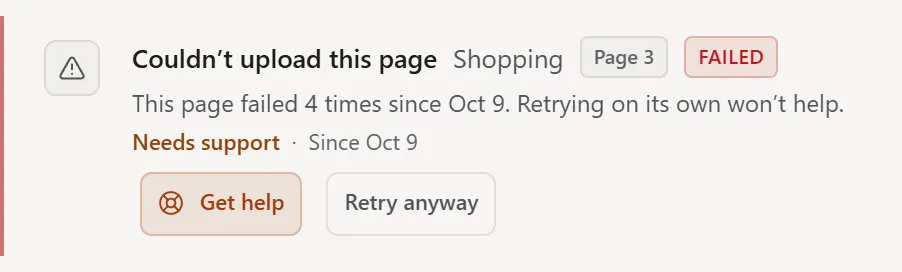
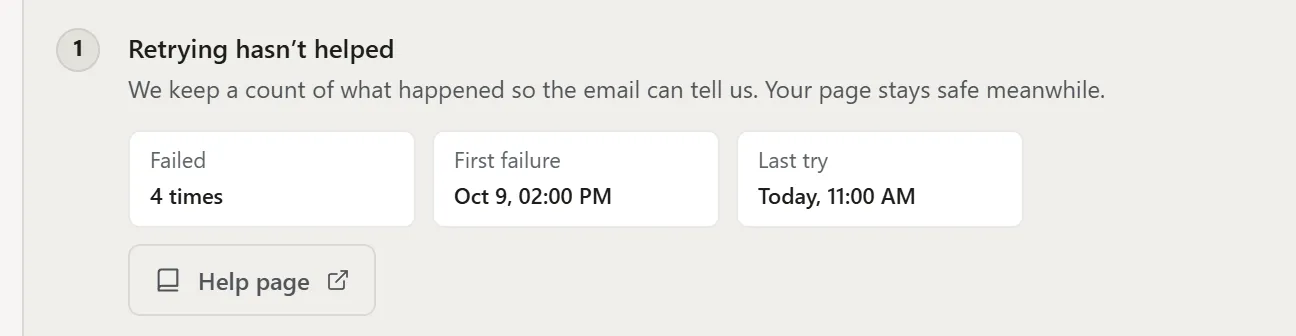
- After 3 failed syncs, the page reads, for example, “This page failed 4 times since Oct 9. Retrying on its own won’t help.” When you open Get help, a What happened box lists how many times it failed, the first failure, and the last try.
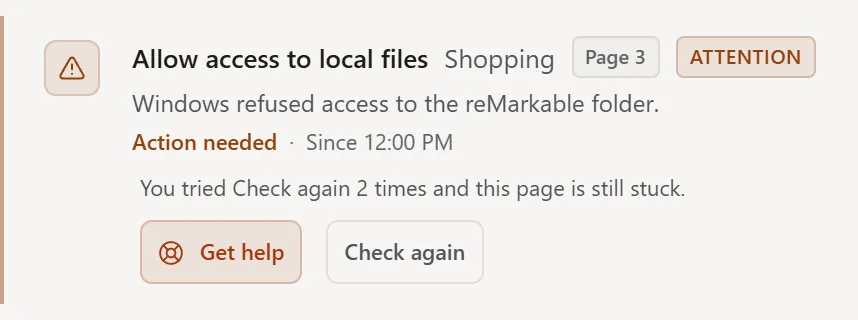
- After you tried the same fix twice, the page reads, for example, “You tried Check again 2 times and this page is still stuck.”
Both mean that more tries won’t help. Use Get help so support can look at it.
Get help for one page
Section titled “Get help for one page”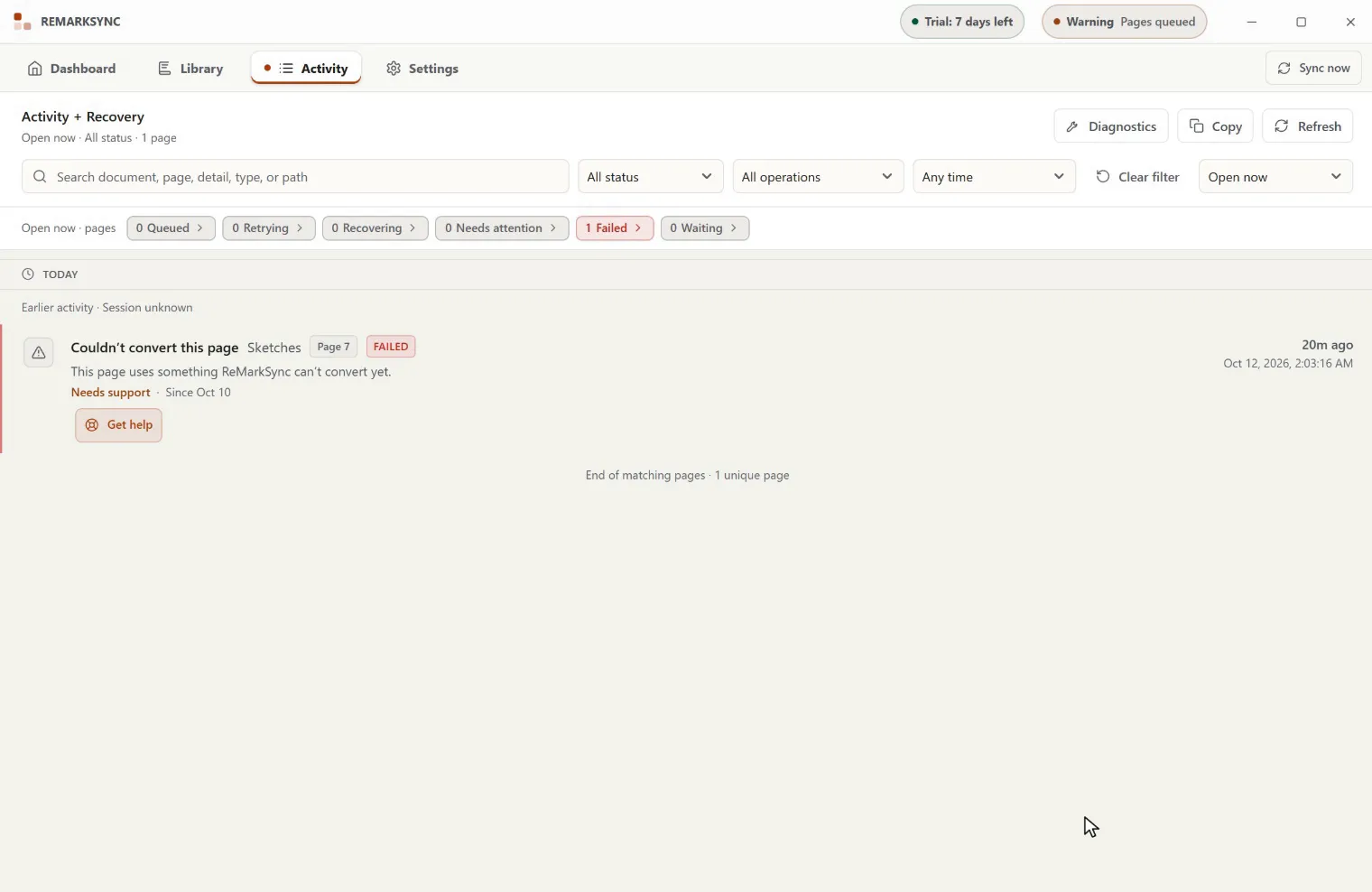
- Open Activity and switch to Open now.
- On the page, click Get help (or Still stuck? Get help). The Get help panel opens: “Nothing leaves this computer unless you send the email yourself.”
- Read step 1. It explains the fix for this problem, with a Help page link to this guide.
- Under Save a diagnostics file, click Save diagnostics file, then choose where to save it. You should see: “Saved” with the file name, and a Show in folder button.
- Under Email support, click Email support…. Your email app opens with a short message. “Attach the file you saved, read it, then send it. ReMarkSync has sent nothing.”
- Attach the diagnostics file, read the email, and send it.
What the email contains
Section titled “What the email contains”Email support… fills in a short email from fixed facts about the page. For one page, it looks like this:
Subject: ReMarkSync help: a page keeps failing to upload
Hello ReMarkSync support,
A page in my library needs help.App: [your ReMarkSync version] · Windows 11 (22631)Status: failed · reason: failed_retryable (network)Pages: 1 · first failed: Oct 2, 2026, 10:14Failed 4 times · tried: retry_page 2 times
I attached my diagnostics file.
[You can add anything you noticed here.]
Included: the ReMarkSync version, your Windows or macOS version, the page’s status, a short reason code, the number of pages, when it first failed, how many times it failed, and which fix you tried.
Never included: page names, titles, folder paths, email addresses, Microsoft account details, or error text.
You can add your own words where the email says “[You can add anything you noticed here.]”
Several pages need help
Section titled “Several pages need help”When 2 or more pages need help, Open now groups them at the top.
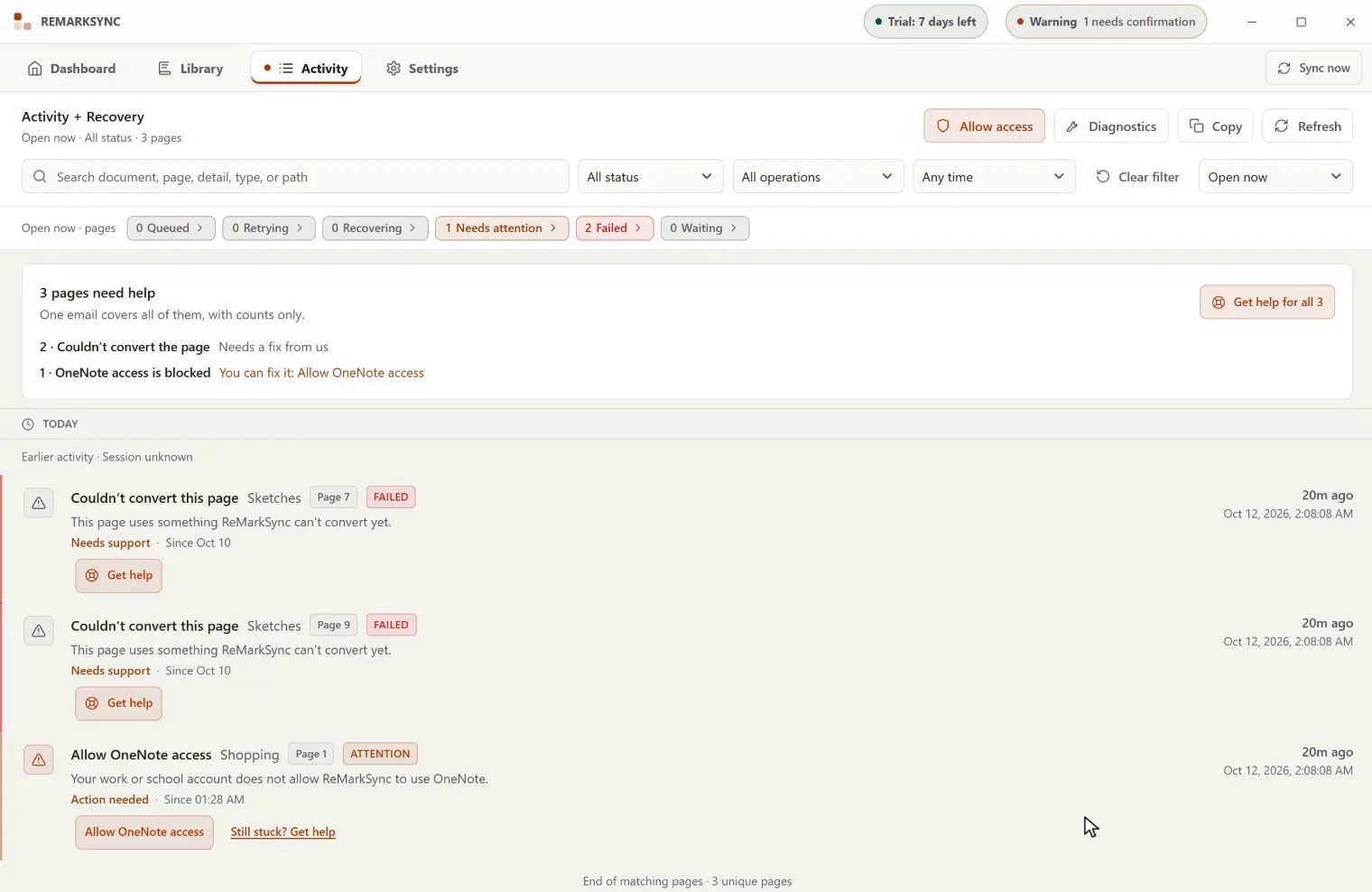
- In Open now, find the box 3 pages need help with “One email covers all of them, with counts only.”
- Click Get help for all 3.
- Save the diagnostics file and click Email support…, as for one page.
The email counts pages by problem, for example “2 × failed”. It never lists page names.
Help & Support on Diagnostics
Section titled “Help & Support on Diagnostics”For a problem that is not about one page, use the Help & Support card on the Diagnostics page. It works on every plan, including after a trial ends.
- “Something not working? Most problems have a quick fix in our help pages.”
- Four help links: Troubleshooting, Recovery and retry, Work and school accounts, and Support. They open Fix a sync problem, Recover and retry a page, OneNote access problems, and Contact support.
- Report a problem opens the same steps as Get help: save a diagnostics file, then email support. The email subject reads “ReMarkSync help: something is not working”.
- The support address, with a Copy button.
If the email app does not open
Section titled “If the email app does not open”If ReMarkSync can’t open an email app, it shows “We couldn’t open an email app. Copy the address and write to us from any app or webmail.” Click Copy address, then write to that address from any app or webmail, and attach the diagnostics file.
Help pages need an internet connection. Saving the diagnostics file and opening the email still work offline. The email sends when you are back online.