Feature support and compatibility
Outcome: You will know which reMarkable page formats and content ReMarkSync can sync, and which limits still apply.
ReMarkSync v0.4.0 supports legacy reMarkable v5 and current v6 page formats, including notebooks and libraries that contain both. Format detection is automatic: use the same Library selection and sync workflow for either format.
Before you begin
Section titled “Before you begin”Use this page when planning your workflow or checking how ReMarkSync handles a specific type of content.
- Use ReMarkSync v0.4.0 or later for legacy v5 support.
- Let the official reMarkable desktop app download the source content to your computer.
- Connect OneNote, choose a destination, and select the content you want to sync.
Sync legacy v5 and current v6 pages
Section titled “Sync legacy v5 and current v6 pages”v5 and v6 describe the internal reMarkable page-file format. They are not ReMarkSync app versions, tablet model names, or a promise that every firmware version and content type is supported.
- Open the official reMarkable desktop app and let it receive the notebook.
- Open Library in ReMarkSync and select the notebook or individual eligible pages.
- Allow automatic sync, or use Sync selected when available.
- Check the page’s result in Activity, then open your OneNote destination to review it.
You do not need to convert v5 pages, separate old and new notebooks, or choose a format setting. ReMarkSync reads each page’s format automatically. A page’s appearance alone does not tell you which format it uses.
| Source | Support in ReMarkSync v0.4.0 | What to expect |
|---|---|---|
| A notebook containing only legacy v5 pages | Supported | Legacy strokes and layers are read. Supported handwriting remains editable OneNote ink after erasures are applied. |
| A notebook containing only current v6 pages | Supported | Supported handwriting, typed content, lists, images, and other supported page content use the normal sync path. |
| v5 and v6 pages together in a notebook or Library | Supported | Each page is detected independently; no manual sorting or conversion is needed. |
| An annotated PDF with supported annotation files | Supported, subject to PDF limits | From v0.6.1, marks stay aligned on every page size. PDF content must be selected manually. |
| A damaged page or another unsupported page-file version | Not guaranteed to sync | Inspect that page’s error in Activity. Retrying unchanged damaged data cannot repair the file. |
Legacy handwriting and erasers
Section titled “Legacy handwriting and erasers”For v5 pages, ReMarkSync applies an erasure to earlier strokes in the same layer. The remaining handwriting becomes editable OneNote ink, with strokes split where necessary. It does not cover erased areas with white paint, so supported PDF or template backgrounds are not painted over by the eraser operation.
This does not add content that the legacy format does not contain: the v5 reader supplies strokes and layers, not the typed-text and embedded-image data available in supported v6 pages. Format support does not imply identical content capabilities.
If legacy eraser geometry cannot be handled safely, the affected page reports a failure instead of receiving a guessed result. If the page reads This page wasn’t updated, see Sync this page anyway. Otherwise follow Recover and retry a page.
Other support and limits
Section titled “Other support and limits”Sync direction
Section titled “Sync direction”ReMarkSync currently syncs from reMarkable to OneNote. Changes made in OneNote are not sent back to reMarkable yet. OneNote two-way sync is in development, and reMarkable to Obsidian is planned.
Both integrations are included in the annual Founding Member offer when released, at no extra cost while subscribed. Neither is available today, and no release date has been announced.
PDF page compatibility
Section titled “PDF page compatibility”From ReMarkSync v0.6.1, handwriting and highlights stay aligned with the original page on every PDF page size, including A4, US Letter, A5, landscape pages and 16:9 slides. Earlier versions were optimized for A4.
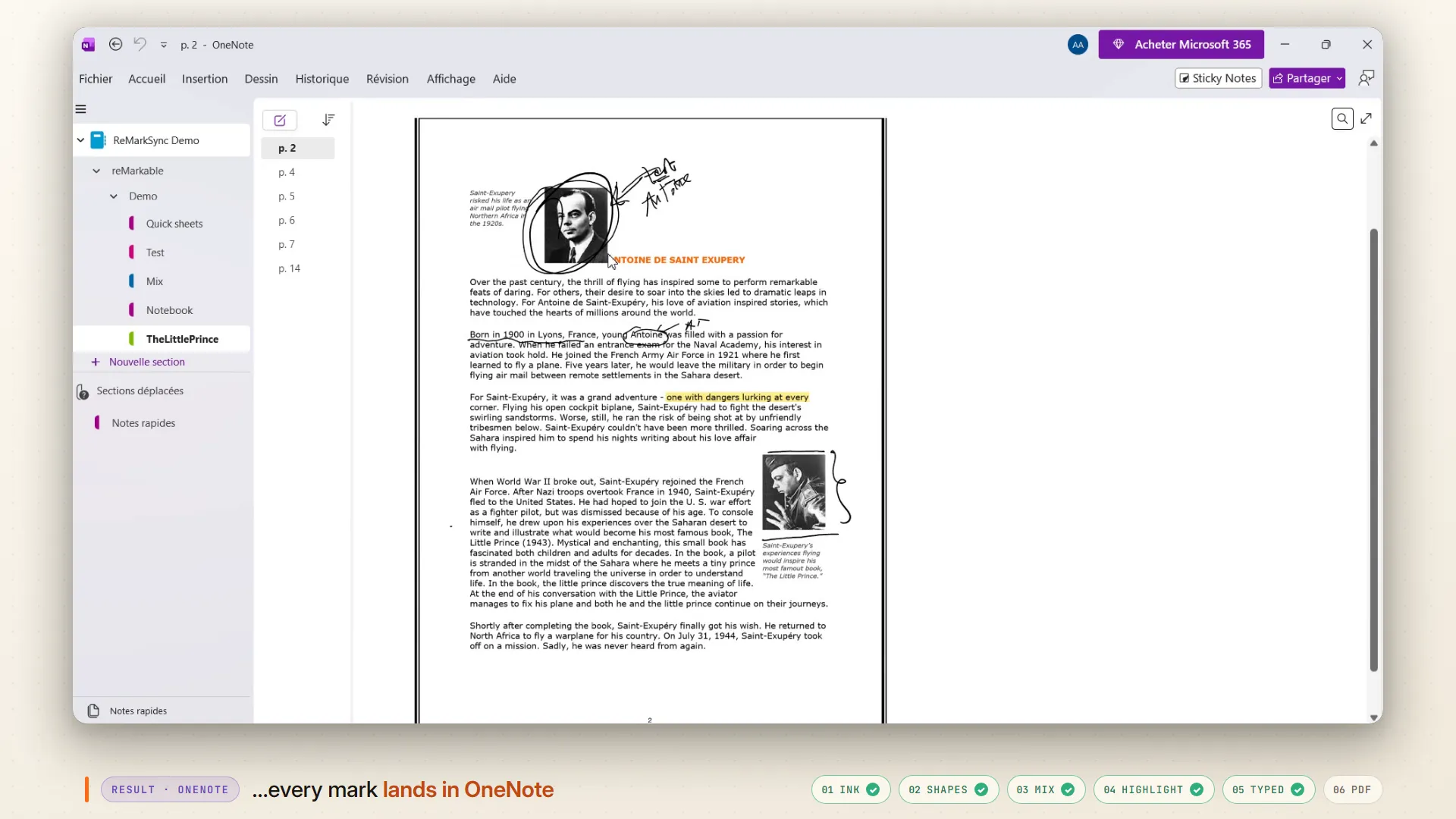
This OneNote example illustrates ordinary A4 PDF sync. It does not identify the source page-file format or demonstrate a recovery-copy result.
reMarkable connection
Section titled “reMarkable connection”ReMarkSync reads notes that the official reMarkable desktop app has downloaded to your computer. It does not connect directly to the tablet, so the reMarkable desktop app must receive your latest changes first.
Why ReMarkSync uses the desktop app: see Connect your reMarkable library.
Apps that need to run
Section titled “Apps that need to run”Keep the official reMarkable desktop app and ReMarkSync running. Both apps can stay in the background. OneNote does not need to be open.
OneNote organization
Section titled “OneNote organization”ReMarkSync uses Microsoft Graph to work with OneNote. Microsoft Graph does not currently allow connected apps to delete, rename, or move OneNote sections and section groups directly.
When your organization changes, ReMarkSync creates the required structure and moves the synced pages. An old empty section or section group can sometimes remain. We are continuing to improve how ReMarkSync handles these scenarios.
Work and school account access
Section titled “Work and school account access”Your organization may require an administrator to approve the OneNote permissions requested by ReMarkSync. See OneNote access problems for each message and what to send your admin.
Expected result
Section titled “Expected result”Supported selected content reaches OneNote through the same workflow whether its page files are v5, v6, or mixed. Ordinary supported handwriting remains editable ink; supported typed content remains editable text. ReMarkSync can split pages that exceed OneNote’s size limit into multiple parts. An eligible PDF recovery copy has the flattened representation described above.
Format detection does not guarantee successful delivery. Local files must be available, content must be eligible and selected, and OneNote access must work. Automatic inclusion can select future notebook content, but an Auto included event is not a delivery confirmation.
Troubleshooting
Section titled “Troubleshooting”| Problem | What to do |
|---|---|
| A legacy notebook is missing or waiting for its page file. | Confirm the official reMarkable desktop app has downloaded it. ReMarkSync cannot parse a file that has not arrived locally. |
| Activity reports an incomplete, damaged, unsupported, or unsafe page. | Expand that page’s details and keep the exact message. Check that the source is fully downloaded and readable in the official app. Repeated retries do not repair unchanged damaged content; contact support if it continues. |
| The page was read, but OneNote delivery failed or is recovering. | Follow Recovery and retry. This is a delivery problem, not proof that the source format is unsupported. |
| PDF marks do not align as expected. | Update to v0.6.1 or later, where marks follow the real page size. For PDF pages synced before the update, use Update pages in Settings, under Troubleshooting. |
| A PDF recovery copy’s marks cannot be selected as ink. | That copy is intentionally flattened. See the recovery guide for its tradeoff and future-update behavior. |
When asking for help, include the app version, platform, approximate time, exact Activity message, and whether the item is a notebook or PDF. Share a source format only if it is known; do not infer it from the handwriting’s appearance. See Contact support for privacy-conscious diagnostics guidance.
Related guides
Section titled “Related guides”- Sync fidelity: representative source and OneNote comparisons, with their limits.
- Why a page is waiting: waiting statuses and automatic checks.
- Recover and retry a page: verification, retries, and recovery copies.
- Choose what syncs: select current content and understand PDF eligibility.
- Release notes: feature availability and release changes.