
Article · color notes
reMarkable Paper Pro and OneNote: keep your color handwriting as real ink
Short answer
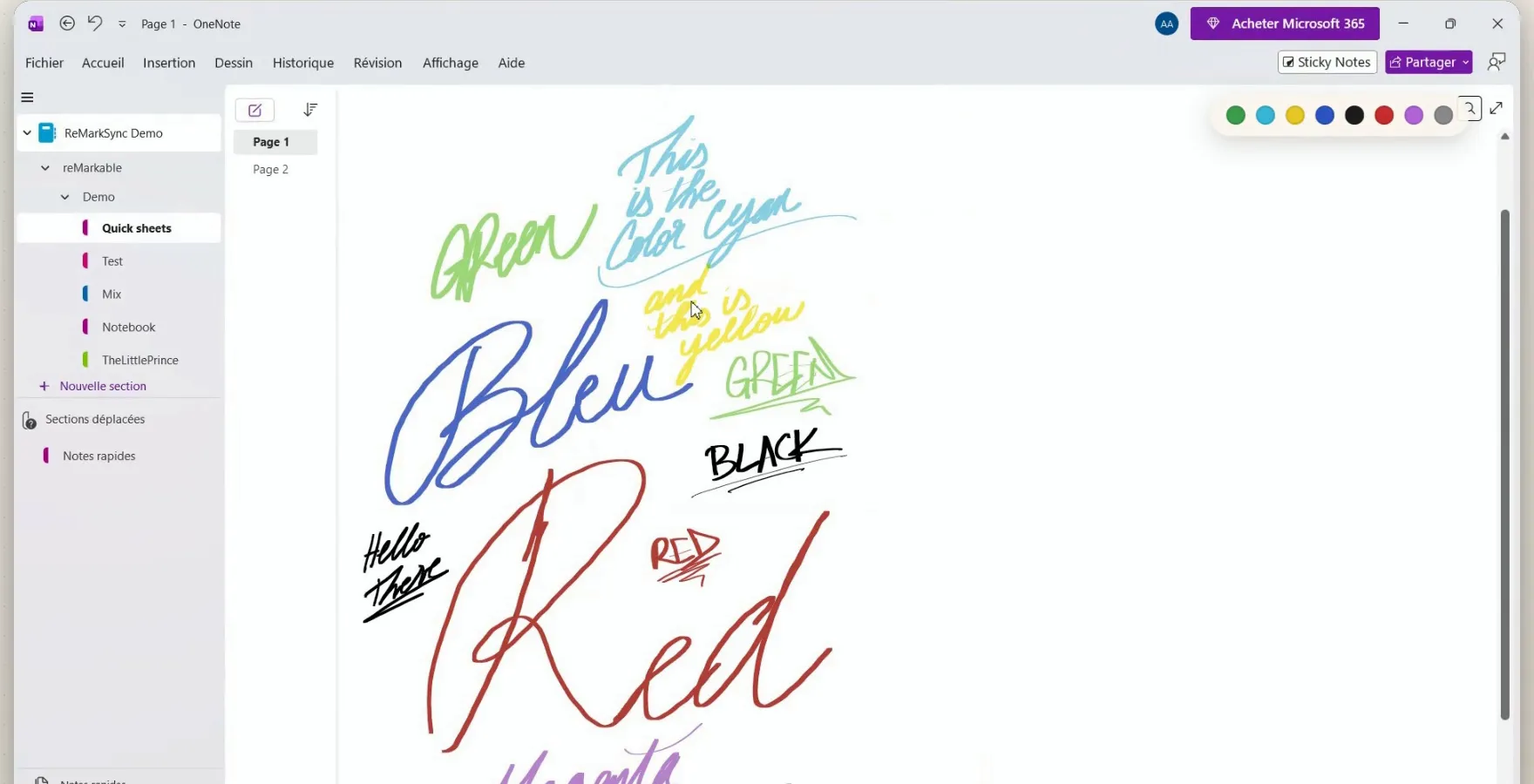
The Paper Pro and Paper Pro Move cannot run OneNote, but your color notes can still reach it. A PDF export keeps the colors as a flat picture. ReMarkSync sends each stroke as real OneNote ink in its own color, custom colors included, so you can still select, move or recolor it.
Every stroke keeps its color
The Paper Pro’s color screen is the reason many people chose it. With ReMarkSync, each standard pen color becomes the matching OneNote ink color, and your custom colors keep their exact color.
- Black penBlack ink
- Red penRed ink
- Blue penBlue ink
- Green penGreen ink
- Your custom colorThe exact same color
These are examples, not the full palette. The Paper Pro Move works the same way.
What happens to color on each way into OneNote
Whether your colors survive, and stay editable, depends on how the page gets there.
ReMarkSync
- Yes, each stroke in its color
- Change one stroke: Yes, select, move or recolor
OneDrive export
- Yes, in a flat PDF
- Change one stroke: No, one picture per page
Send by email
- Yes, in a PDF or image
- Change one stroke: No, one picture per page
Convert to text
- No, typed text only
- Change one stroke: The text, not the drawing
Show the full table
| Way into OneNote | Colors in OneNote | Change one stroke later | Automatic |
|---|---|---|---|
| ReMarkSyncDesktop app (this site) | Yes, each stroke in its color | Yes, select, move or recolor | Yes, when notes change |
| OneDrive exportBuilt into reMarkable | Yes, in a flat PDF | No, one picture per page | No, one file at a time |
| Send by emailBuilt into reMarkable + Outlook | Yes, in a PDF or image | No, one picture per page | No, one email at a time |
| Convert to textBuilt into reMarkable | No, typed text only | The text, not the drawing | No, copy and paste |
ReMarkSync
Desktop app (this site)
- Colors in OneNote
- Yes, each stroke in its color
- Change one stroke later
- Yes, select, move or recolor
- Automatic
- Yes, when notes change
OneDrive export
Built into reMarkable
- Colors in OneNote
- Yes, in a flat PDF
- Change one stroke later
- No, one picture per page
- Automatic
- No, one file at a time
Send by email
Built into reMarkable + Outlook
- Colors in OneNote
- Yes, in a PDF or image
- Change one stroke later
- No, one picture per page
- Automatic
- No, one email at a time
Convert to text
Built into reMarkable
- Colors in OneNote
- No, typed text only
- Change one stroke later
- The text, not the drawing
- Automatic
- No, copy and paste
A PDF export or an emailed image shows your colors, but as one picture per page. Converting to text keeps the words and drops both the colors and the drawings. With ReMarkSync, every stroke stays a stroke, in its own color.
Pens: very close, not identical
Each pen style becomes a matching OneNote brush, in its width and color. One honest difference: OneNote ink has no pressure or pencil texture.
- BallpointSame look
- FinelinerSame look
- MarkerSame look
- PencilSmooth, no pencil grain
OneNote ink has no pressure or pencil texture, so strokes look very close to the original, not identical to it.
Highlighters on notebook and PDF pages
Highlighter behaves differently on a notebook page and on a PDF page, so you know what to expect before you sync.
On a notebook page
Highlighter becomes solid colored ink, placed under your writing. OneNote does not reliably accept see-through ink from apps.
On a PDF page
Highlighter is part of the page image: visible and aligned with the text, but not editable. Your pen notes on the PDF stay editable ink.
Real before and after
On your reMarkable
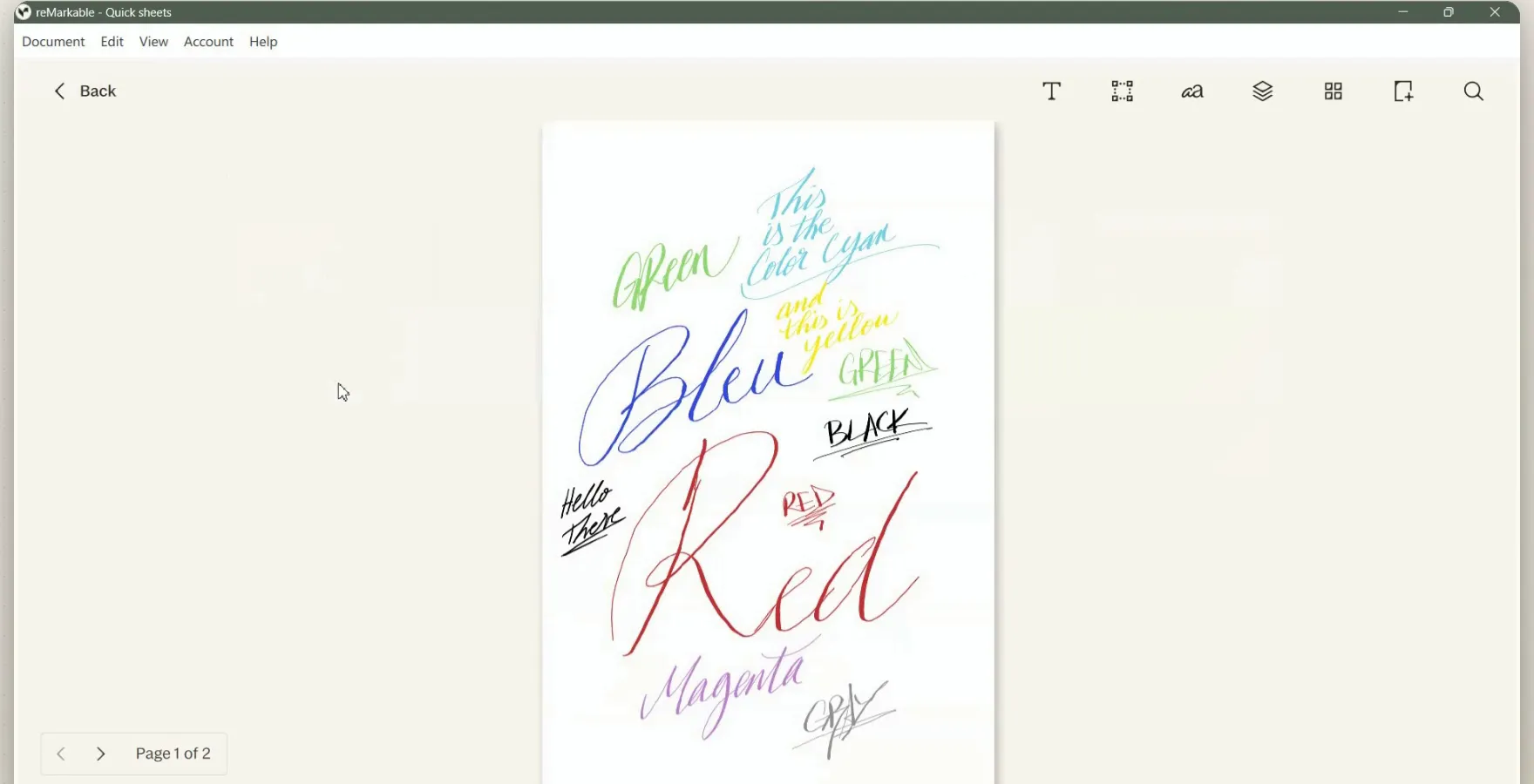
In OneNote, after ReMarkSync
Paper Pro Move
The Paper Pro Move has the same color pens on a smaller screen. Its notes sync the same way, with the same colors, because ReMarkSync reads the pages from the reMarkable desktop app, not from the tablet.
Set it up in three steps
- Install the official reMarkable desktop app on your Windows PC or Mac, and let it download your notebooks.
- Install ReMarkSync, sign in to Microsoft and choose a OneNote notebook.
- Pick the notebooks to sync. New handwriting arrives in OneNote by itself while your computer is on.
ReMarkSync is free for 7 days with no card, then paid. The User Guide covers each step.
Questions people ask
Do custom colors from the Paper Pro survive?
Yes, with ReMarkSync. Standard reMarkable colors map to matching OneNote ink colors, and custom colors keep their exact color.
Can I recolor or move my strokes in OneNote?
Yes, when they arrive as ink with ReMarkSync: each stroke can be selected, moved, recolored or erased in OneNote. A PDF export or an emailed image is one picture, so you cannot change a single stroke.
What happens to highlighter?
On notebook pages, ReMarkSync sends highlighter as solid colored ink under your writing, because OneNote does not reliably accept see-through ink from apps. On PDF pages, highlighter is part of the page image: visible and in place, but not editable.
Does the black and white Paper Pure work too?
Yes. Paper Pure and reMarkable 2 notes sync the same way, as OneNote ink. See which tablets work with OneNote for the full list.
Try ReMarkSync free
Your reMarkable notes, automatically in OneNote, with handwriting kept as real ink. For Windows and macOS.
7 days free · No card required · View plans